Designing a social coordination app that helps friend groups plan, vote and show up to real-life events
Context
Knit is a consumer app for small, intimate groups of friends to coordinate, meet consistently and grow closer over time. It is not a social network or a stranger-matching platform and it also does not want to replace "the group chat". It is infrastructure for friendships that already exist.
Problem
Most friendships don’t end dramatically, they fade slowly without anyone deciding it should happen. It’s quite unfortunate that the plans stop materialising and distance begins to grow between the friends in the group.
We don’t think this happens because people stop caring, but usually caring is not enough. Life gets in the way for different people or everyone in the group and more importantly, someone has to do the work. Someone has to chase people’s availability especially if the date is not fixed, find a date and pick somewhere to go that everyone would like.
We also noticed that the bigger the friend group, the more likely the planning is going to land on the same person each time and over time, they will get tired.
We believe this is a solvable problem, not necessarily with a synced calendar integration or asking friends to meet strangers every Friday over dinner but with tools built specifically for small, close friend groups in mind that actually work.
Our Bet
Most products in the community consumer space are solving loneliness or trying to curb it by manufacturing novelty. Dating apps have been doing this forever but now it’s spreading to a wider market. Think Timeleft and InnerCircle. They’re asking you to create new experiences because you can be someone new with someone new.
Knit is making the opposite bet: the friendships you already have are also worth investing in. Those who know your lore, who show up to the functions, they know and show up when things are hard, those you actually want to see more of, those relationships deserve the same level of attention that other parts of your life has.
We’re building for existing friendships, that’s our differentiator.
Who is Knit For?
In most friend groups, one person carries the burden of planning. They find and organize events, chase RSVPs, check the options out and make the required bookings. That weight compounds over time and across multiple friend groups and can be quite frustrating.
Knit is designed to meet that person first, it’s designed around them to make that weight feel significantly lighter. The goal is never to make them carry more, but to slowly distribute the load across the entire group so everyone feels equipped to make plans moving forward. We aim to build tools around this conundrum until showing up feels easy for everyone.
A group of people makes up a Knit. Everyone matters inside the Knit and their availability, interests and presence shapes what the group does each time.
Features (Web)
Onboarding
The onboarding experience is designed to feel personal from the very first step. Rather than dumping users into an empty dashboard, Knit walks them through a guided setup that captures who they are and what they enjoy doing with friends.
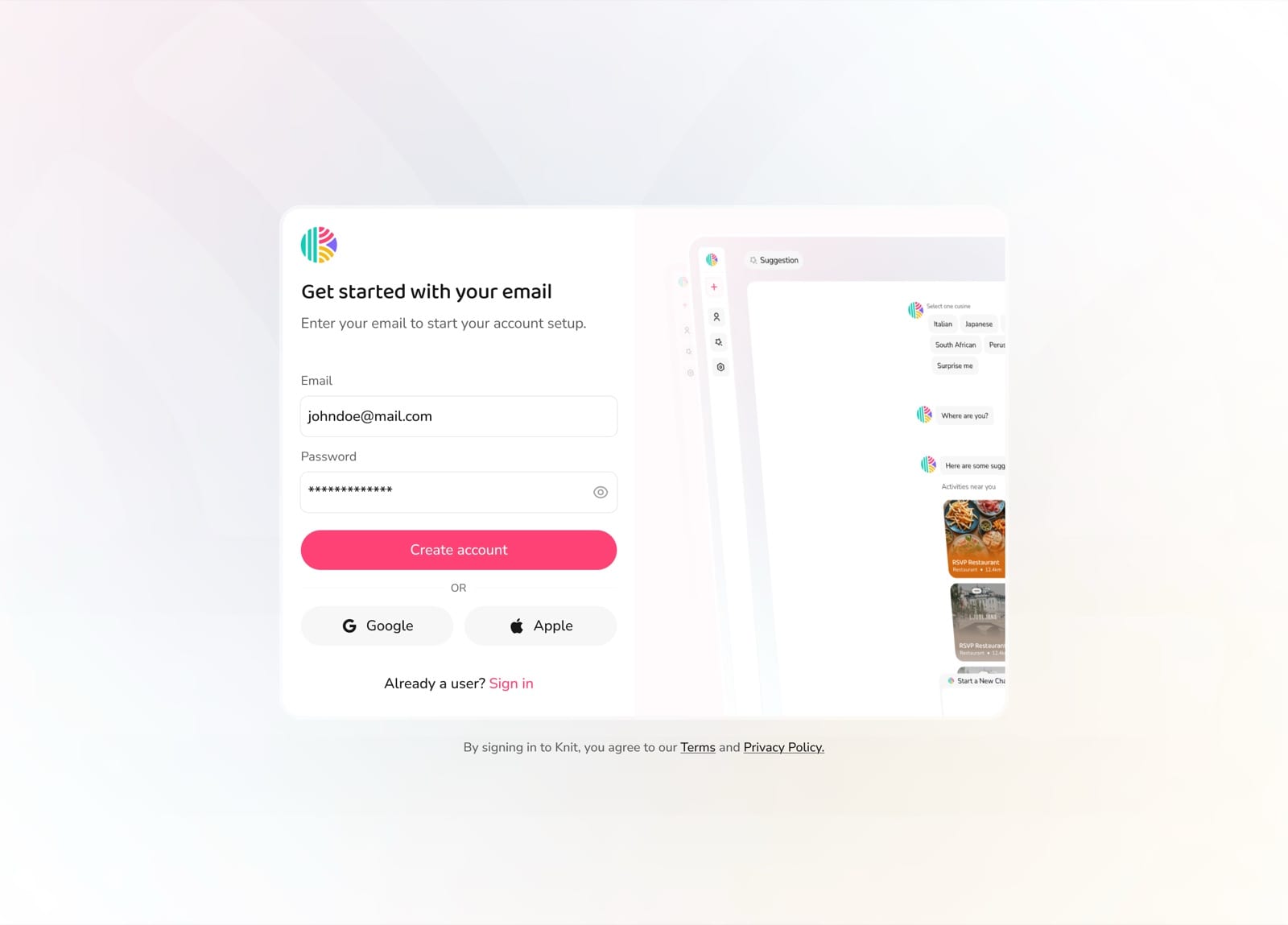
Enter your email to create your account
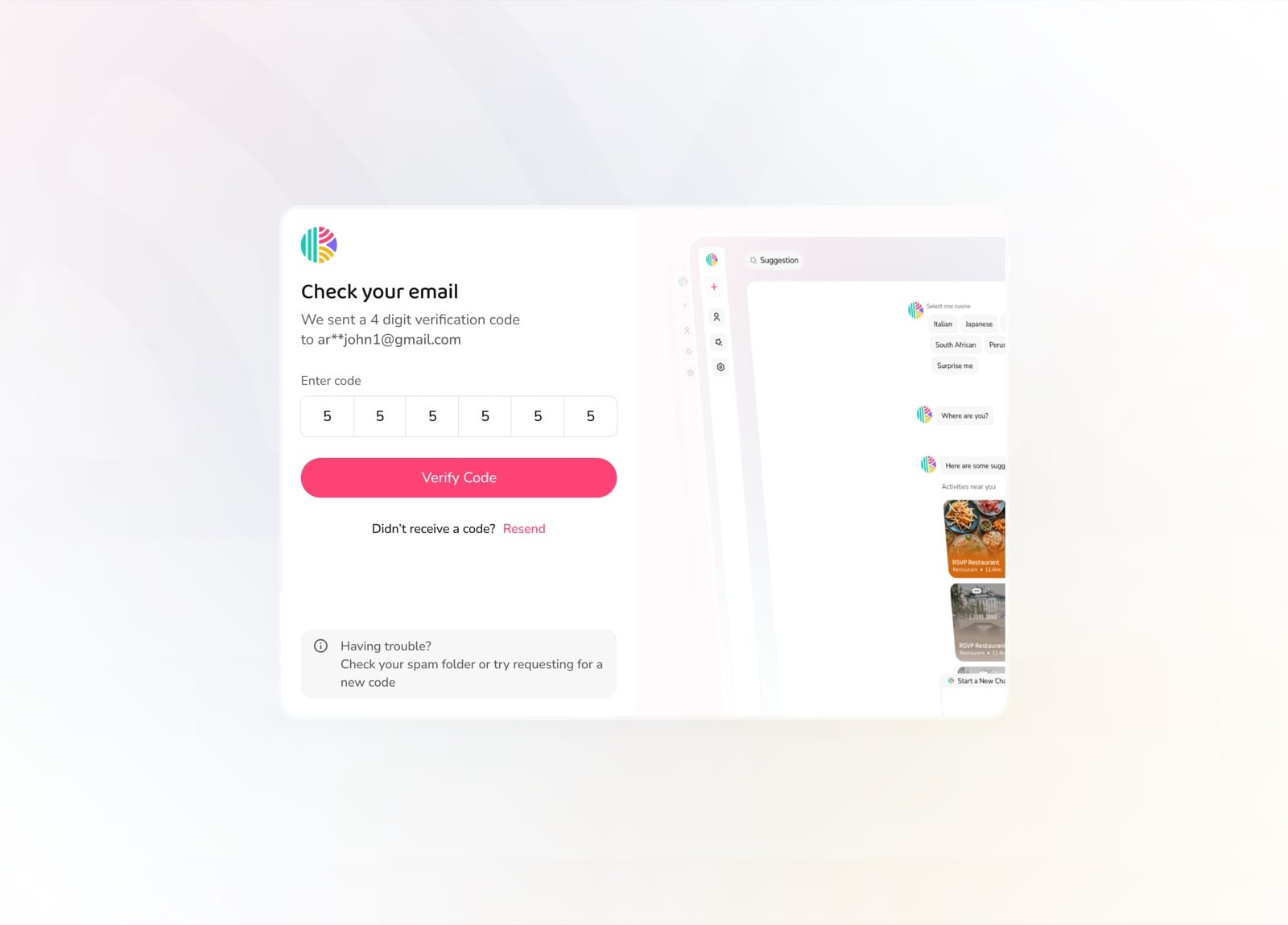
Verify your email with the code sent to you
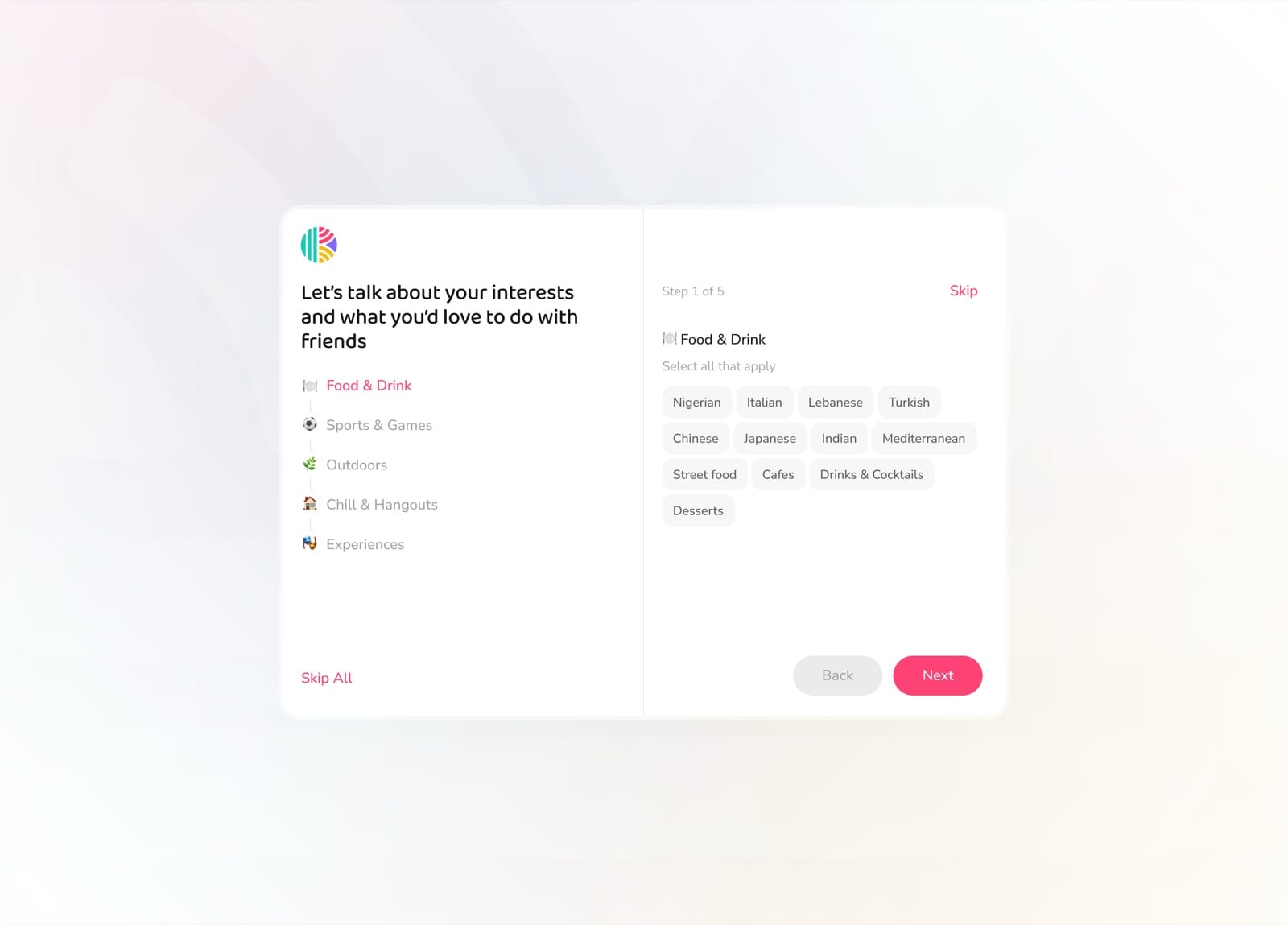
Share your interests and hobbies
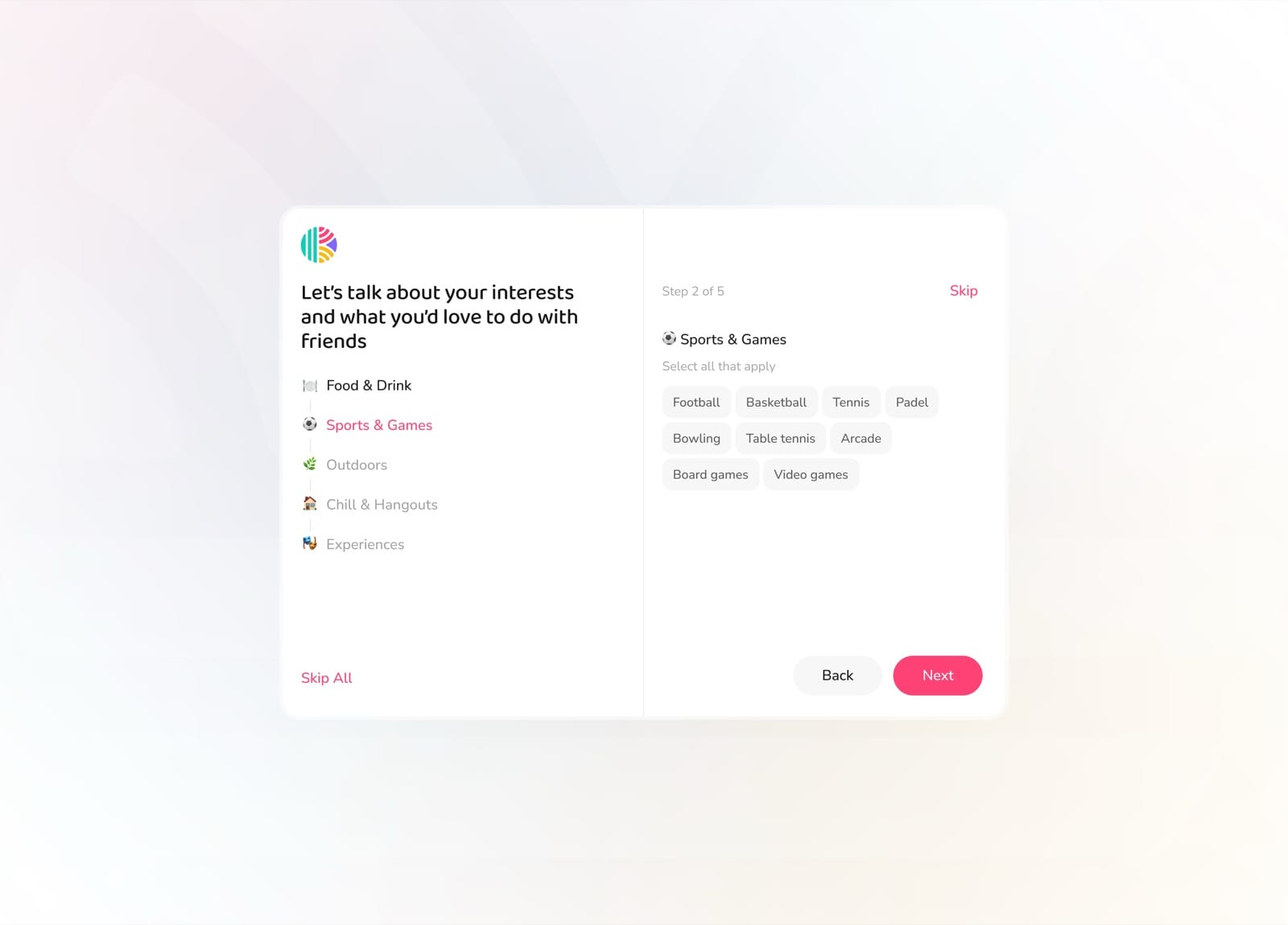
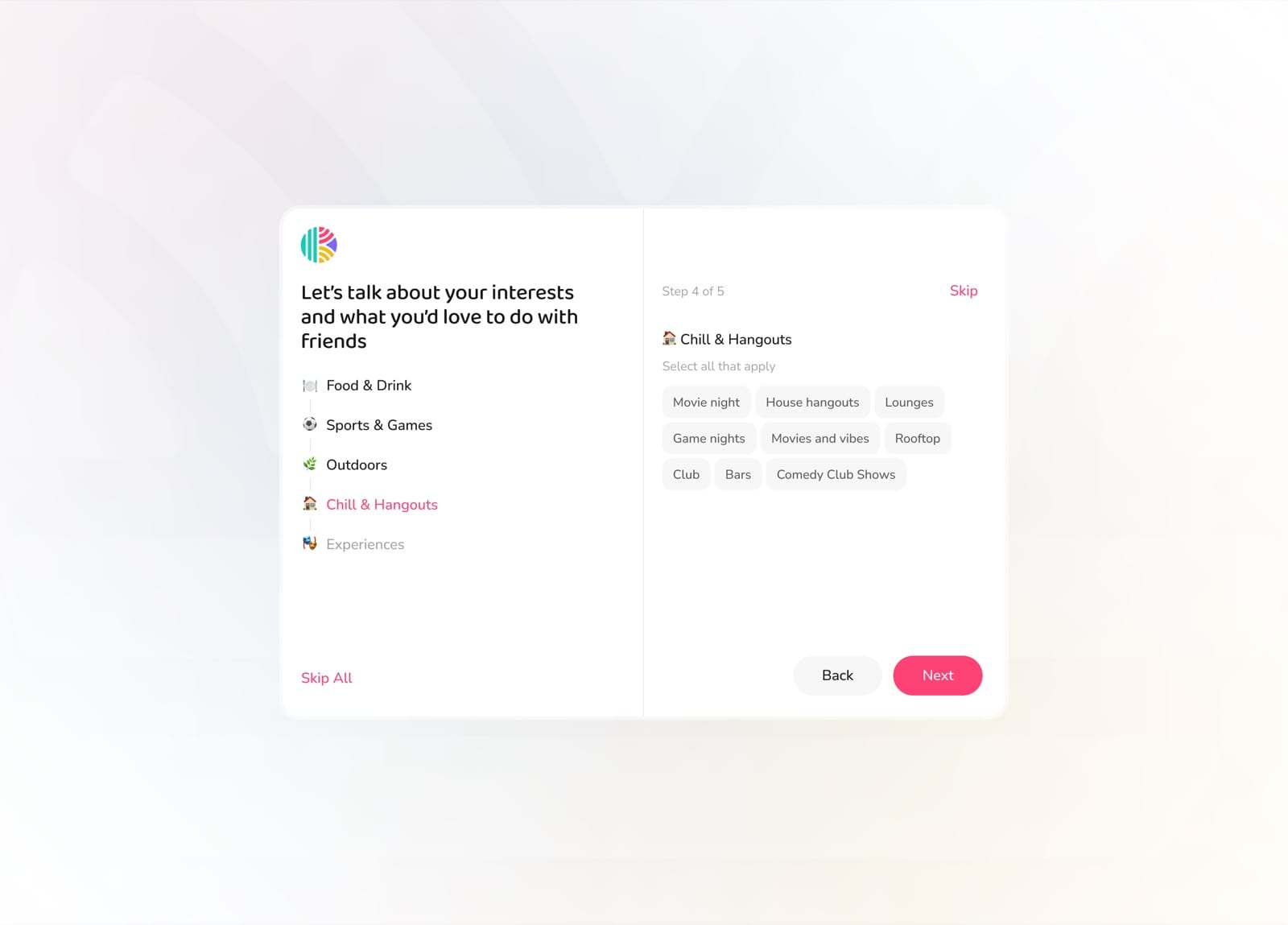
Select more categories of things you love doing
Invite friends to join your first Knit
Create Event
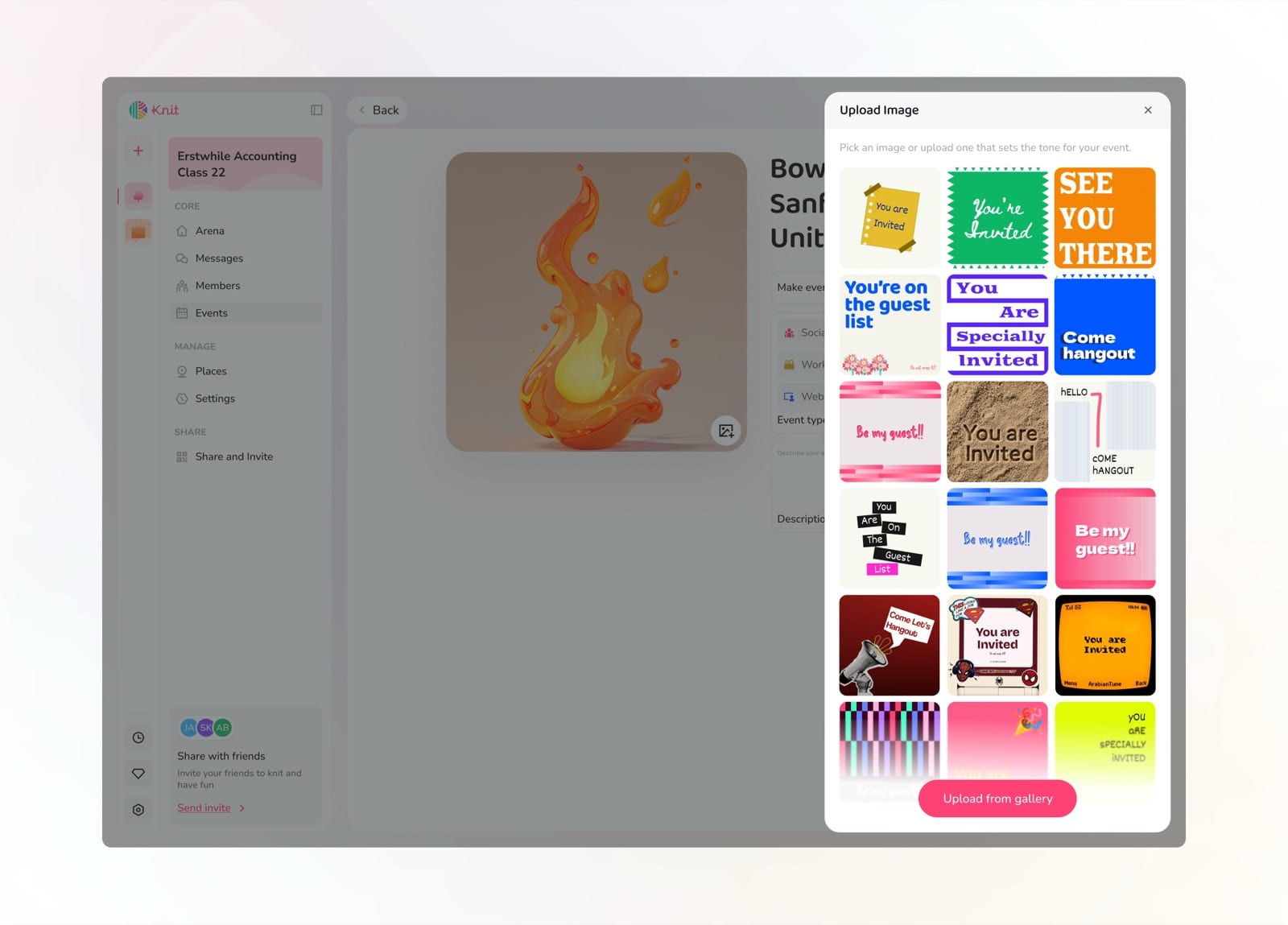
Creating an event on Knit is designed to feel effortless. The web experience walks organizers through every detail, from picking an event type and uploading a cover image to setting the date, writing a description, and choosing a location, all within a clean, focused interface.
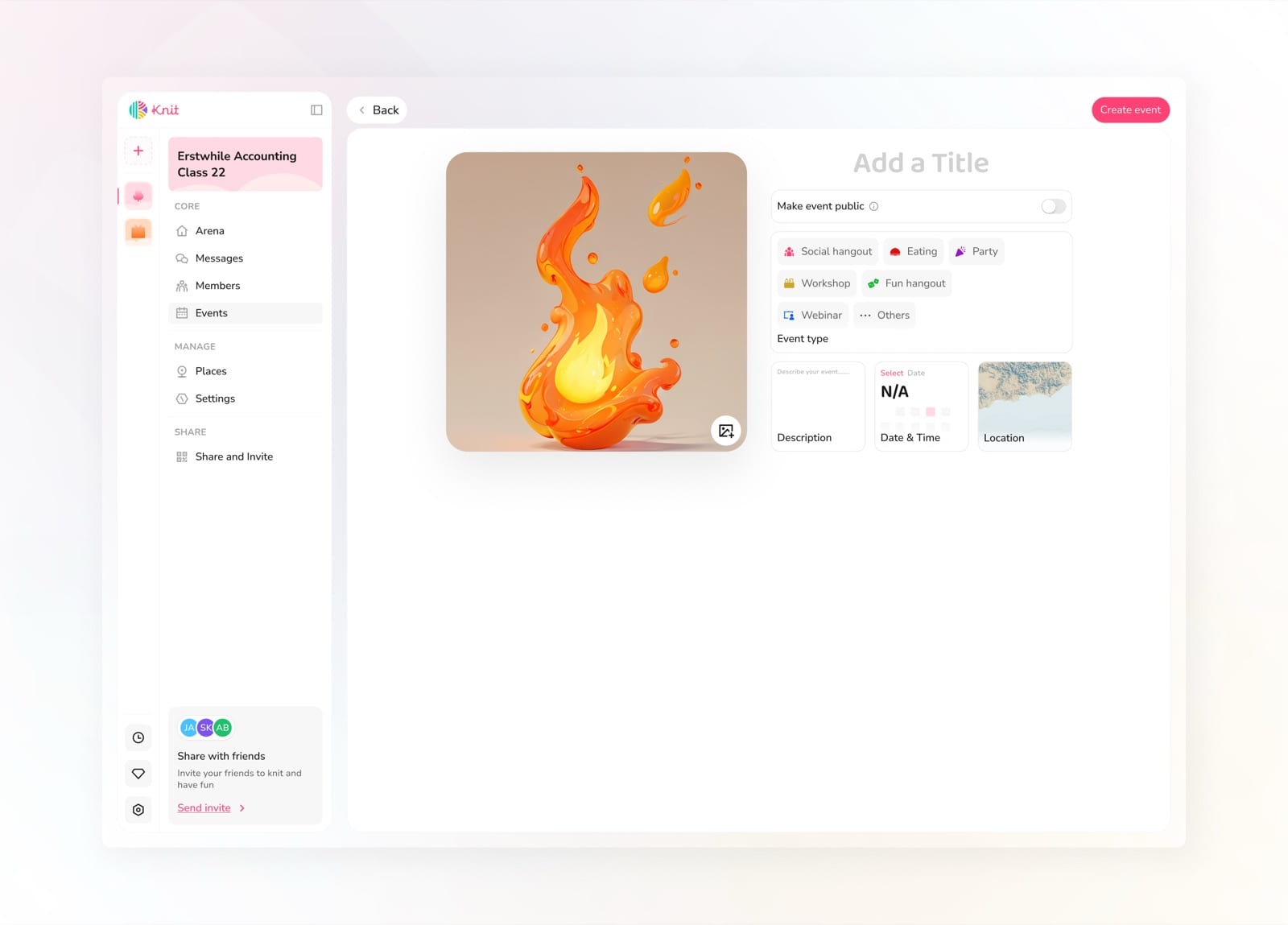
Browse and manage your Knits from the sidebar
Pick an event type to get started
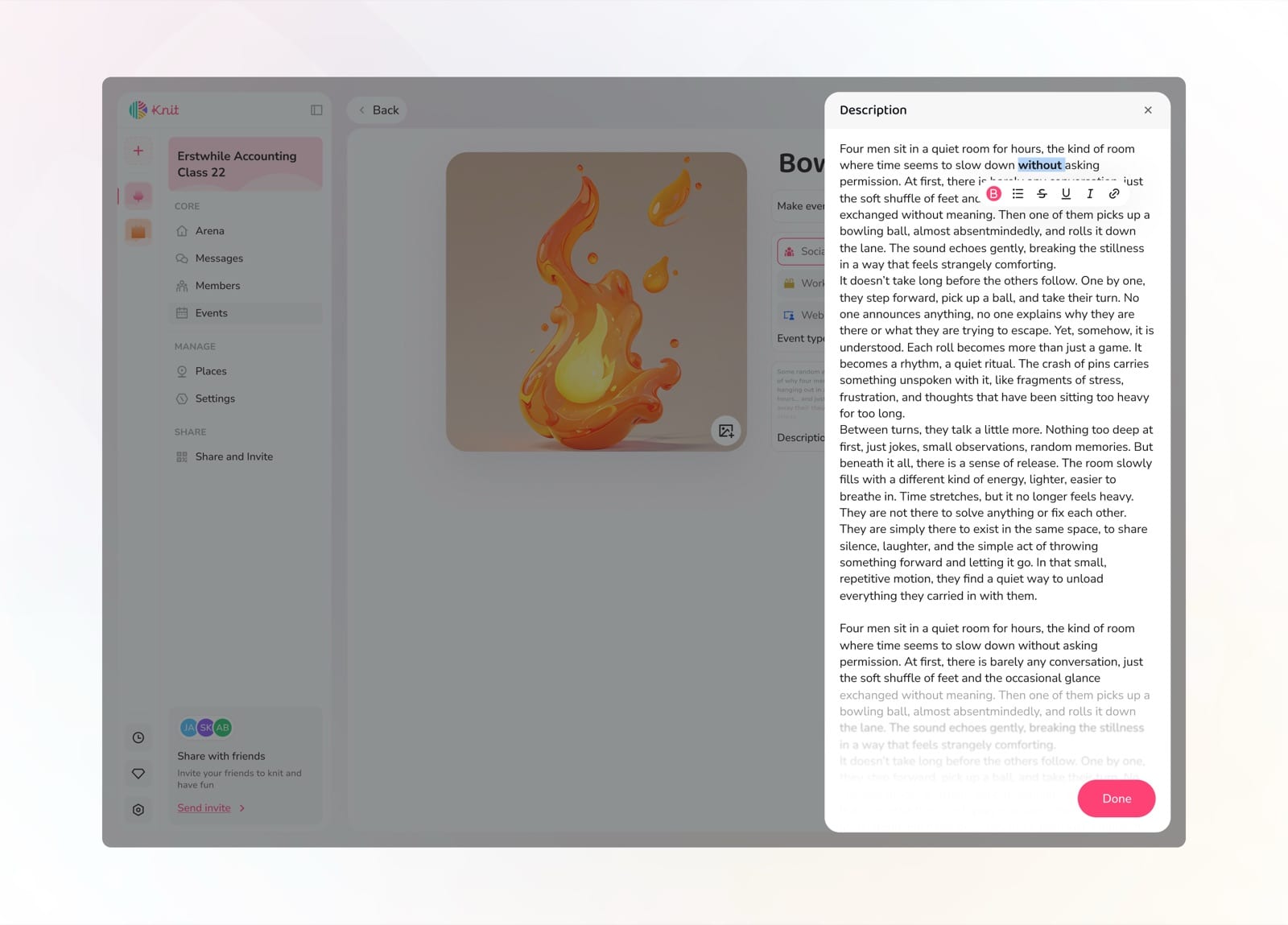
Give your event a title and description
Add a cover image that represents your event
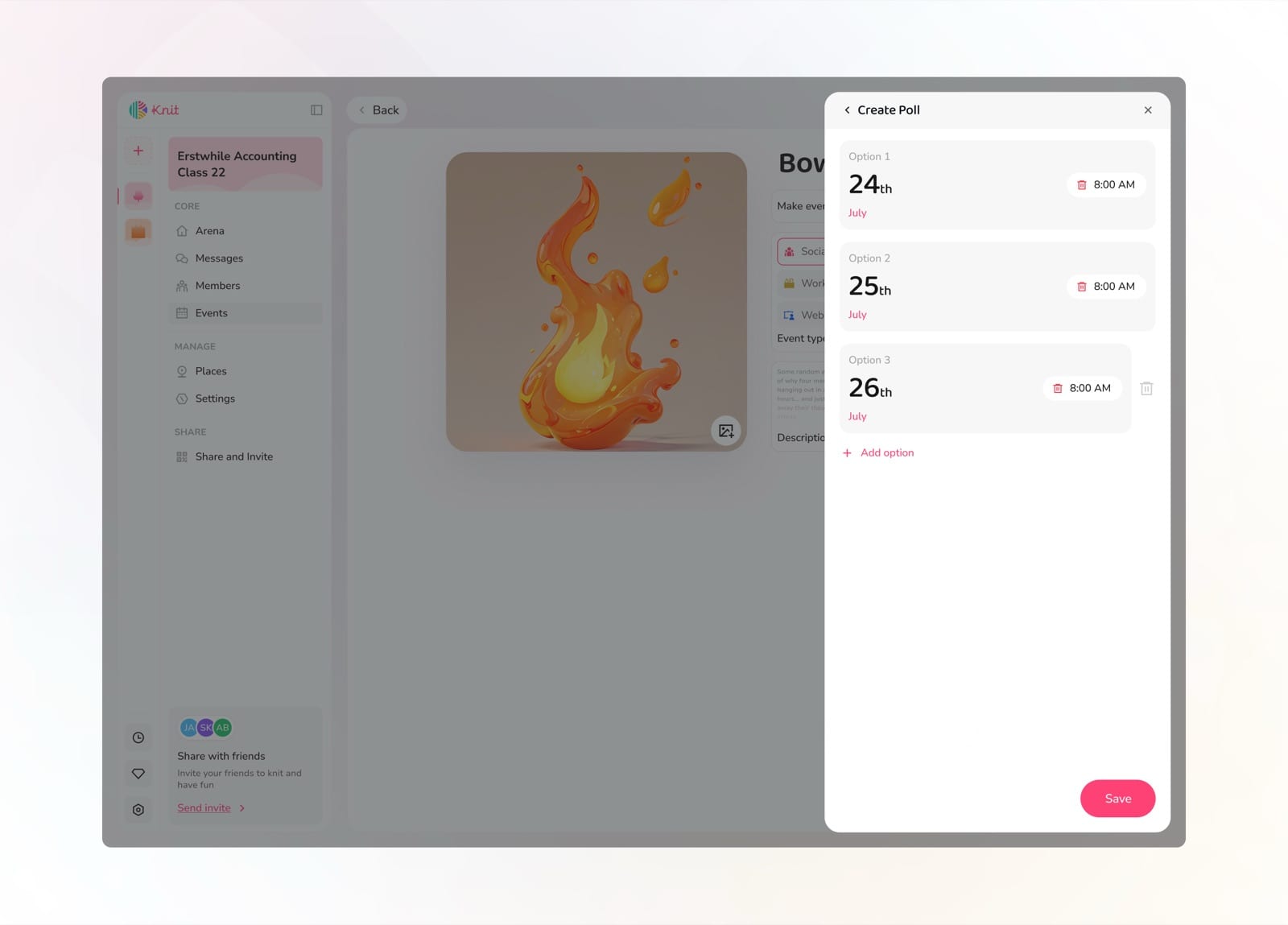
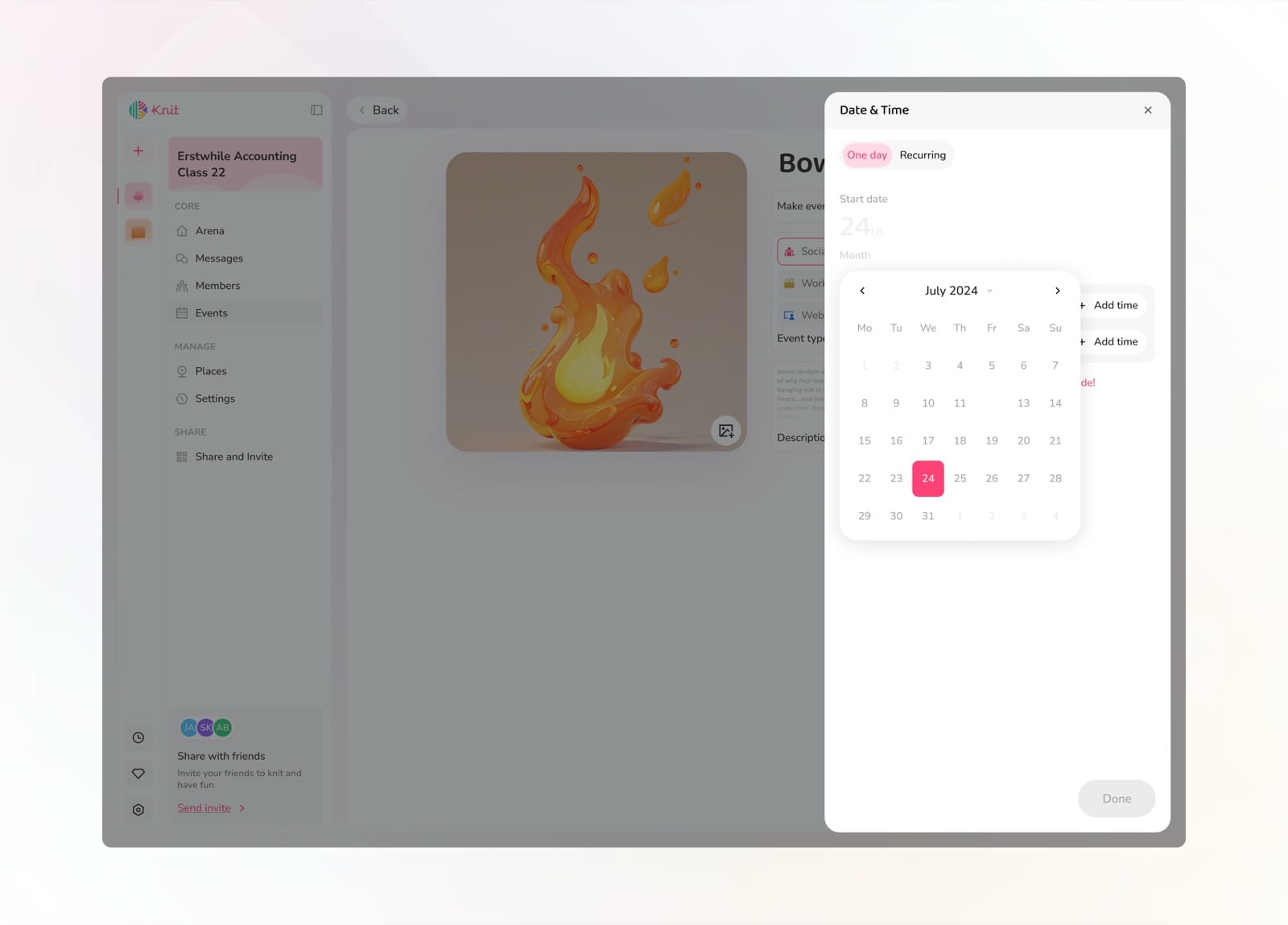
Set the date and time for your event
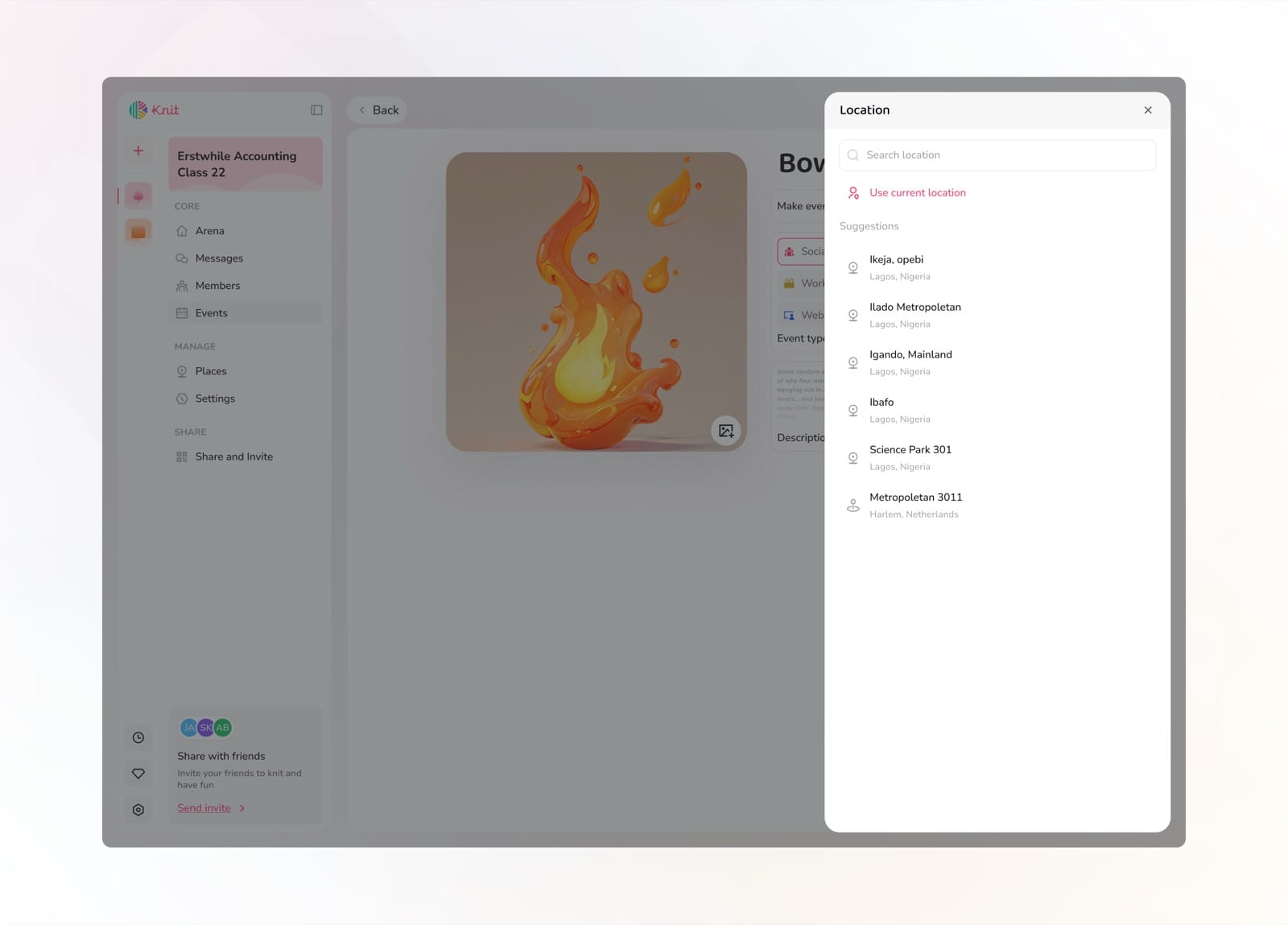
Pin the location on a map
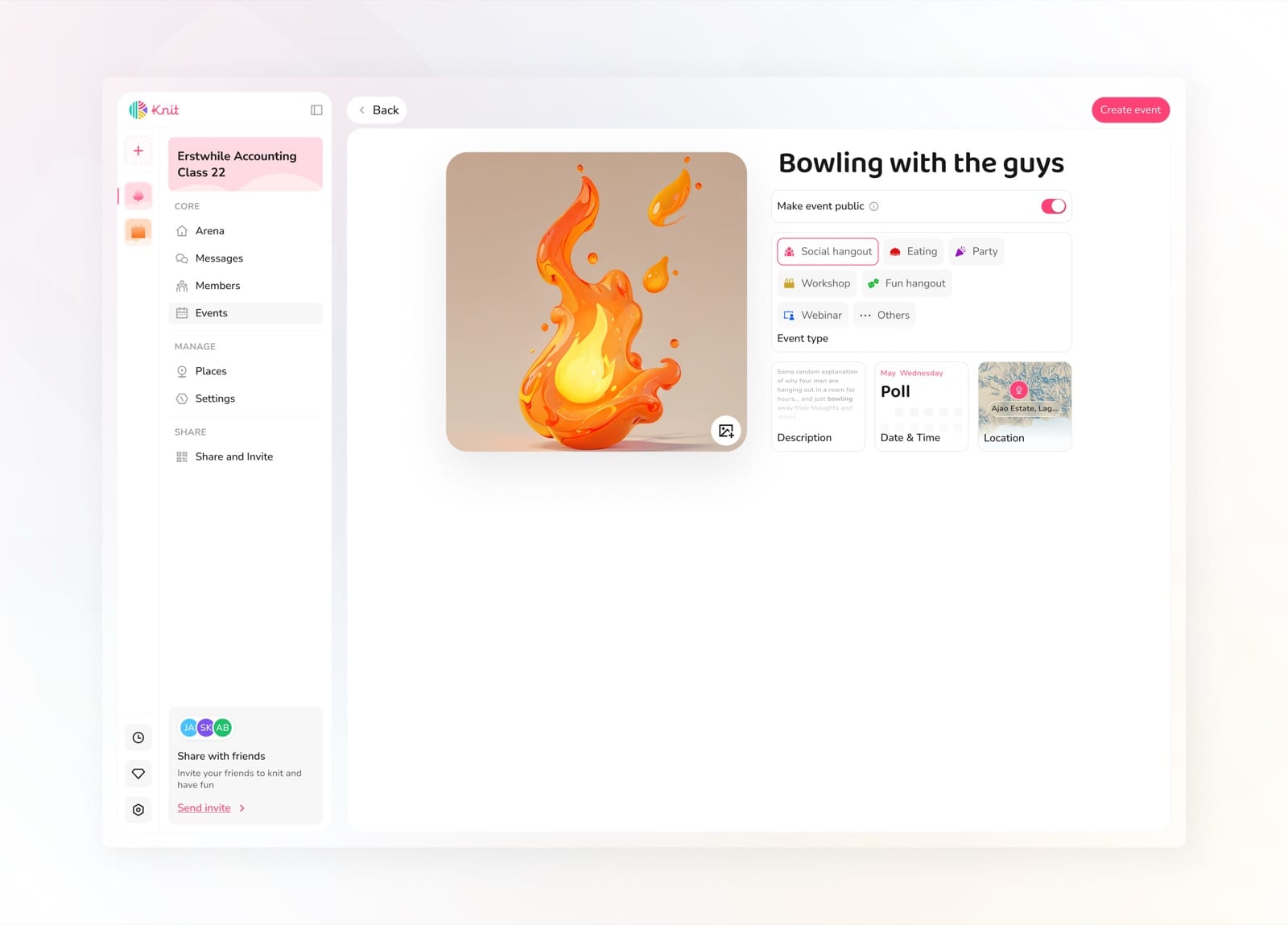
Review all details before publishing
Event Details
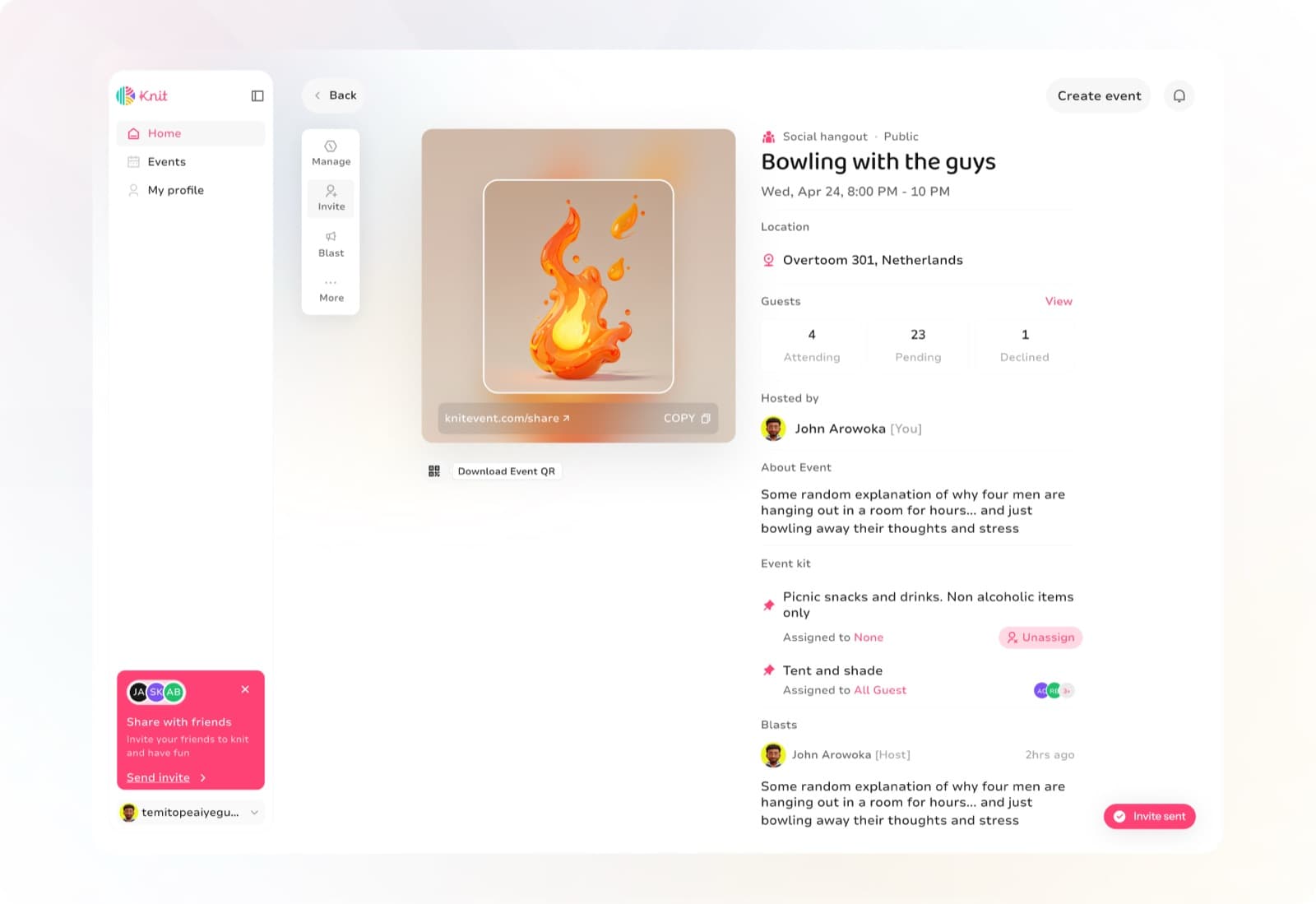
Once an event is live, the details page becomes the central hub. Organizers and guests can see everything at a glance: the event image, location, guest count, RSVP status, host info, event kit assignments, and a blast feed for real-time updates and conversation.
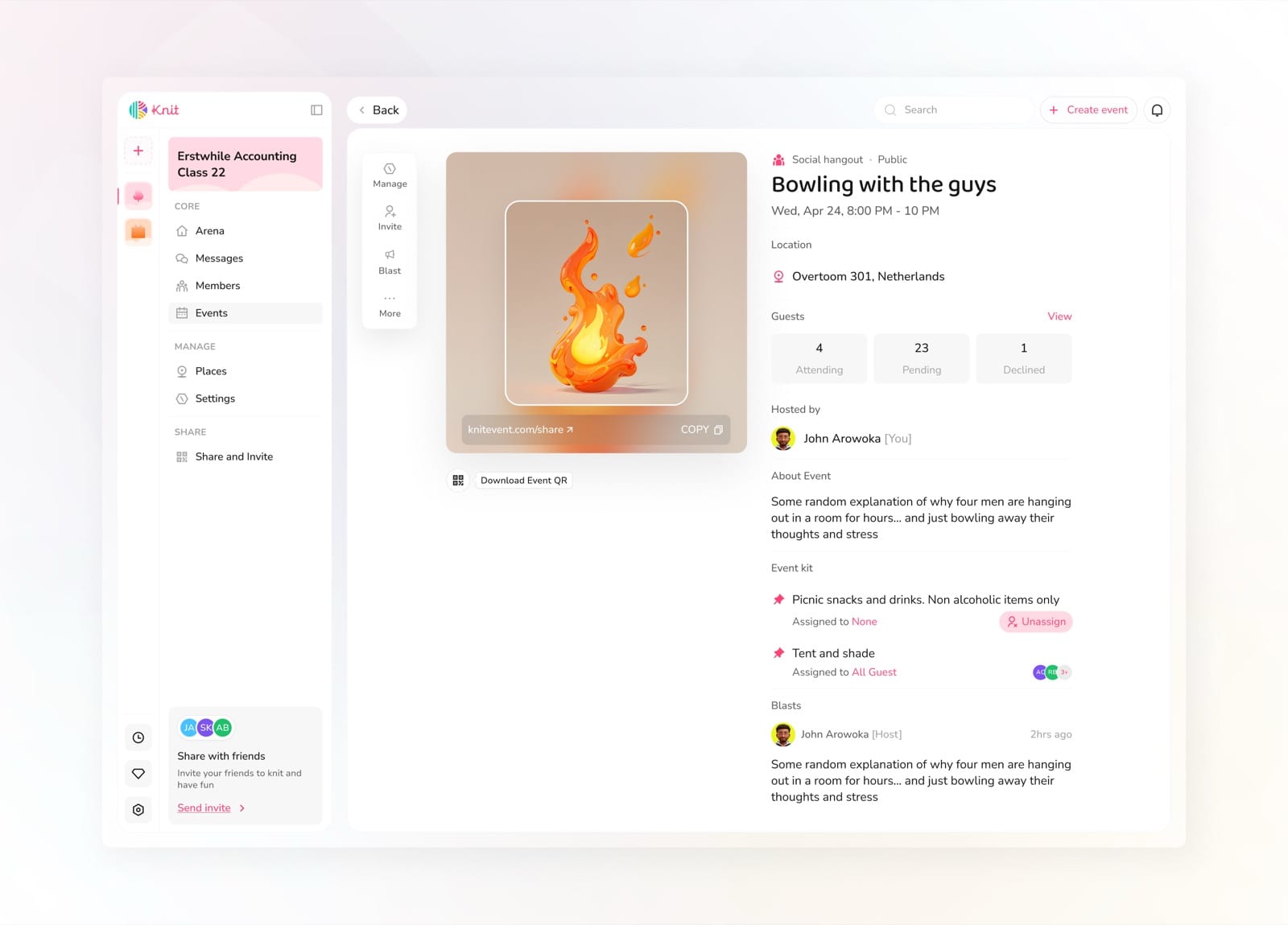
Full event overview with image, location, guests, kit, and blasts
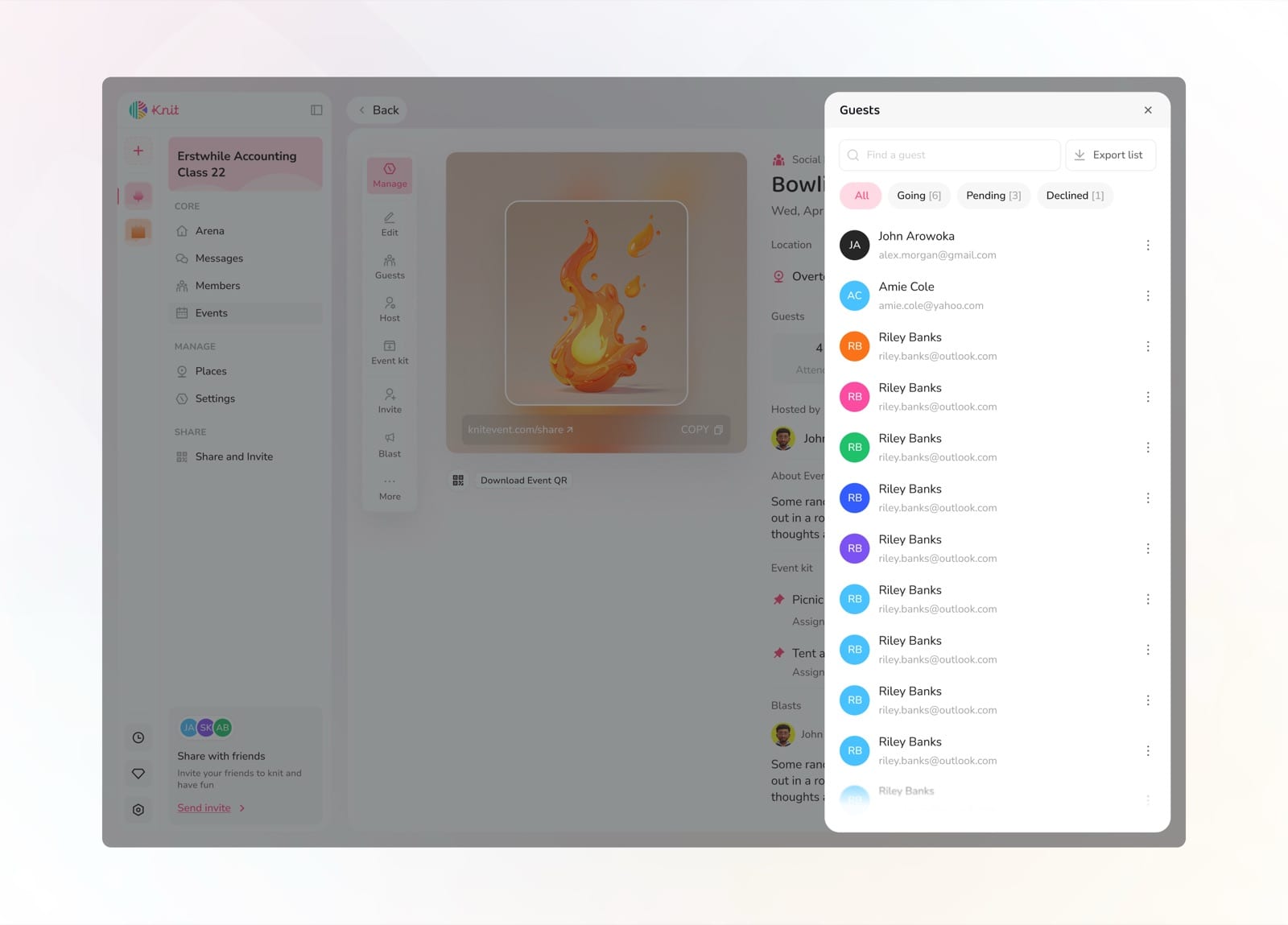
View event info and guest list at a glance
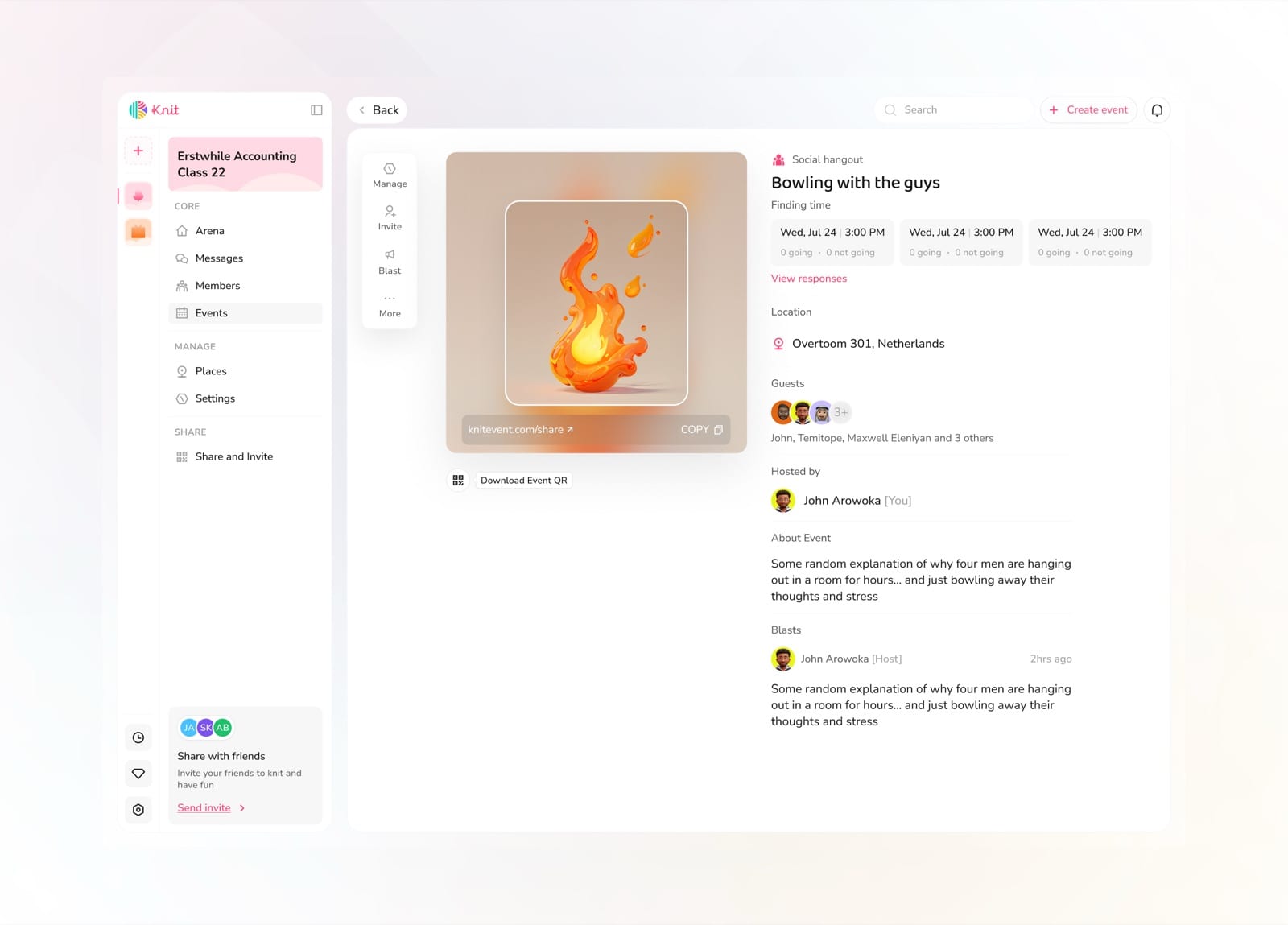
See RSVP status and event kit assignments
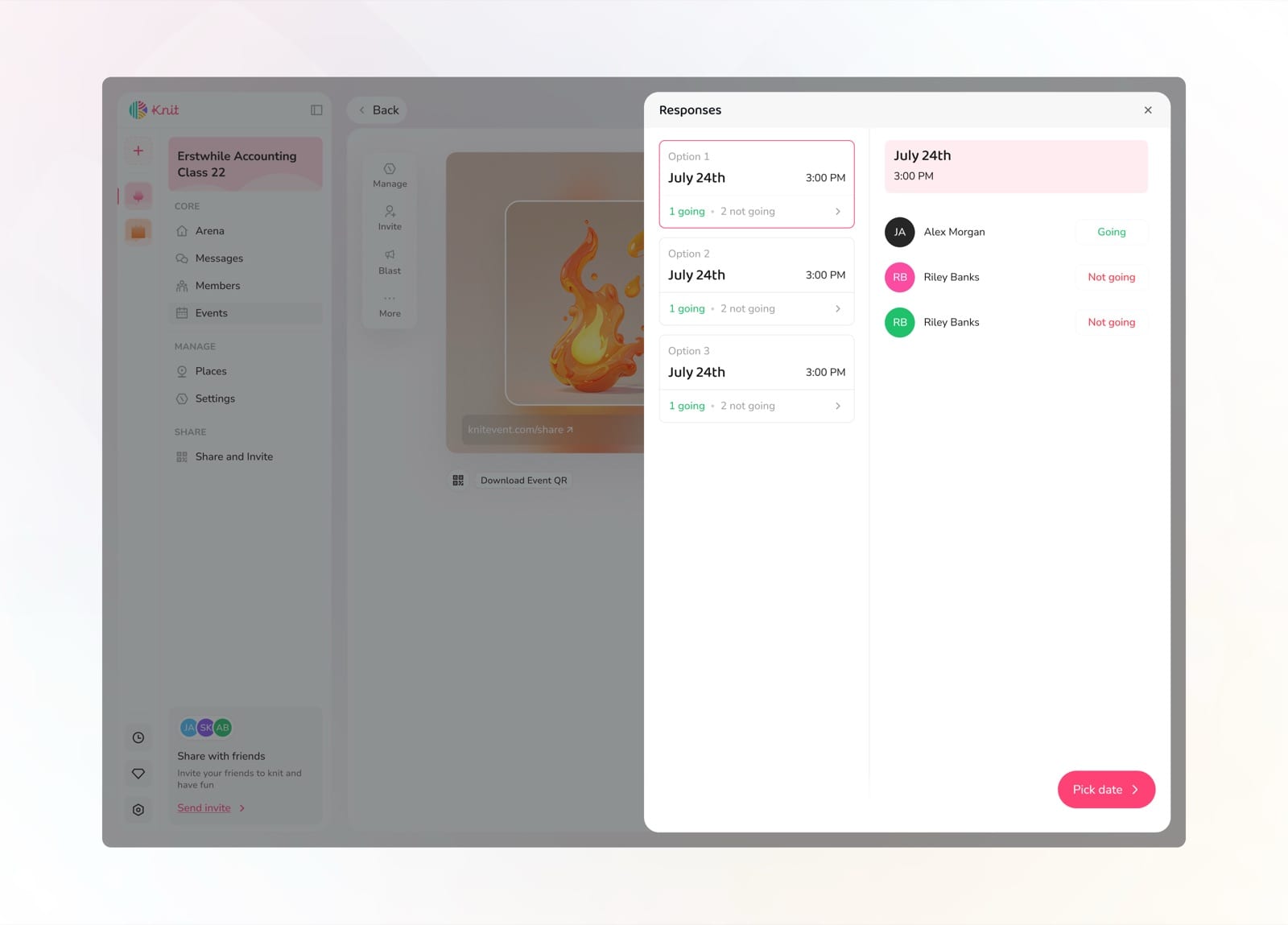
Check the event timeline and updates
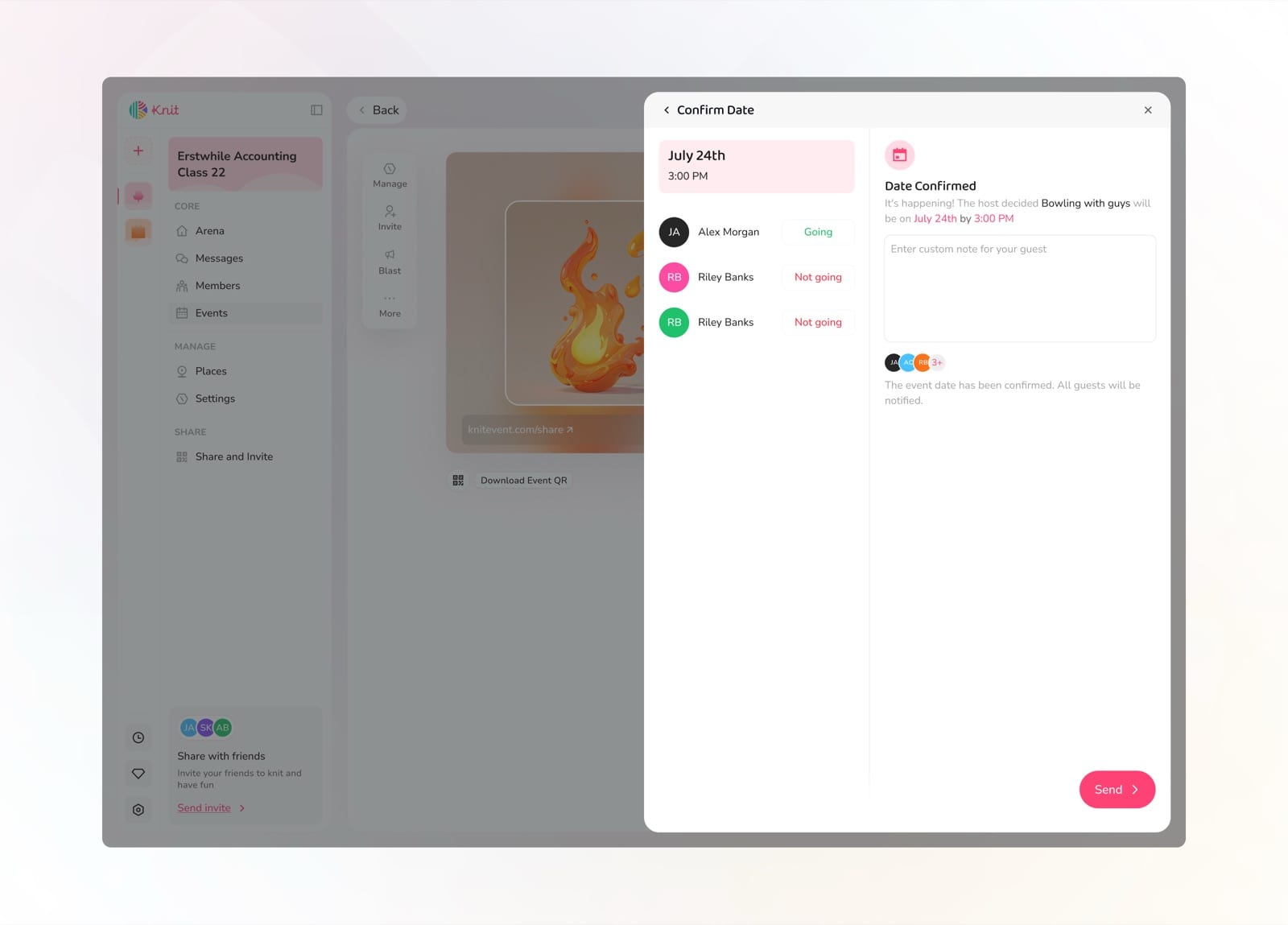
Browse and manage all attending guests
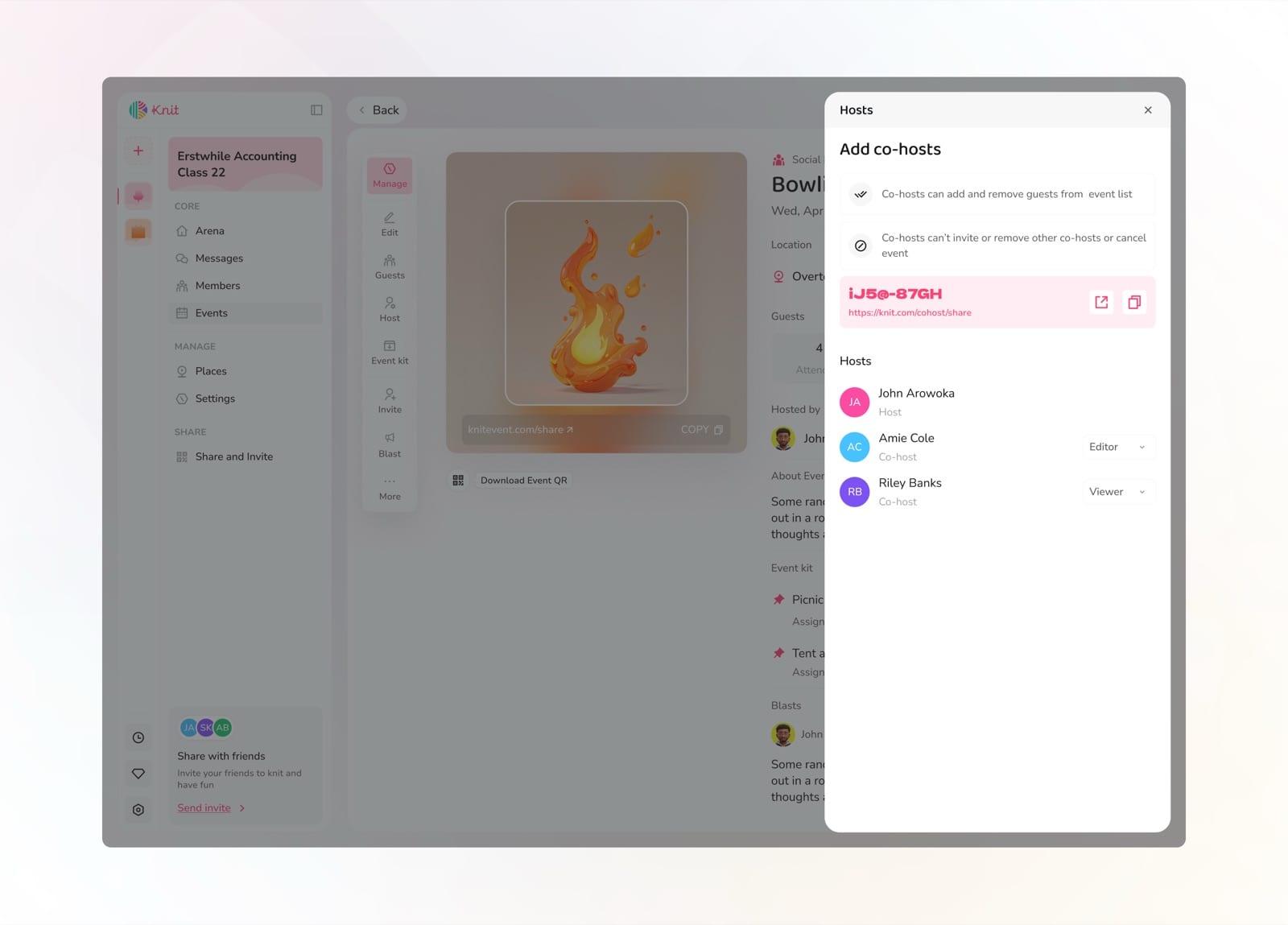
Follow the blast feed for real-time conversation
Event Kit
The Event Kit lets organizers break down what's needed for an event and assign items to specific guests. From snacks and drinks to tents and gear, the kit distributes the load so one person isn't stuck handling everything alone.
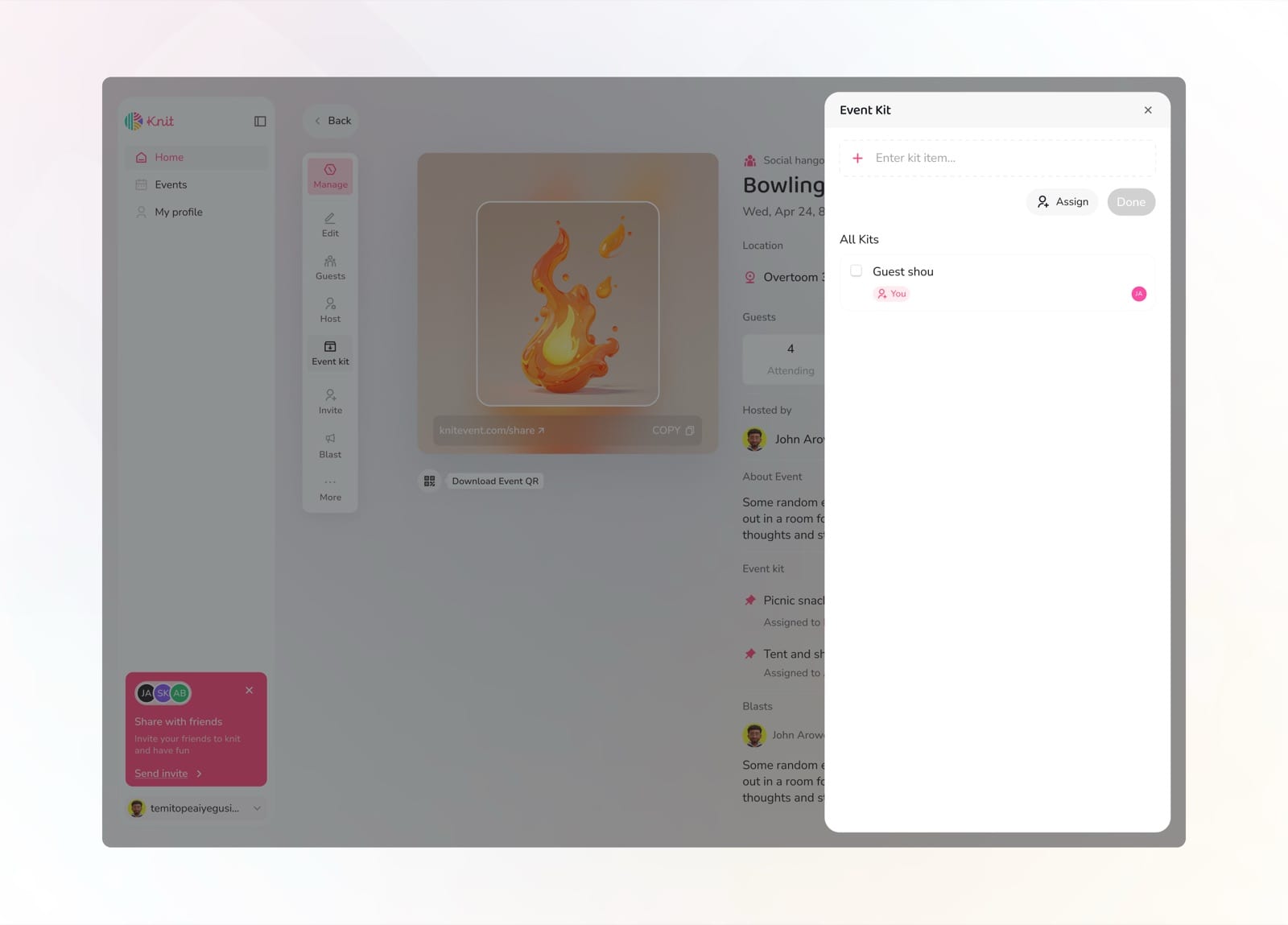
Open the Event Kit modal to add and assign items
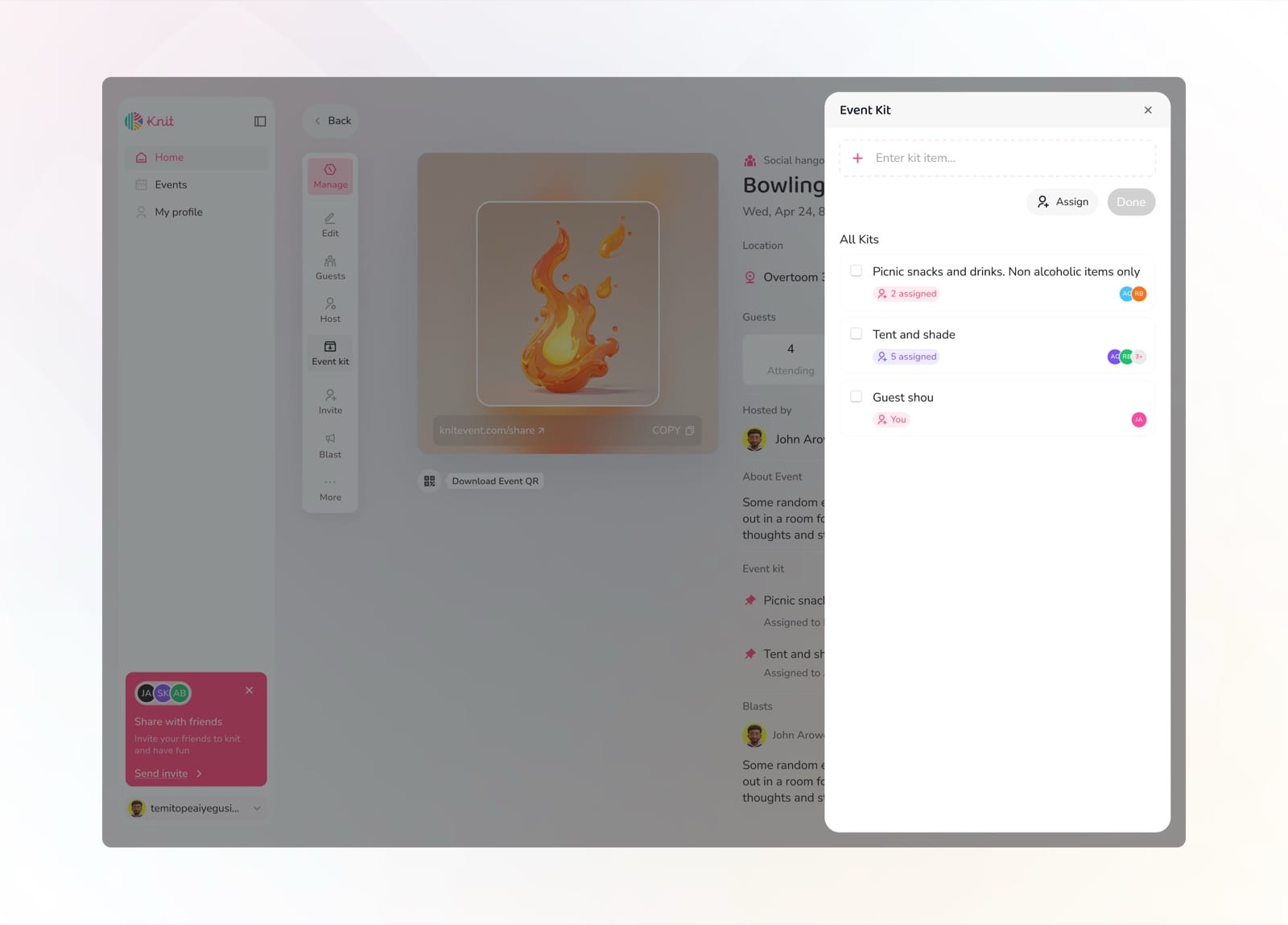
Create tasks and break down what's needed
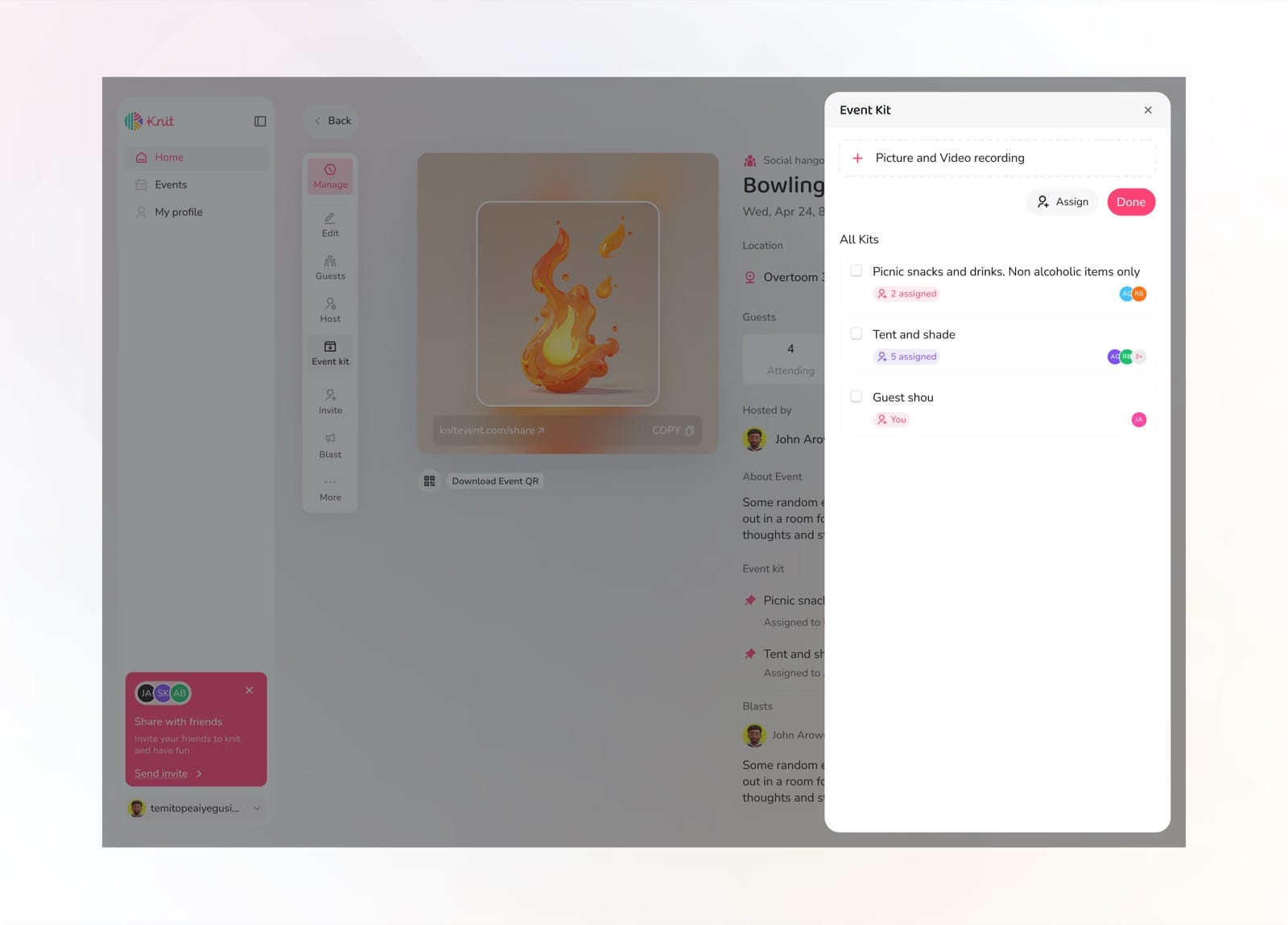
View all items organized by category
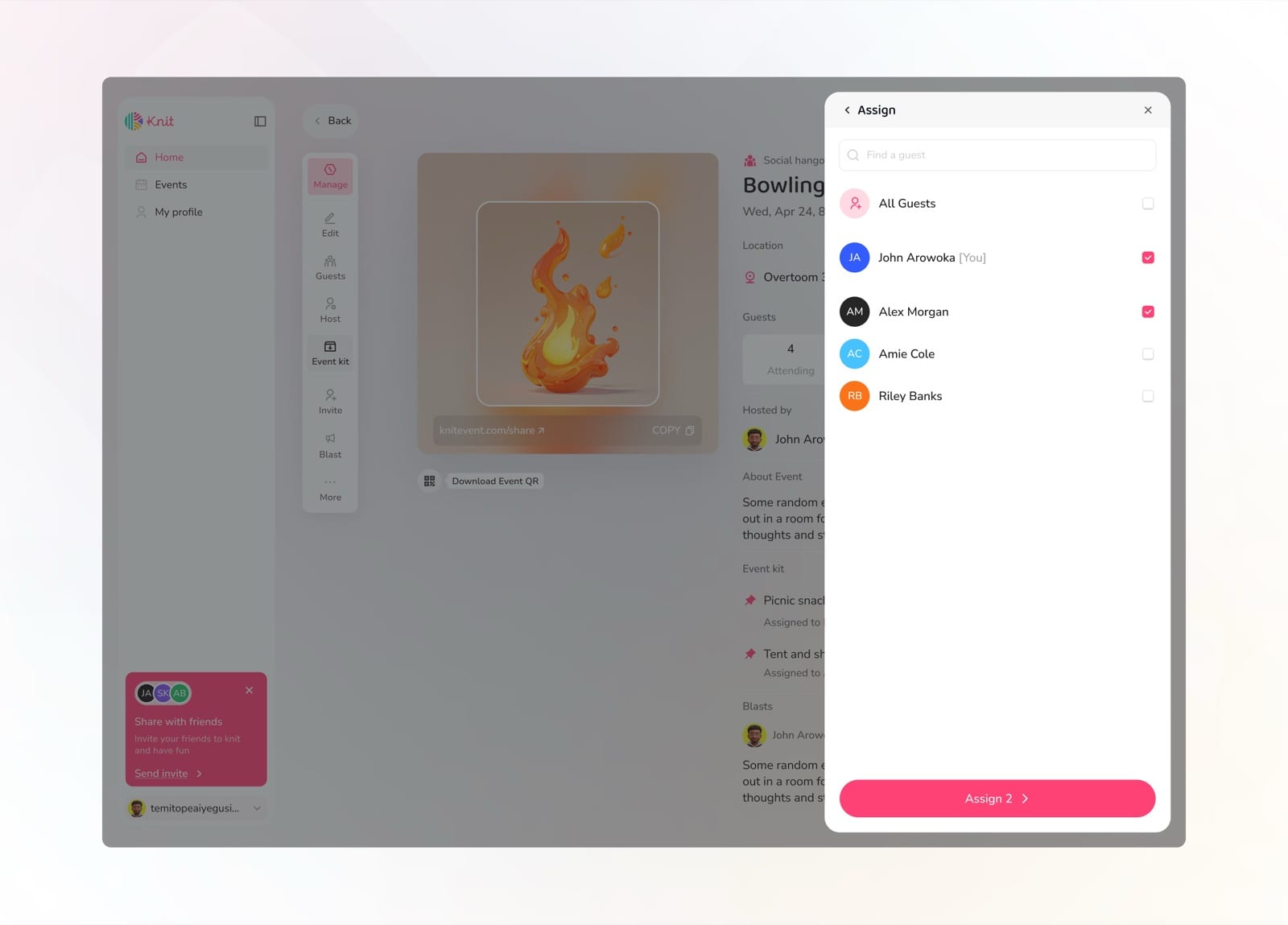
Assign tasks to specific guests
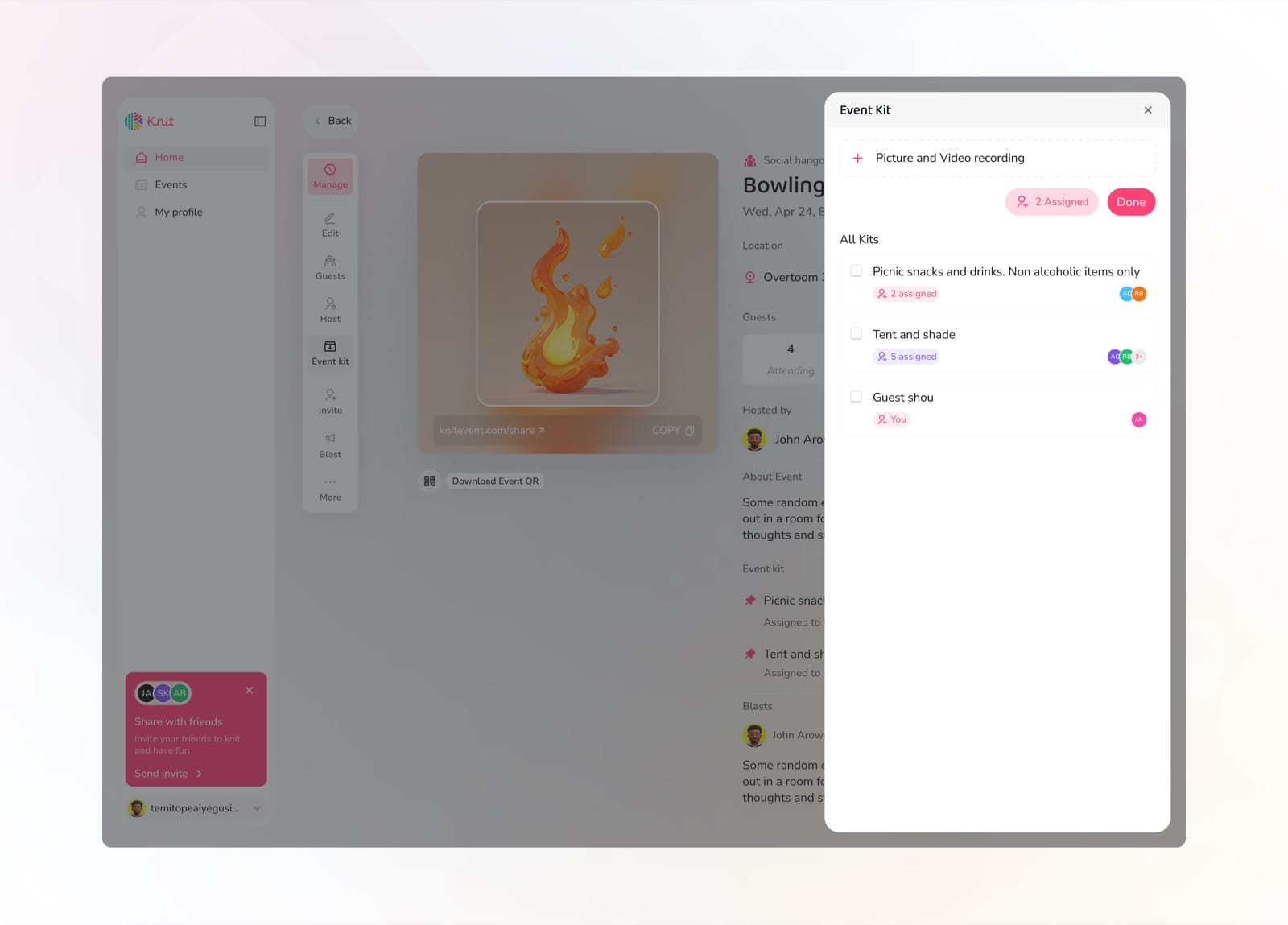
See who's responsible for each item
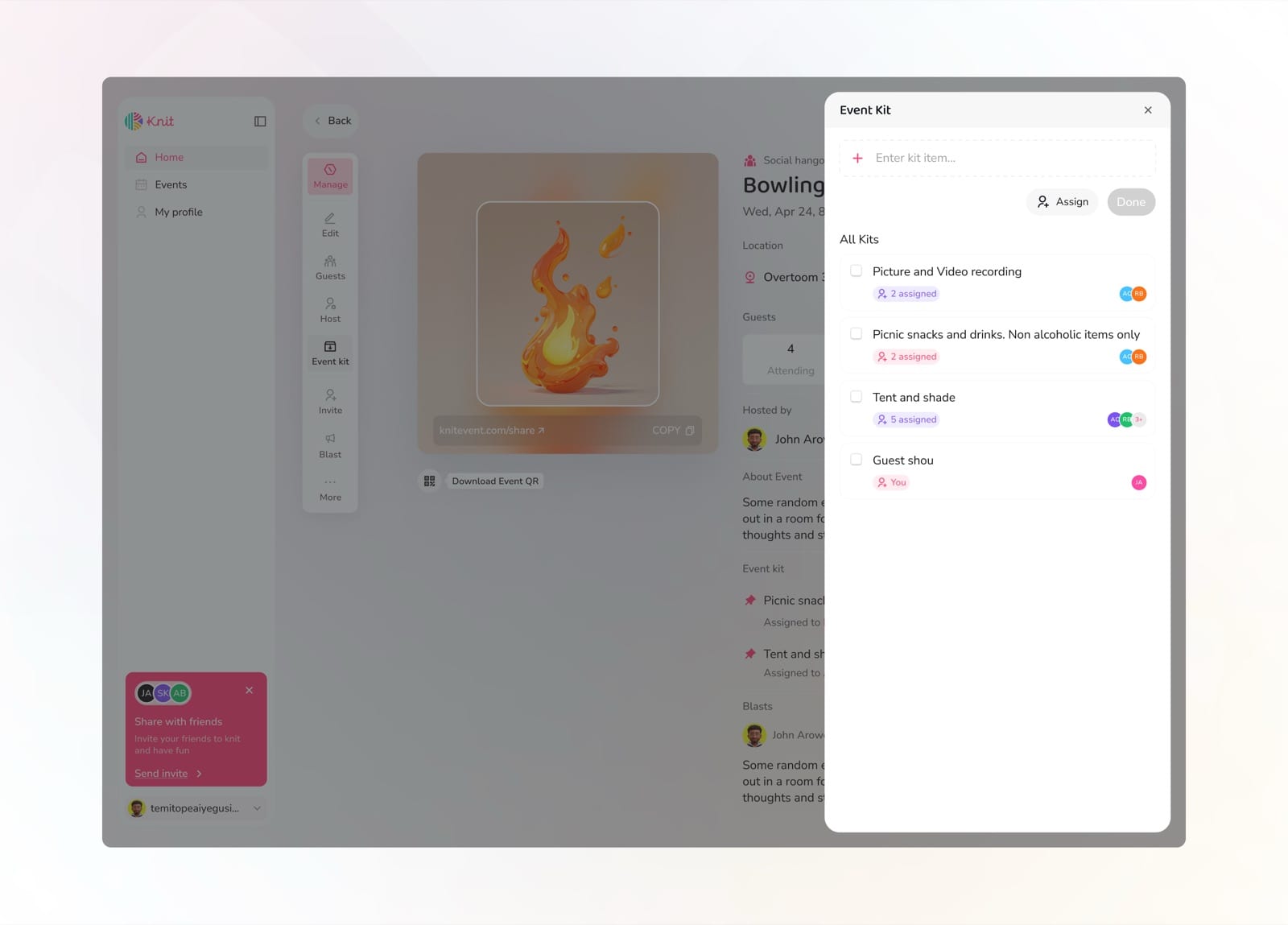
Track progress as items get checked off
Smart Suggestion
Smart Suggestion uses machine learning to recommend events that match each user's interests, schedule, and location. By analyzing past behavior and preferences, it surfaces events the user is likely to enjoy, making event discovery effortless and serendipitous.
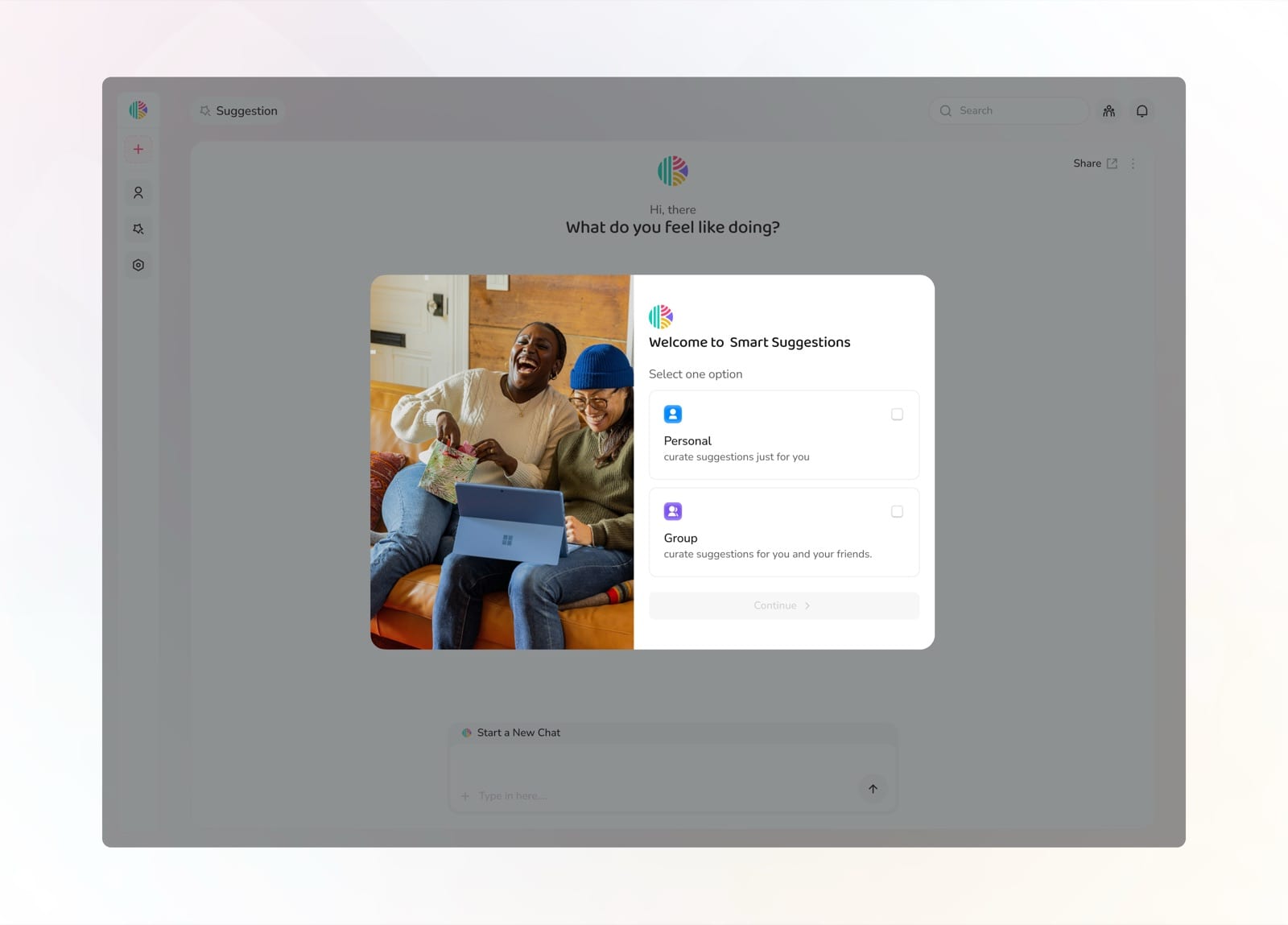
Choose between Personal or Group suggestions to get started
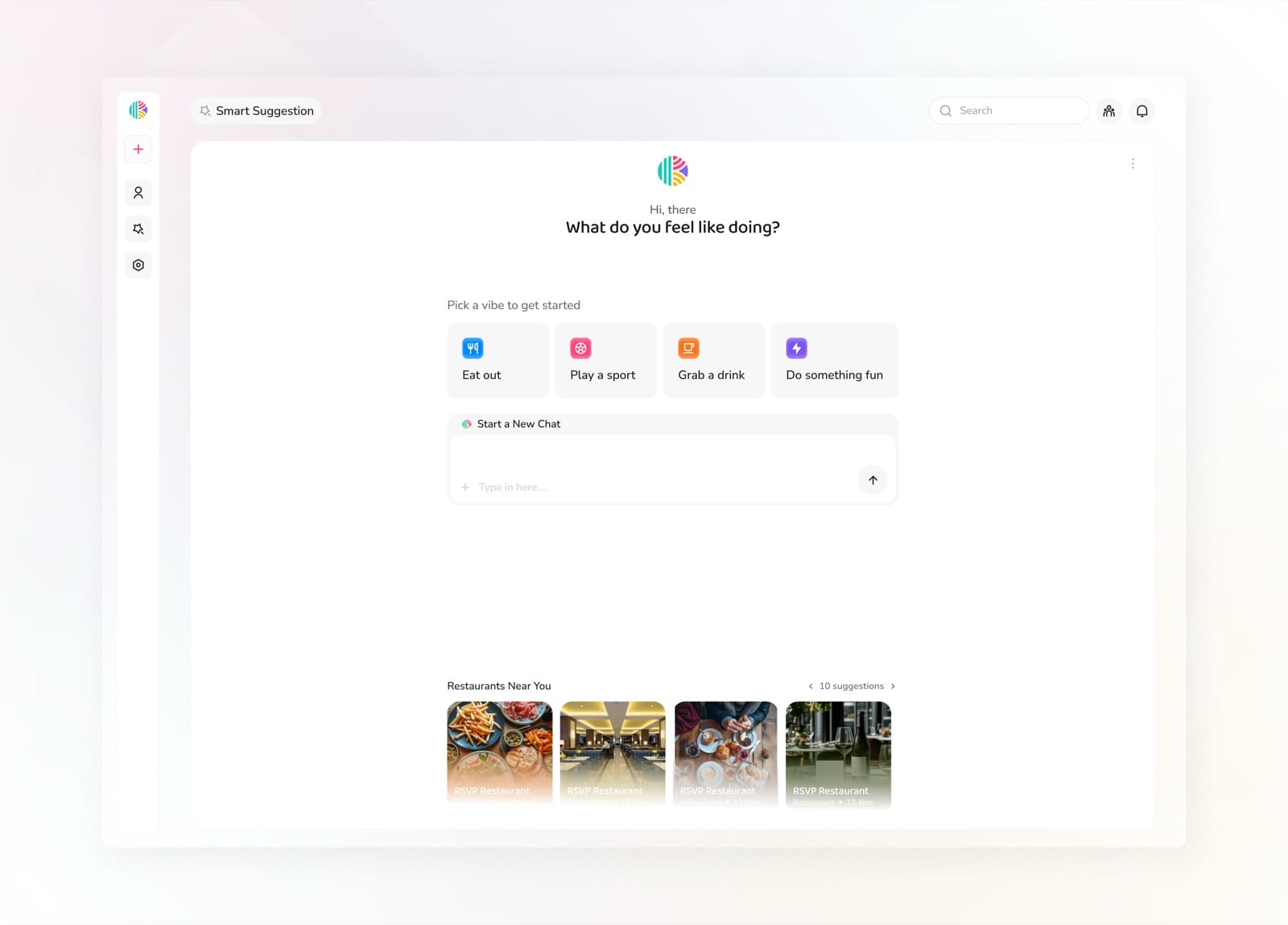
Pick a vibe to discover what to do with your group
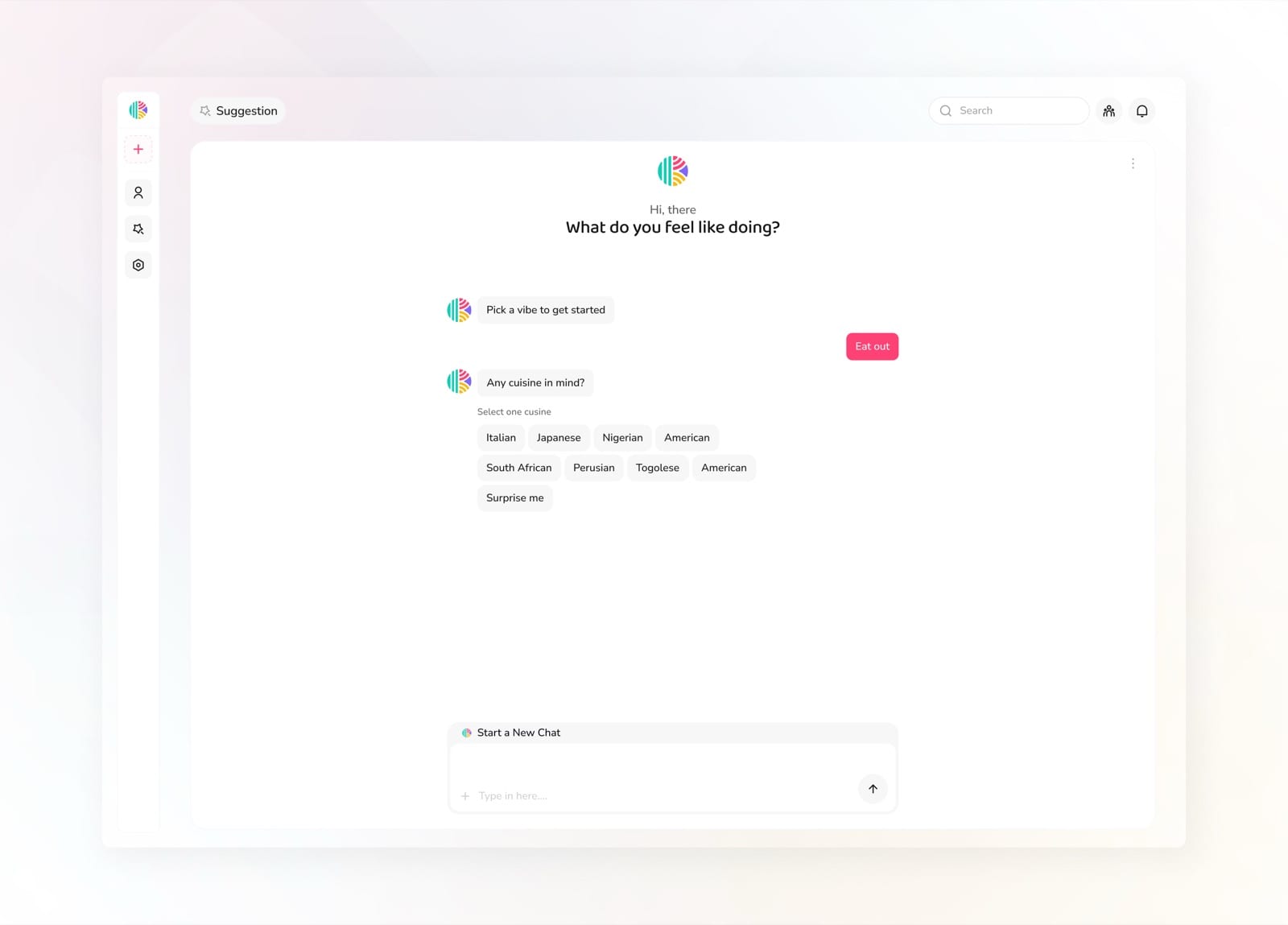
Narrow it down by choosing a cuisine or activity type
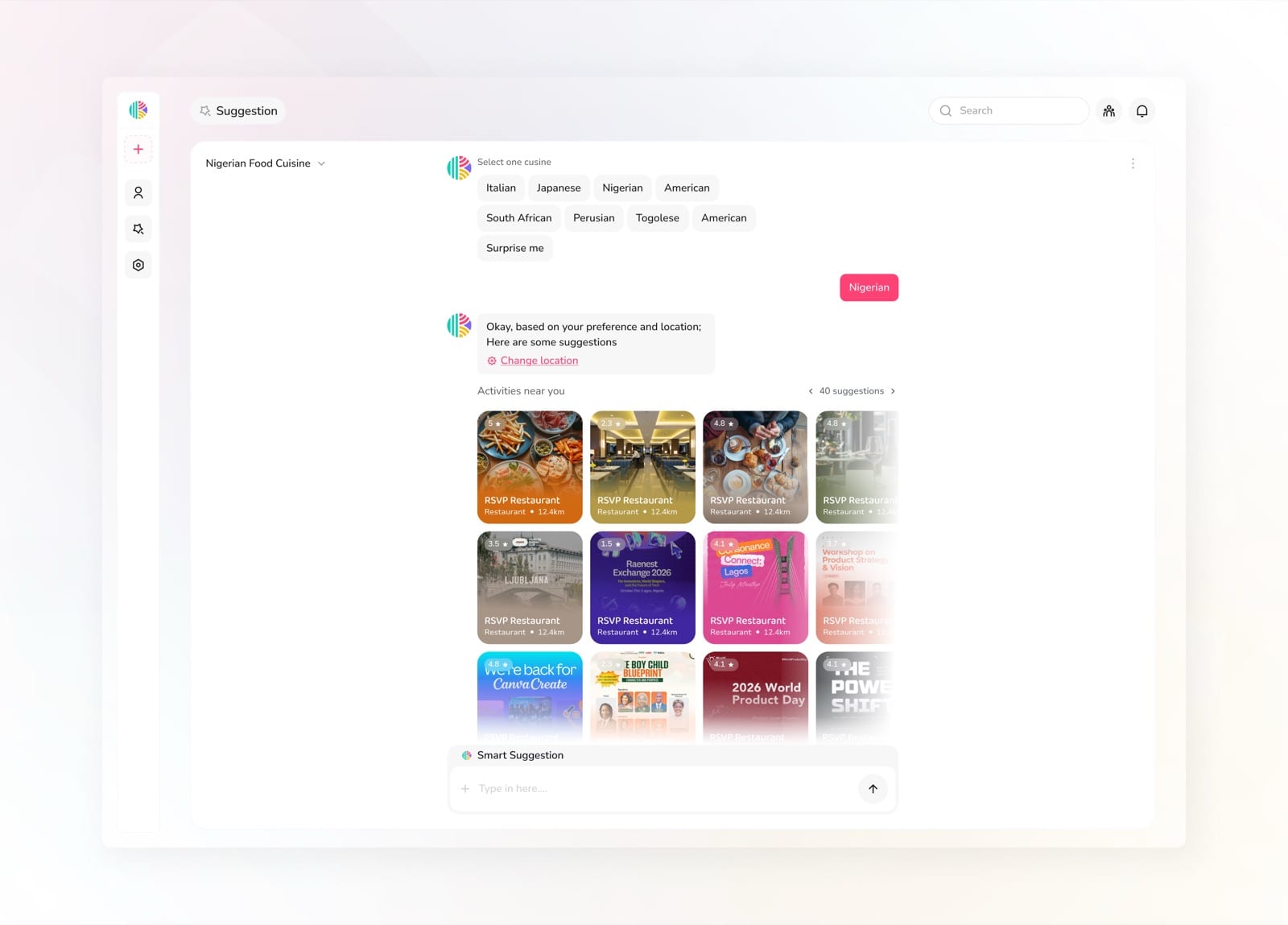
Browse location-based suggestions tailored to your preference
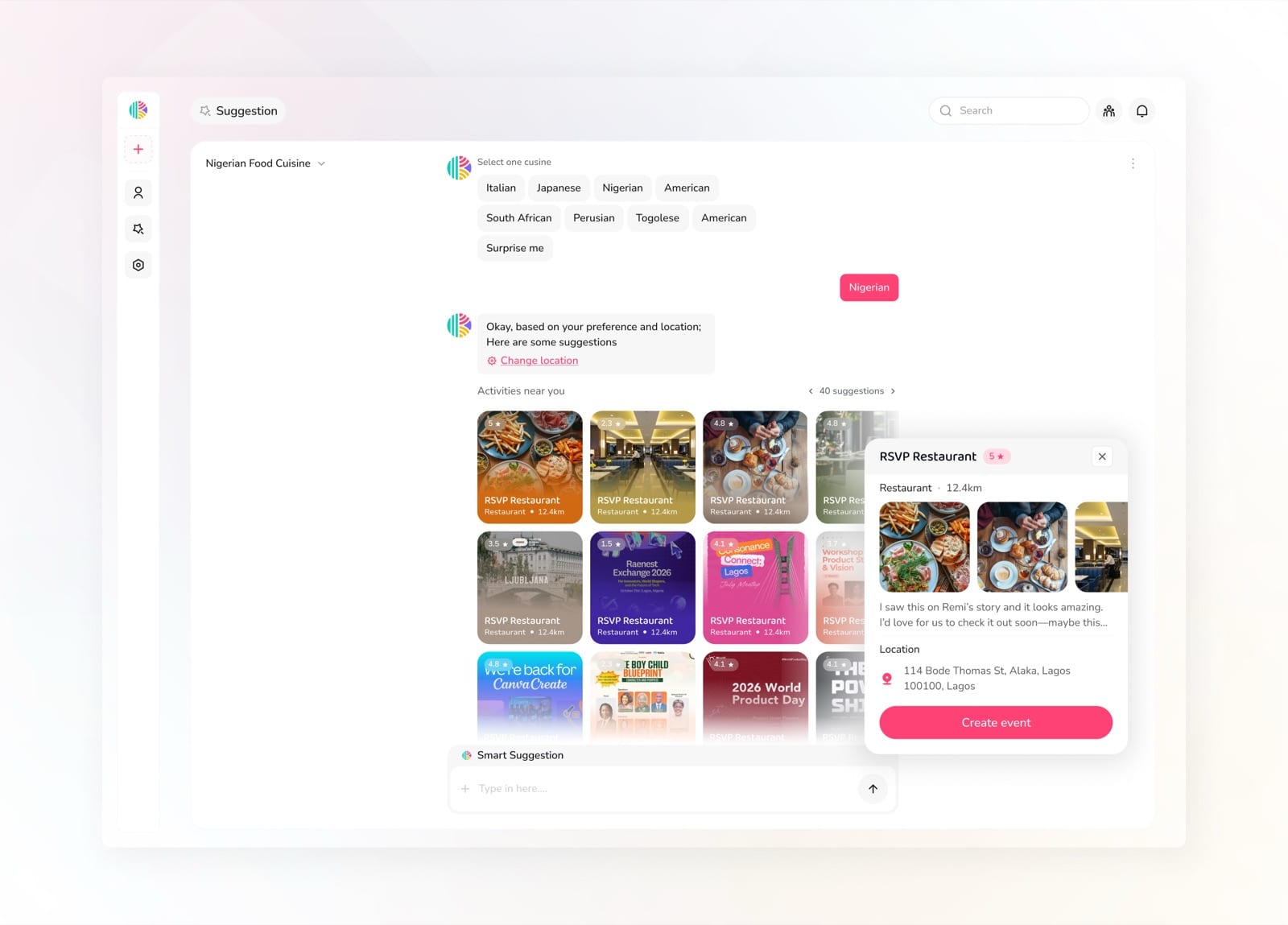
Tap a suggestion to see details and create an event
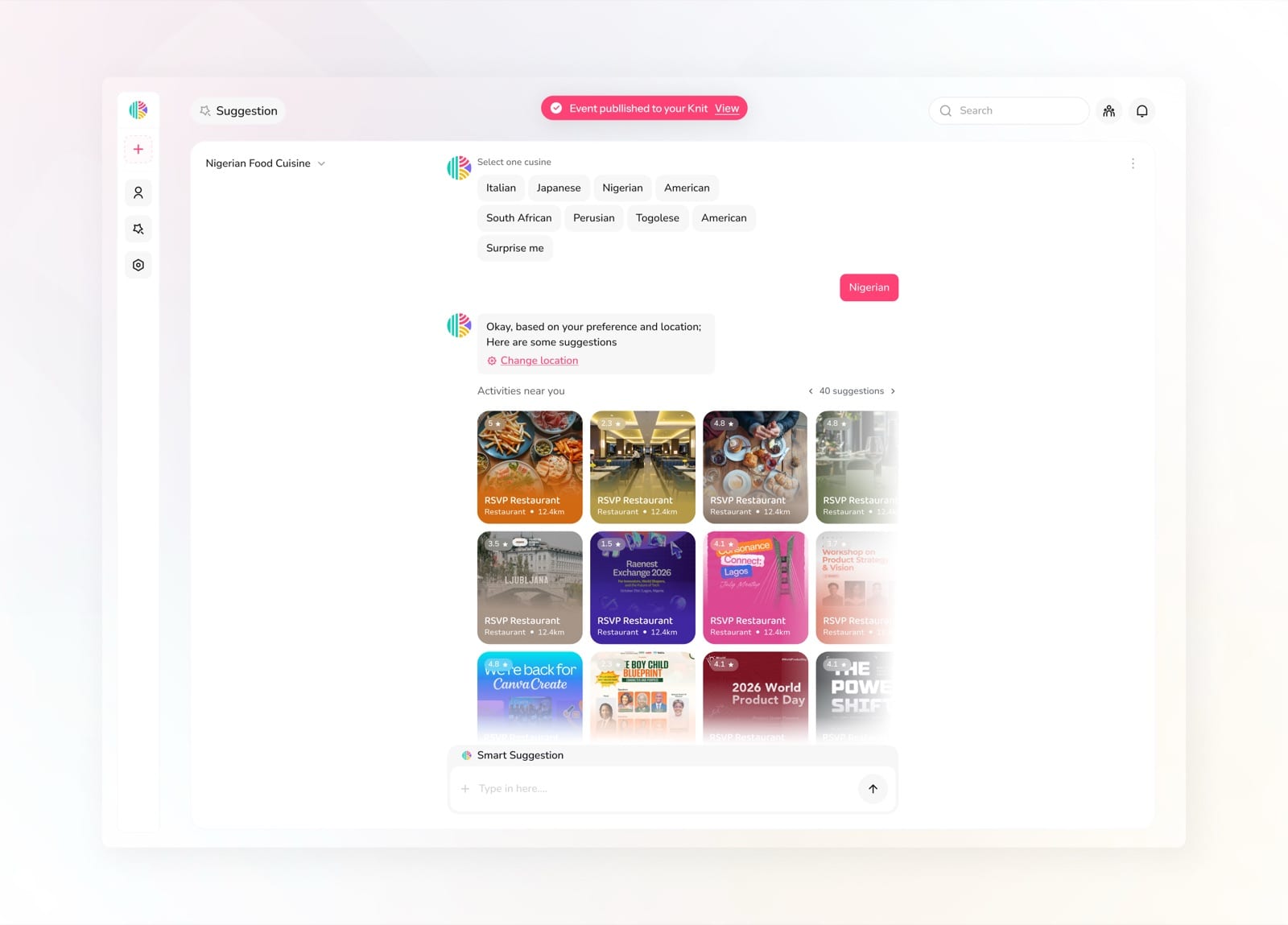
Event is published to your Knit instantly
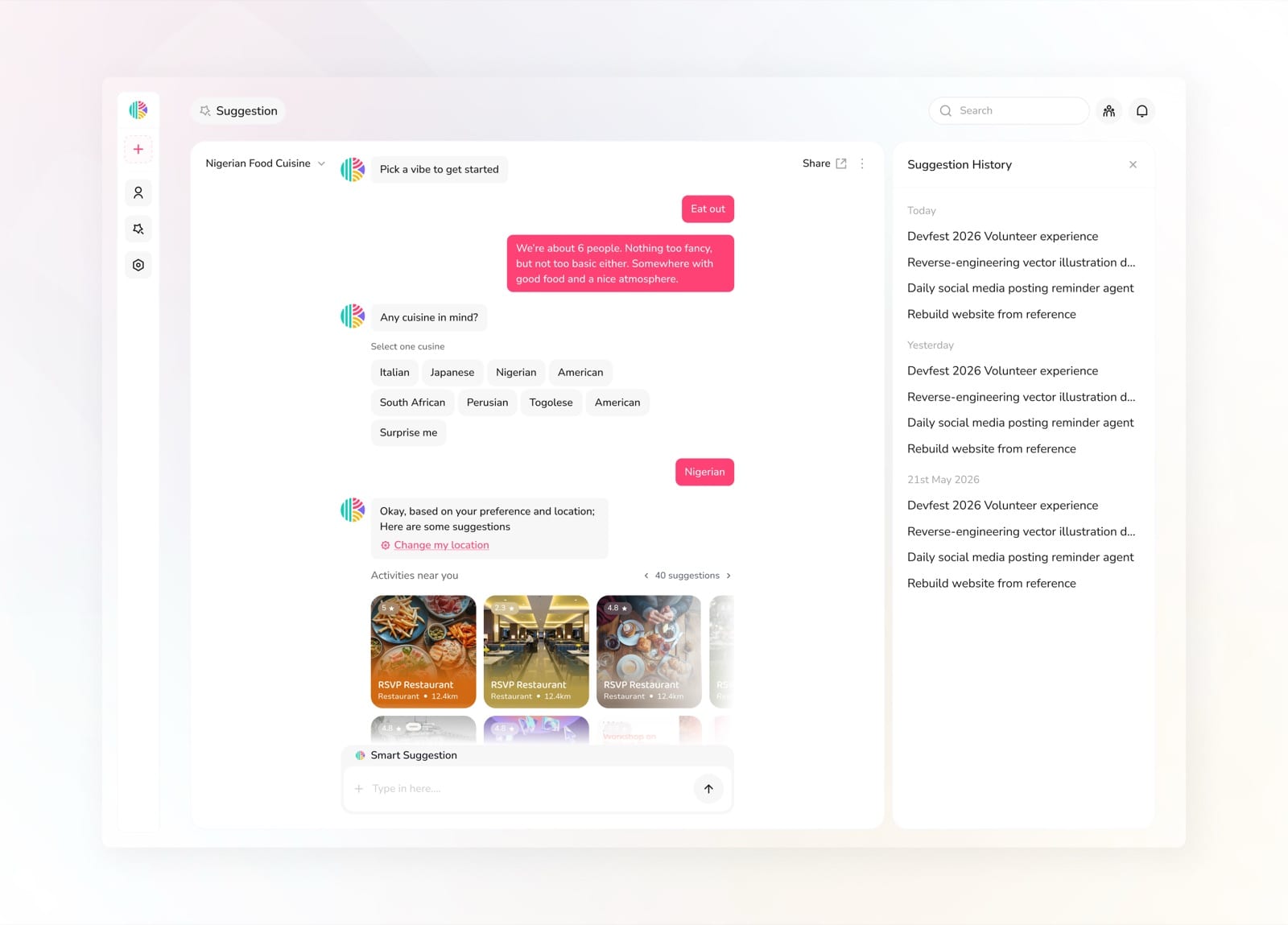
View the full conversation history of past suggestions
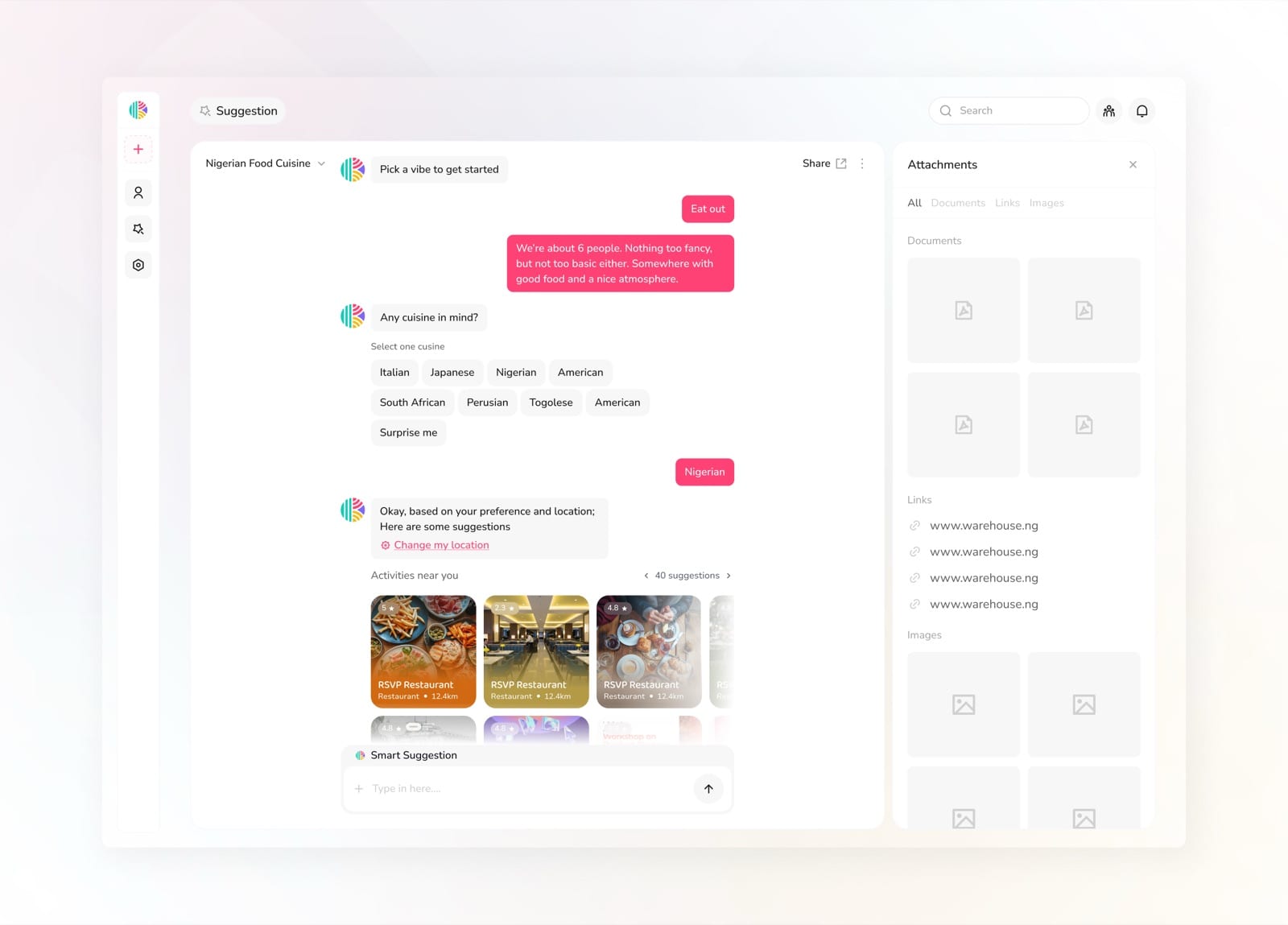
Access all attachments shared across your suggestions
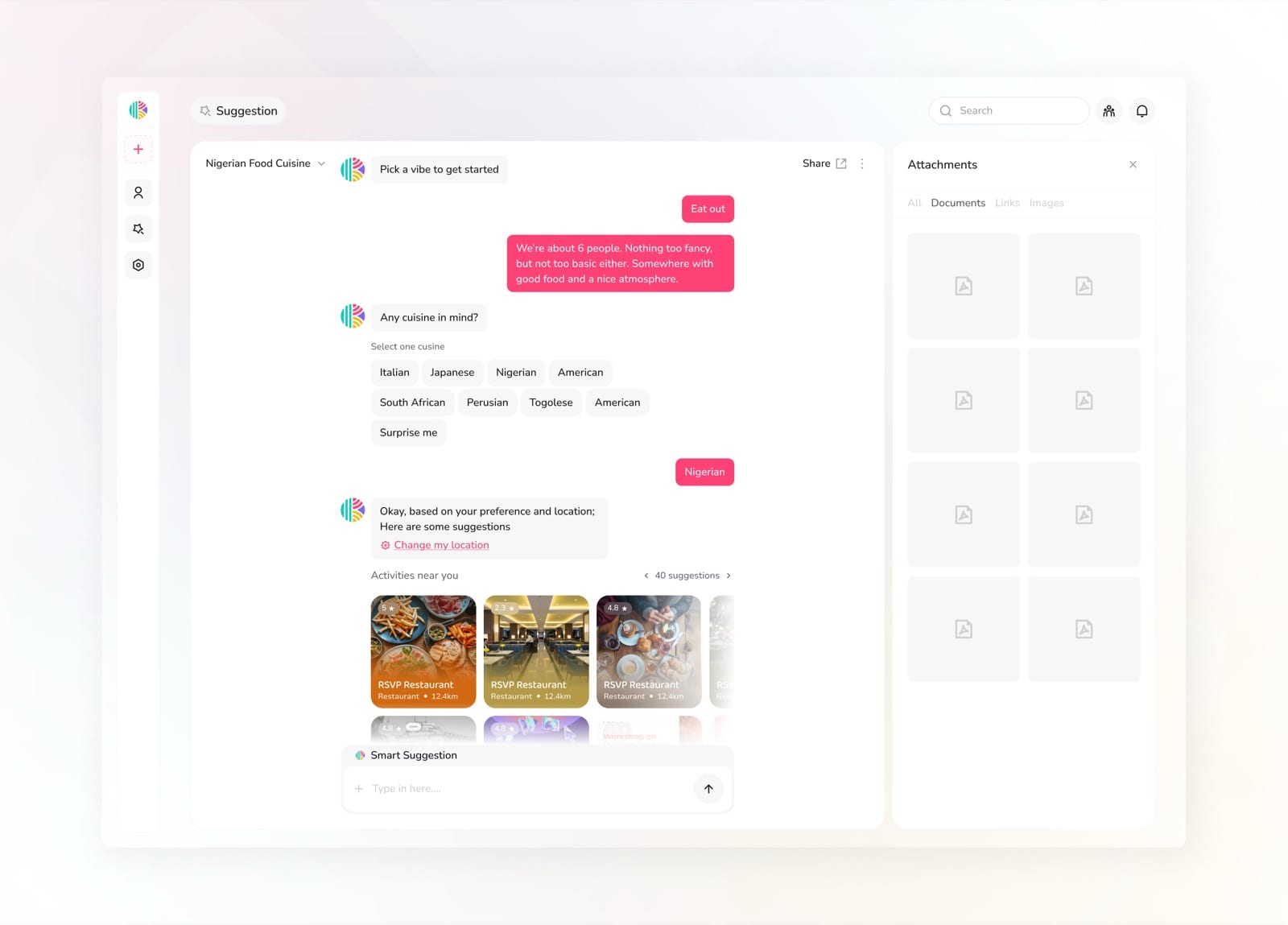
Browse shared documents from within the suggestion thread
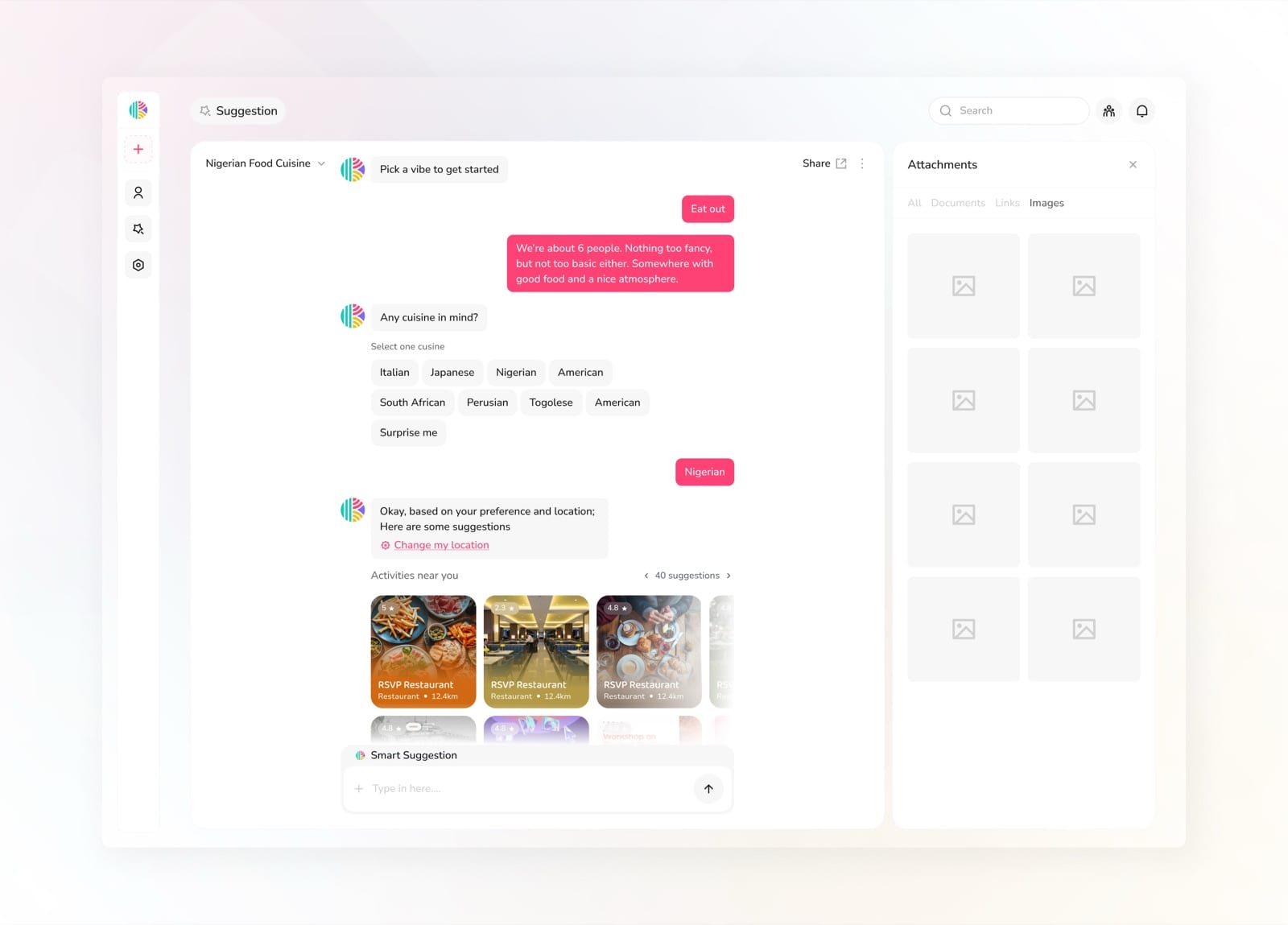
See all images shared in the suggestion conversation
Knit Place
Knit Place is where groups discover and manage their go-to spots. From saved locations and routes to place-specific details, it gives the group a shared spatial memory, so finding where to go next time is never a debate.
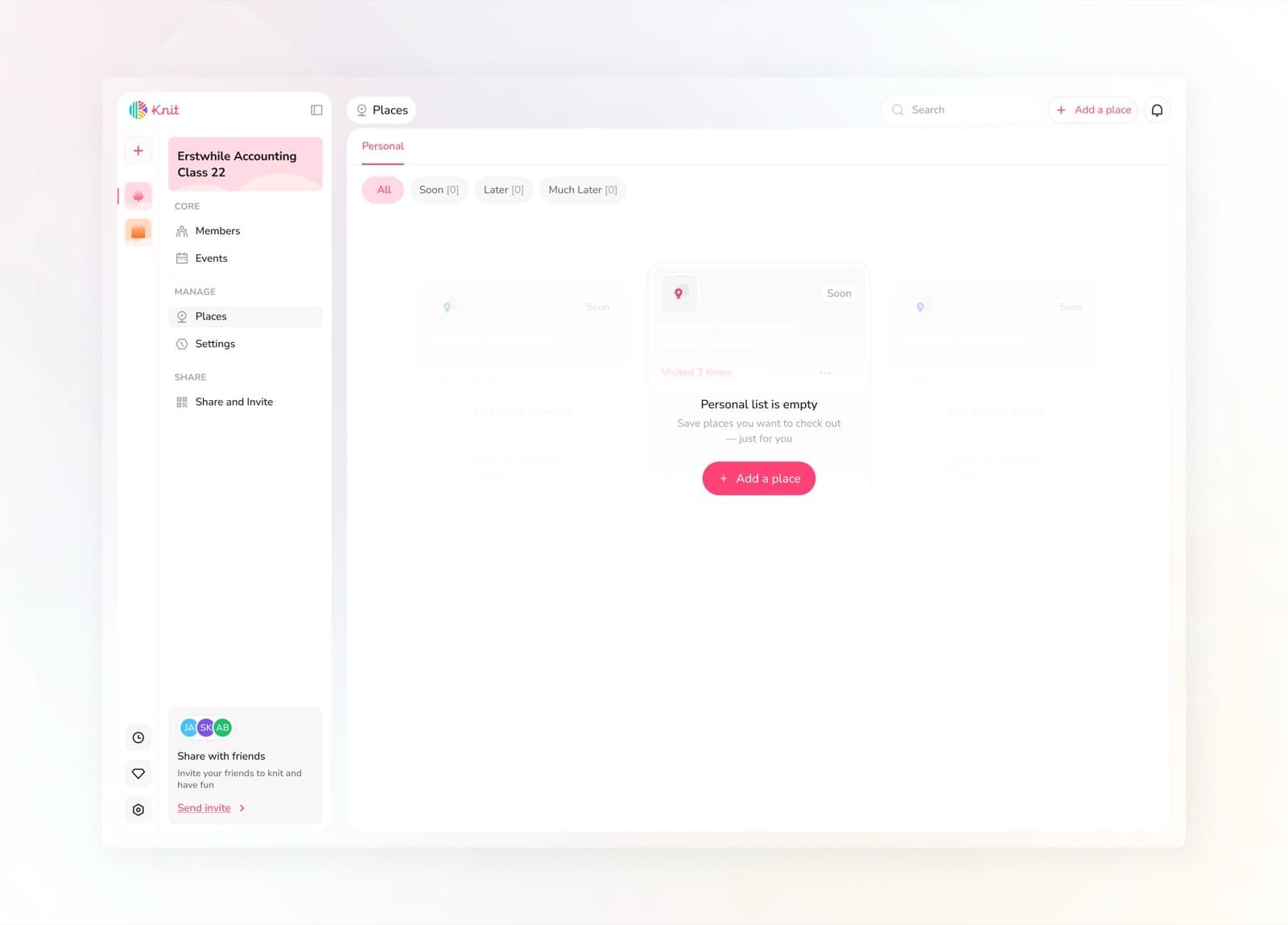
Personal places tab with empty state to start adding spots
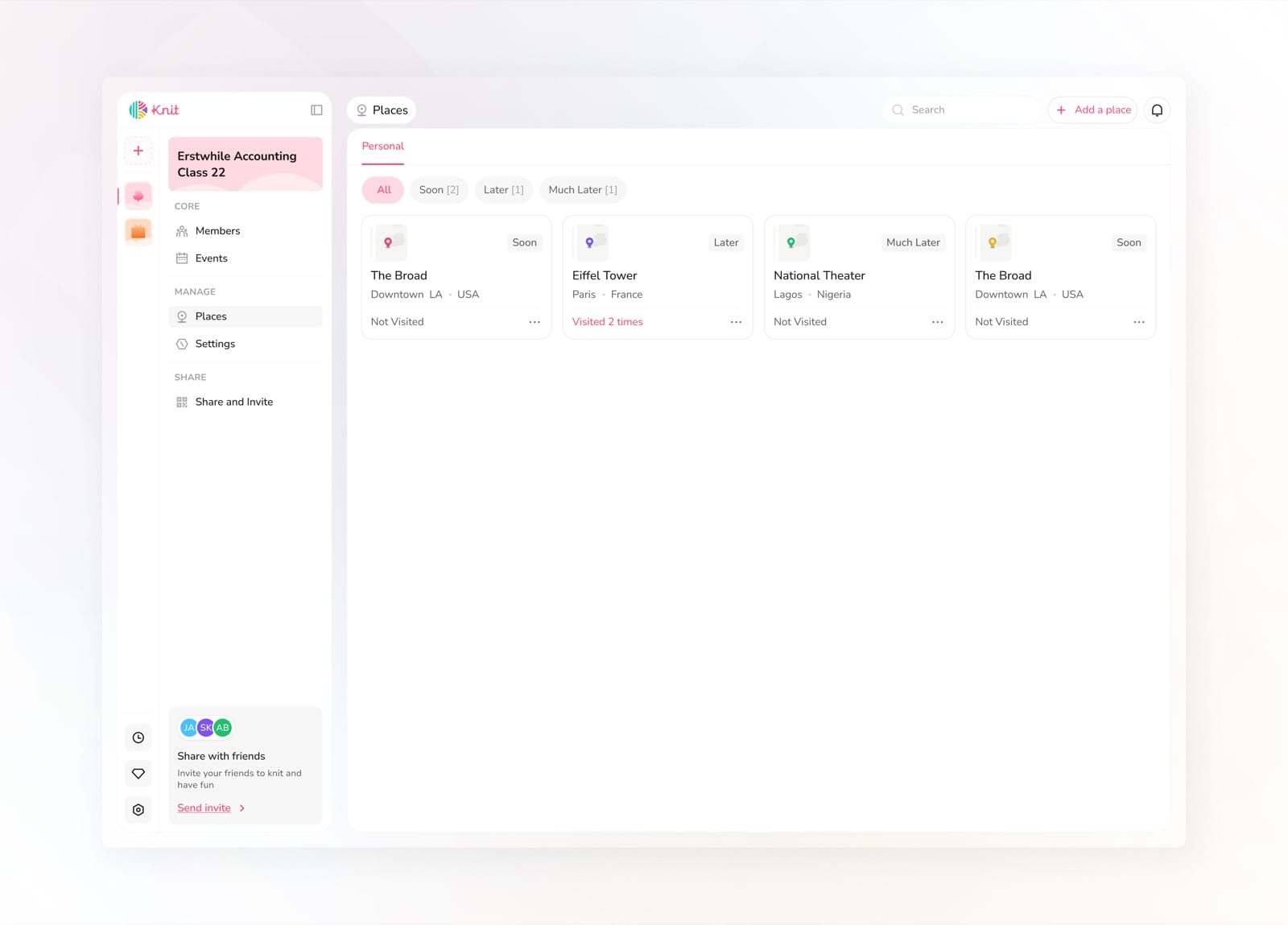
View all saved places sorted by when you plan to visit
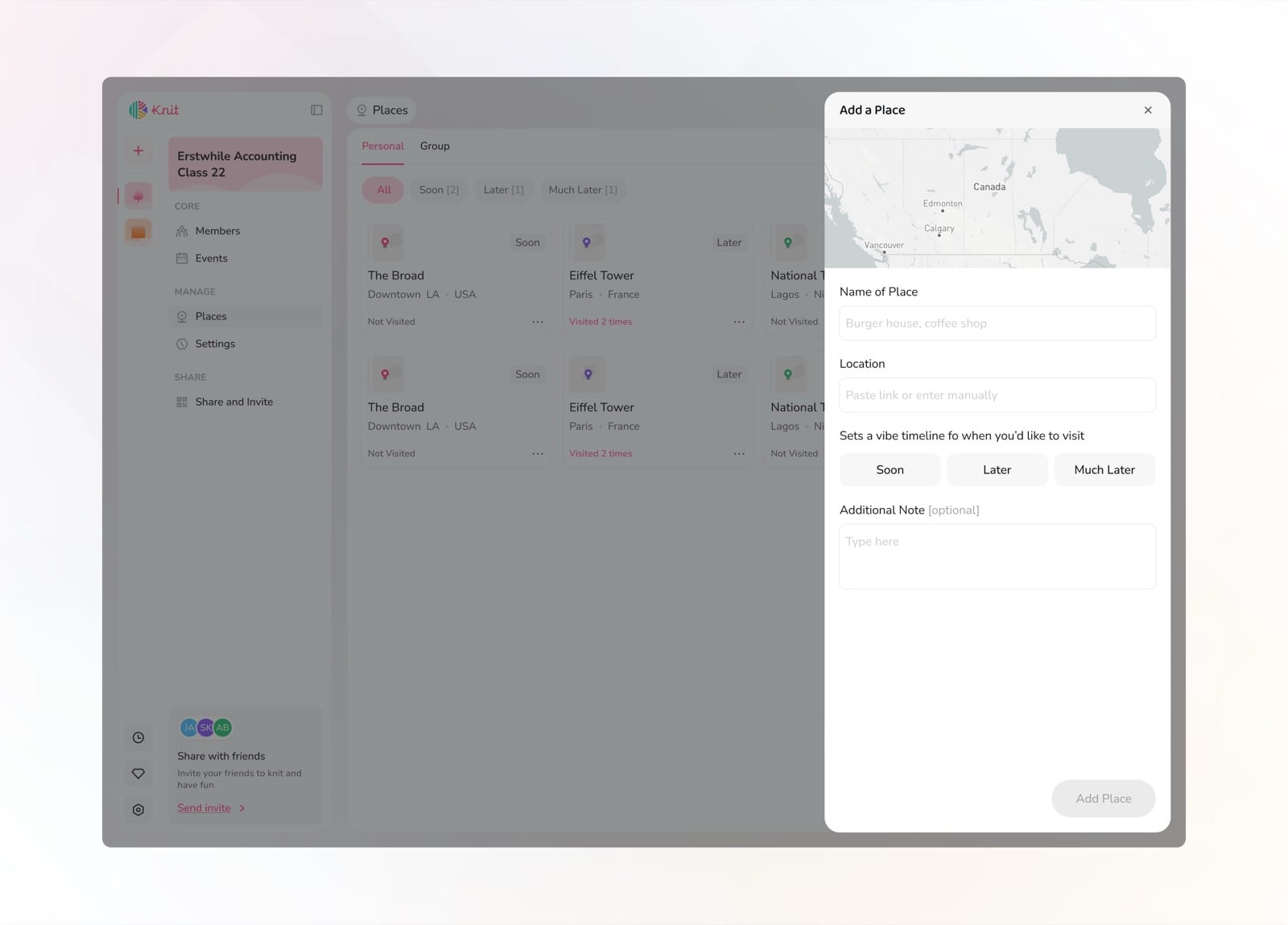
Add a new place with a name, location, and visit timeline
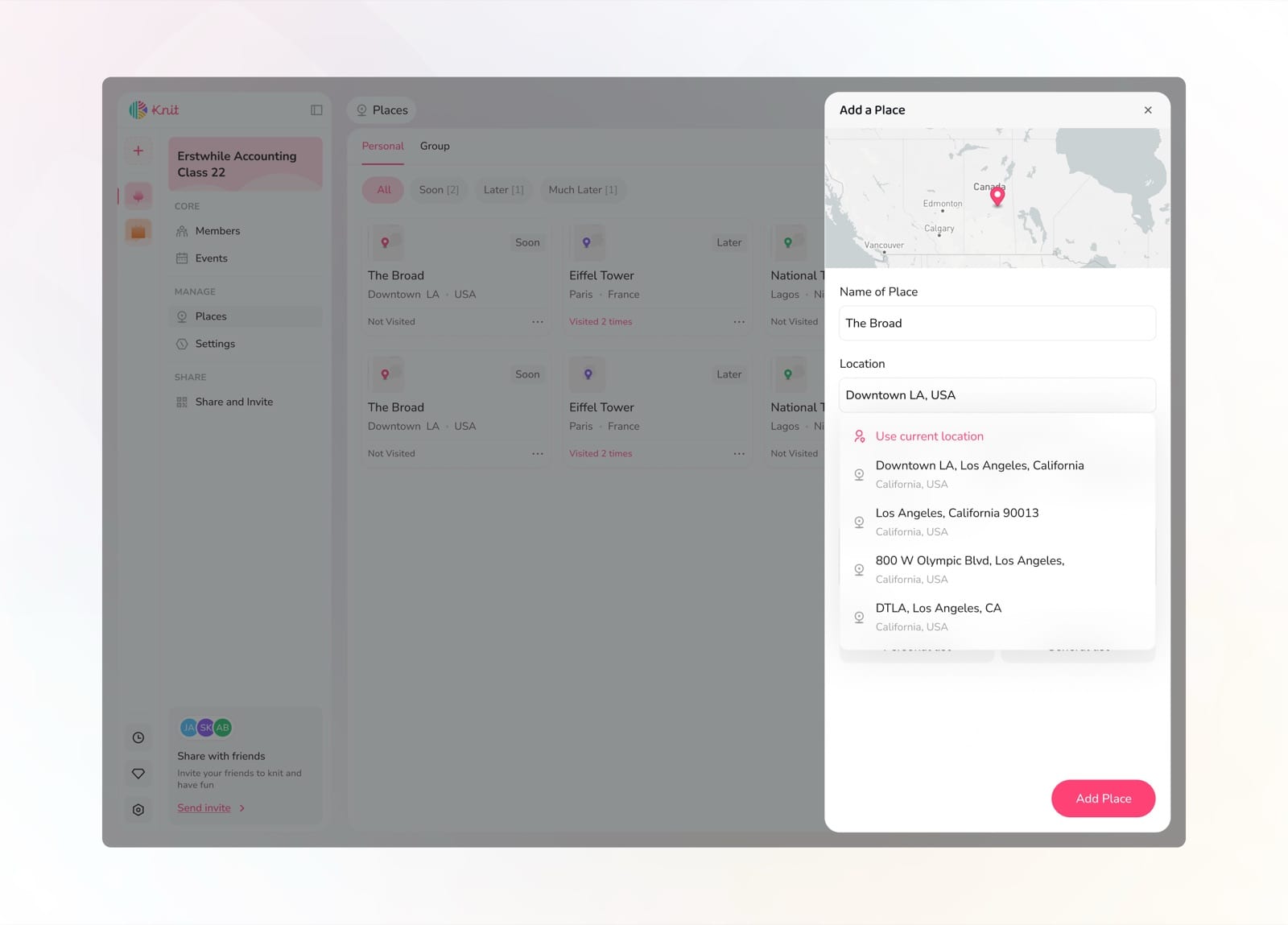
Search and pin the exact location from the map
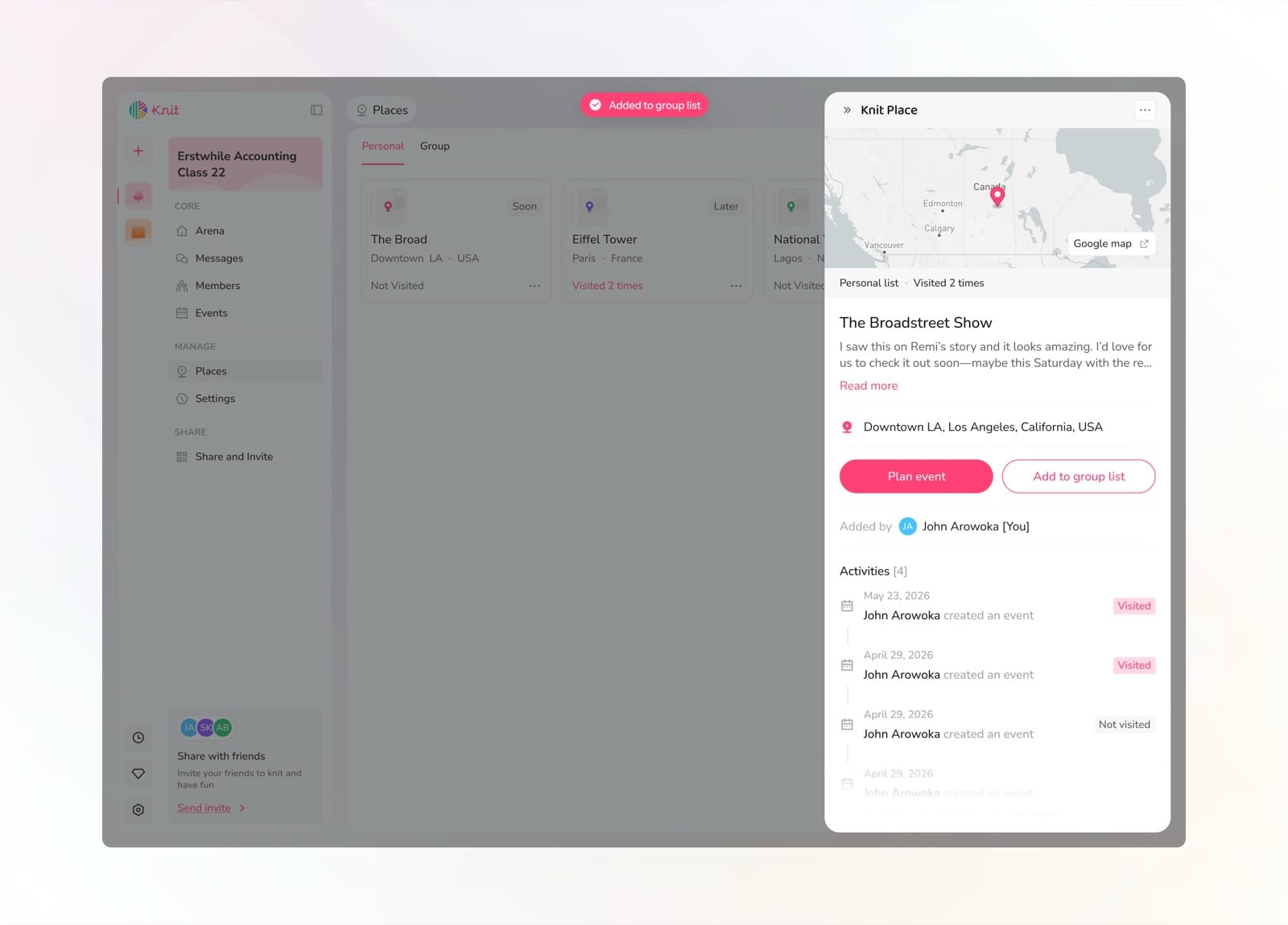
See place history, past events, and add it to the group list
Knit Settings
Knit Settings gives users full control over their account and preferences. From personalizing their interest graph to managing security, notifications, and sound alerts, every setting is designed to keep the experience tailored and secure.
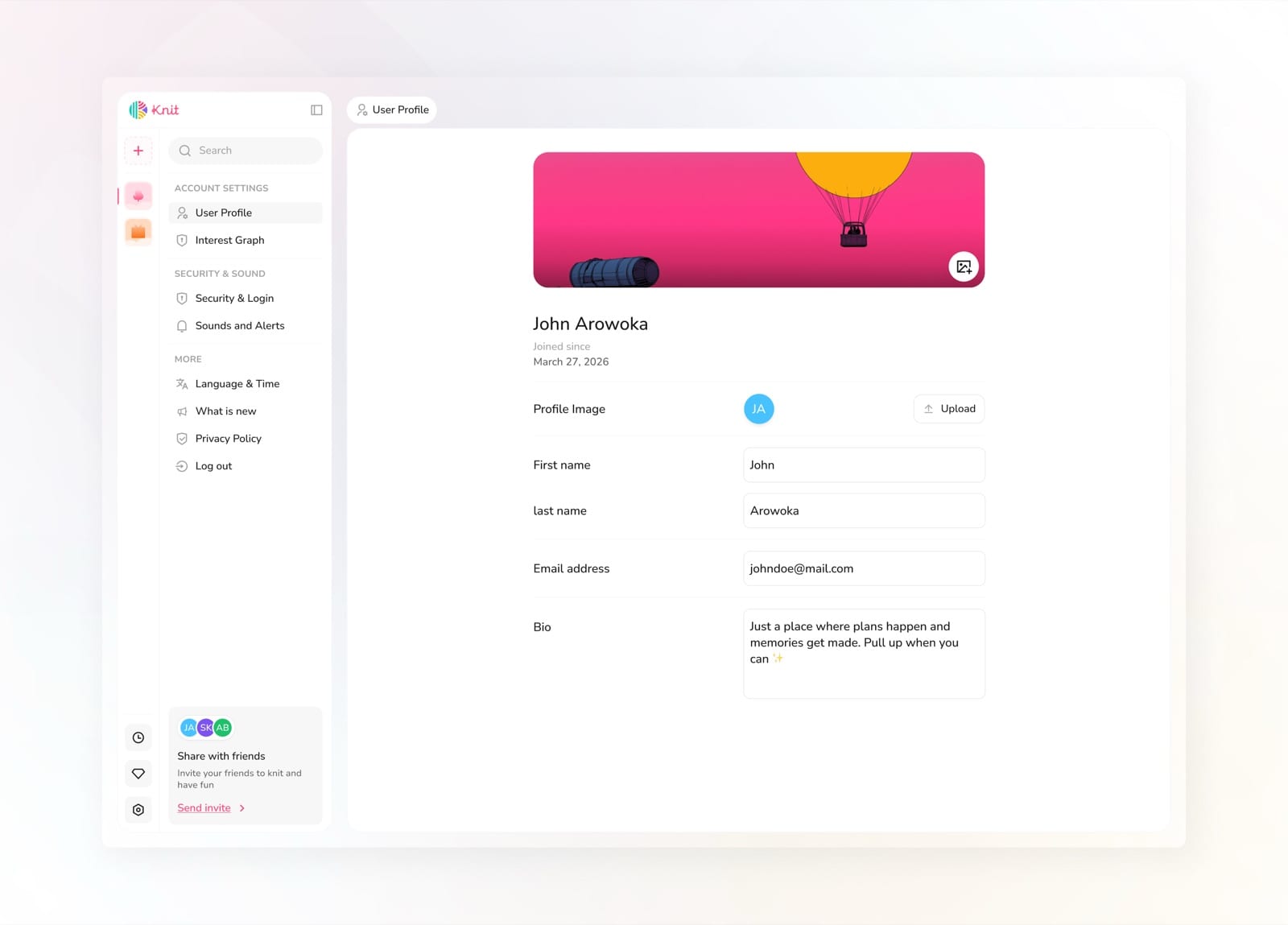
Edit your profile, cover image, name, and bio
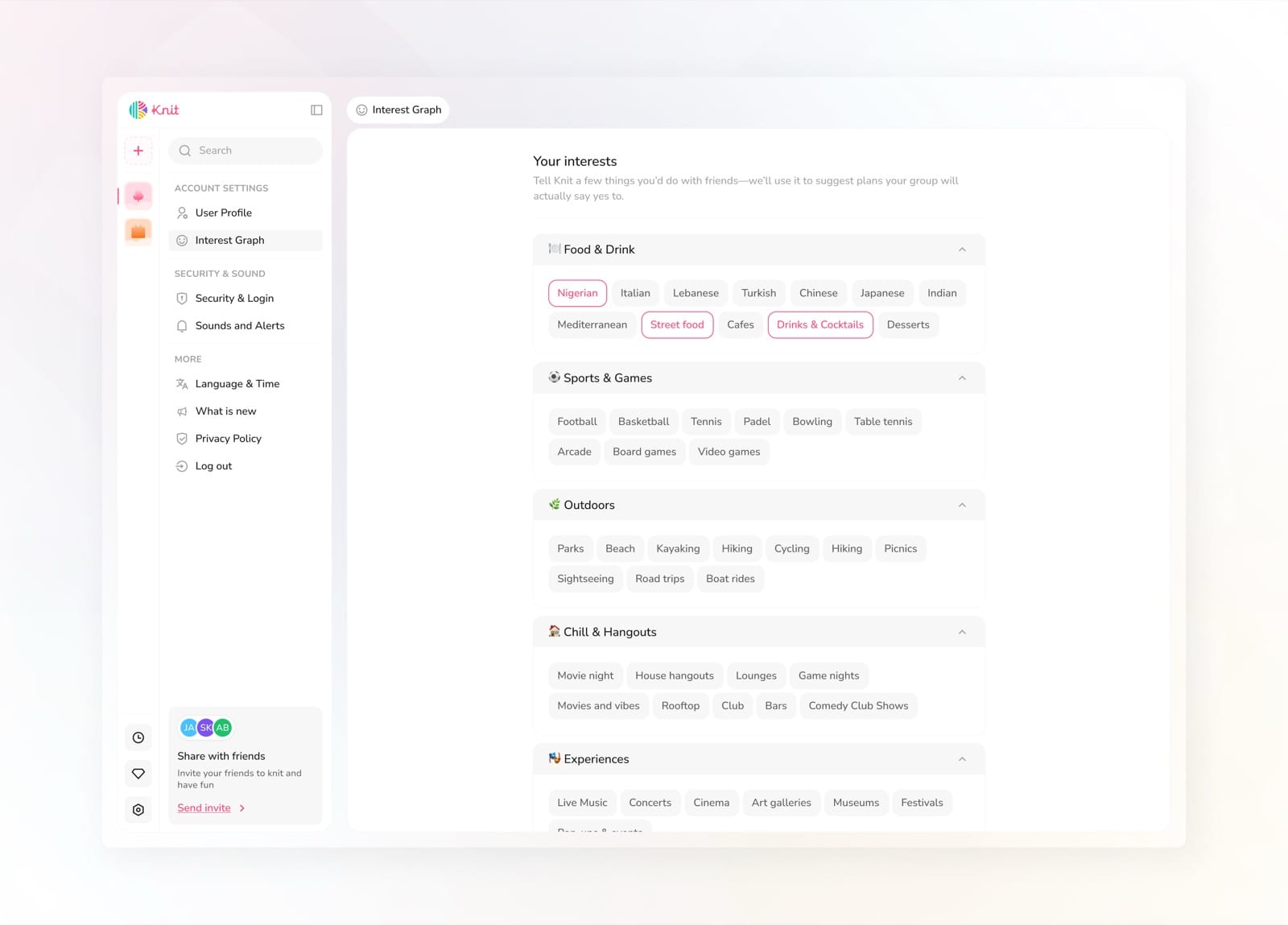
Customize your interest graph by selecting tags across categories
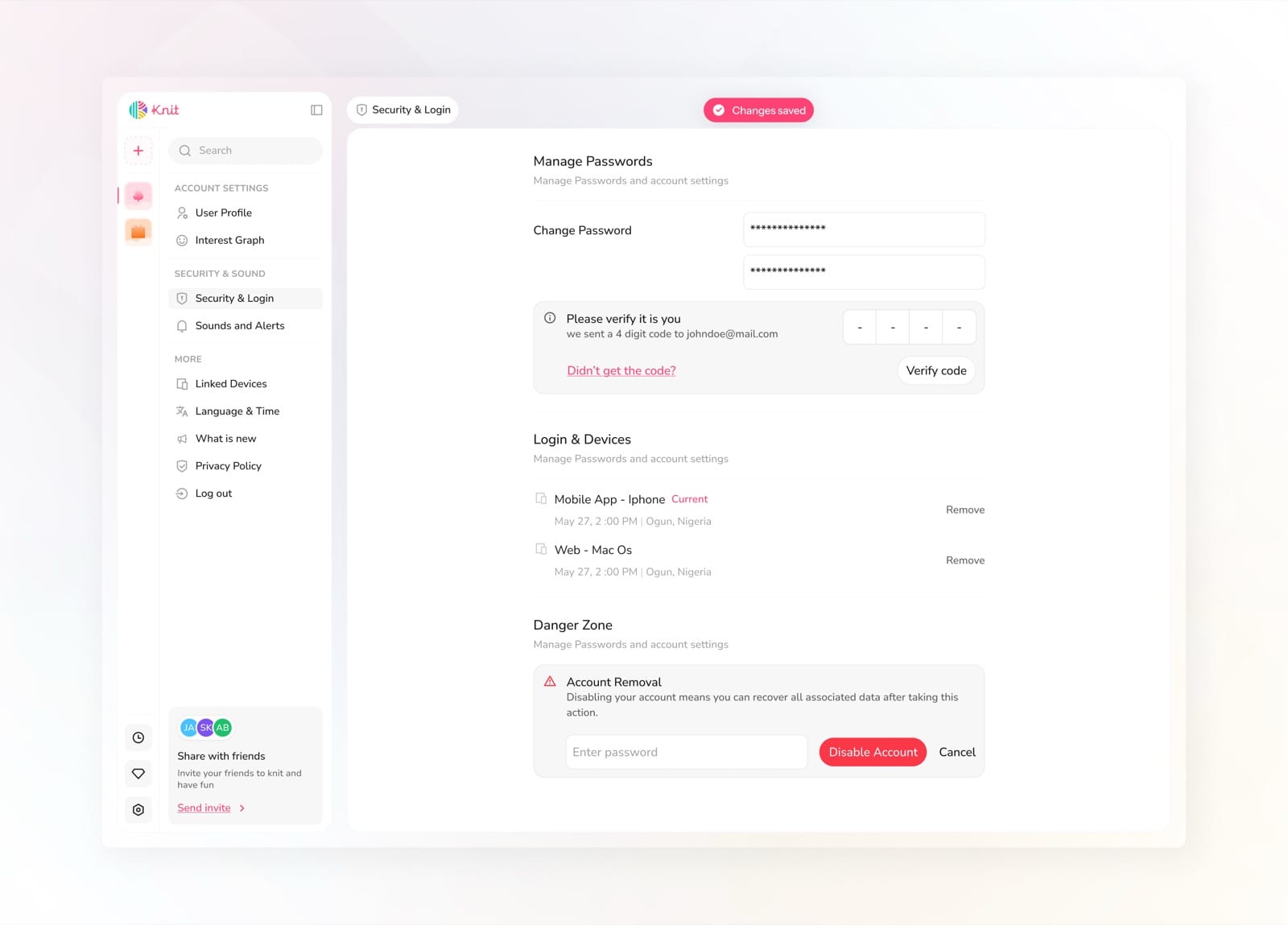
Manage passwords, linked devices, and account security
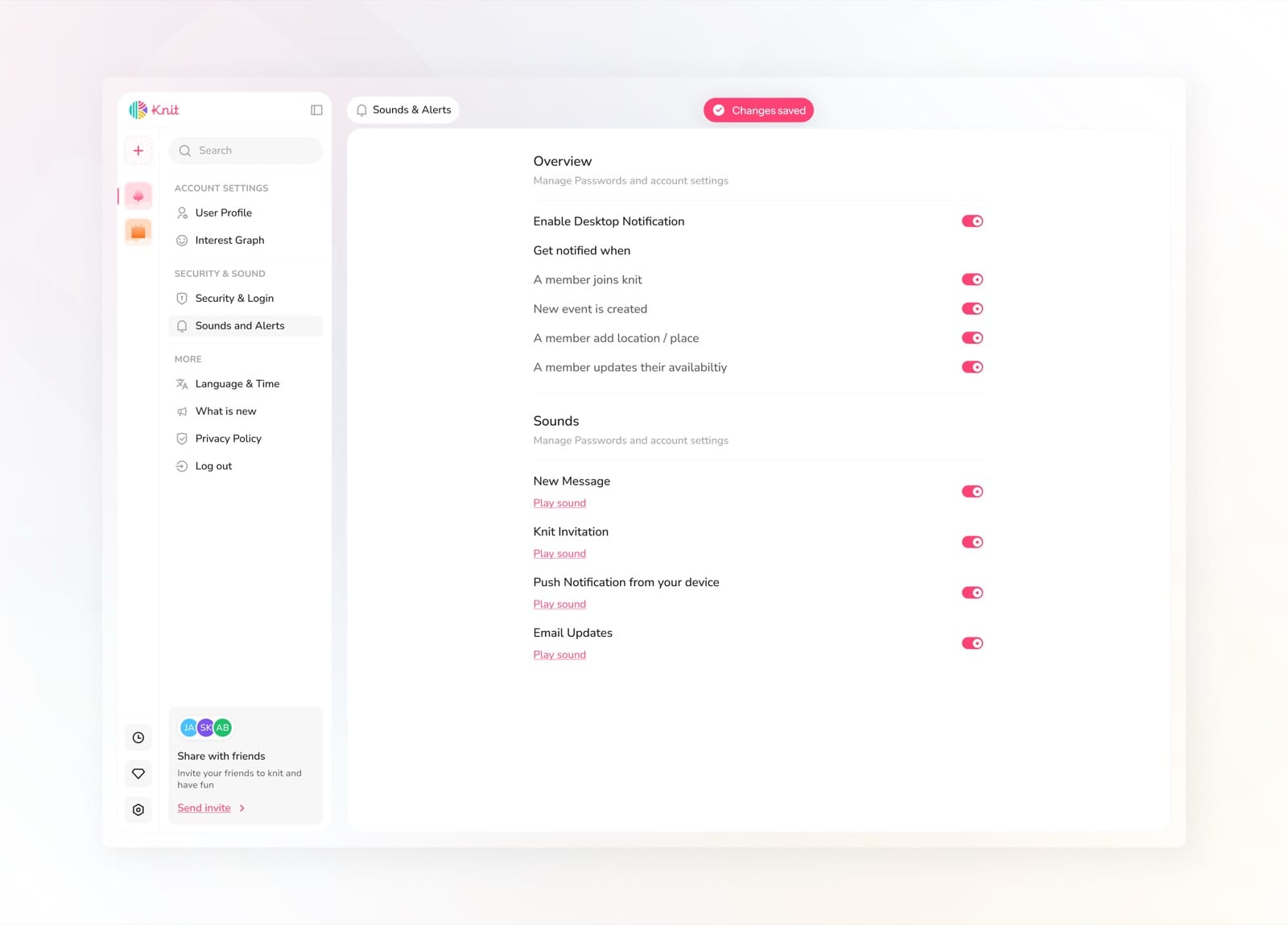
Configure notification preferences and sound alerts
Features (Mobile App)
Home
The mobile home screen is the daily pulse of a Knit. It surfaces upcoming plans that need a response, nearby activities to spark ideas, and quick access to switch between the groups you belong to.
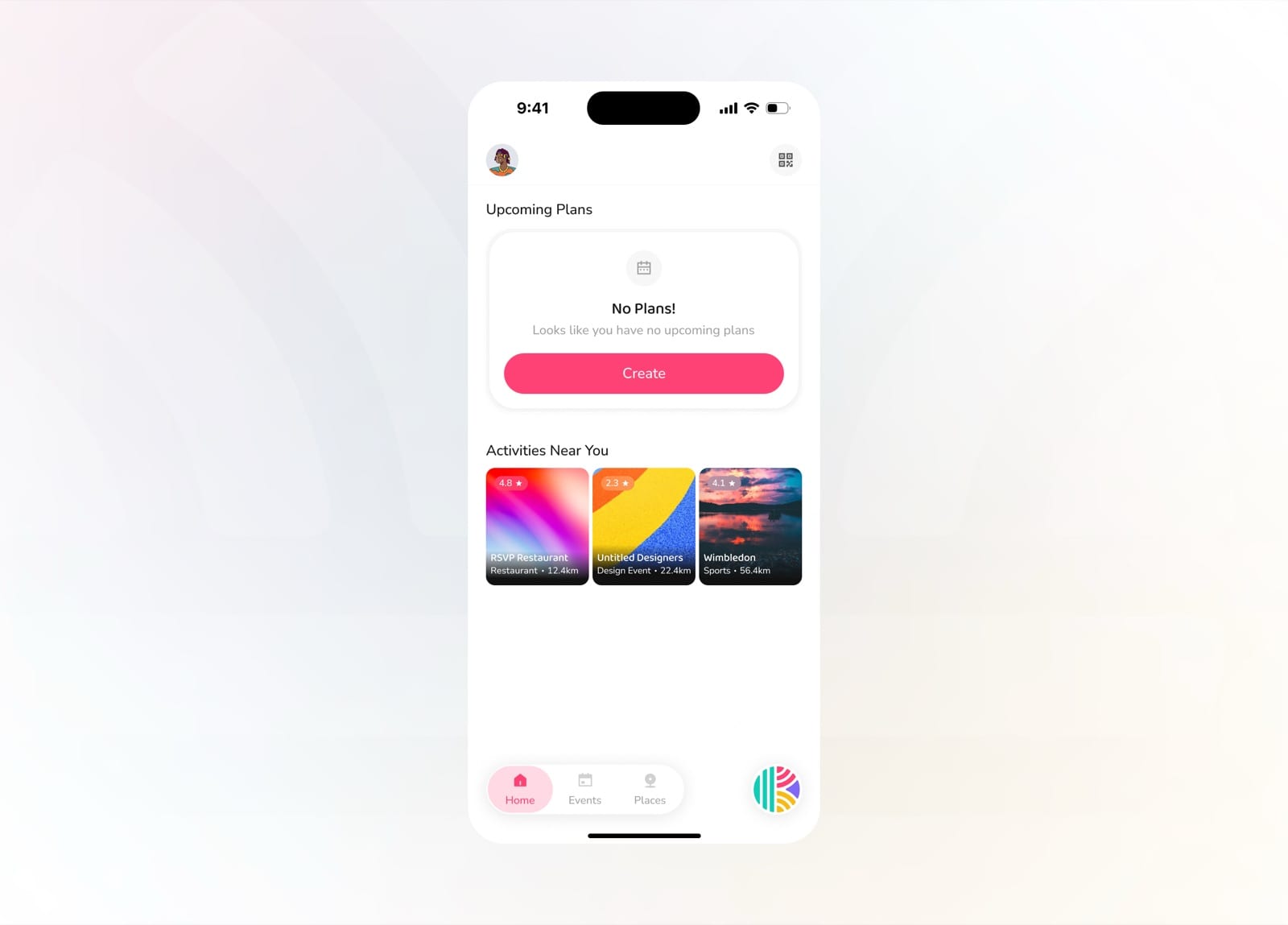
Empty state prompting you to create your first plan
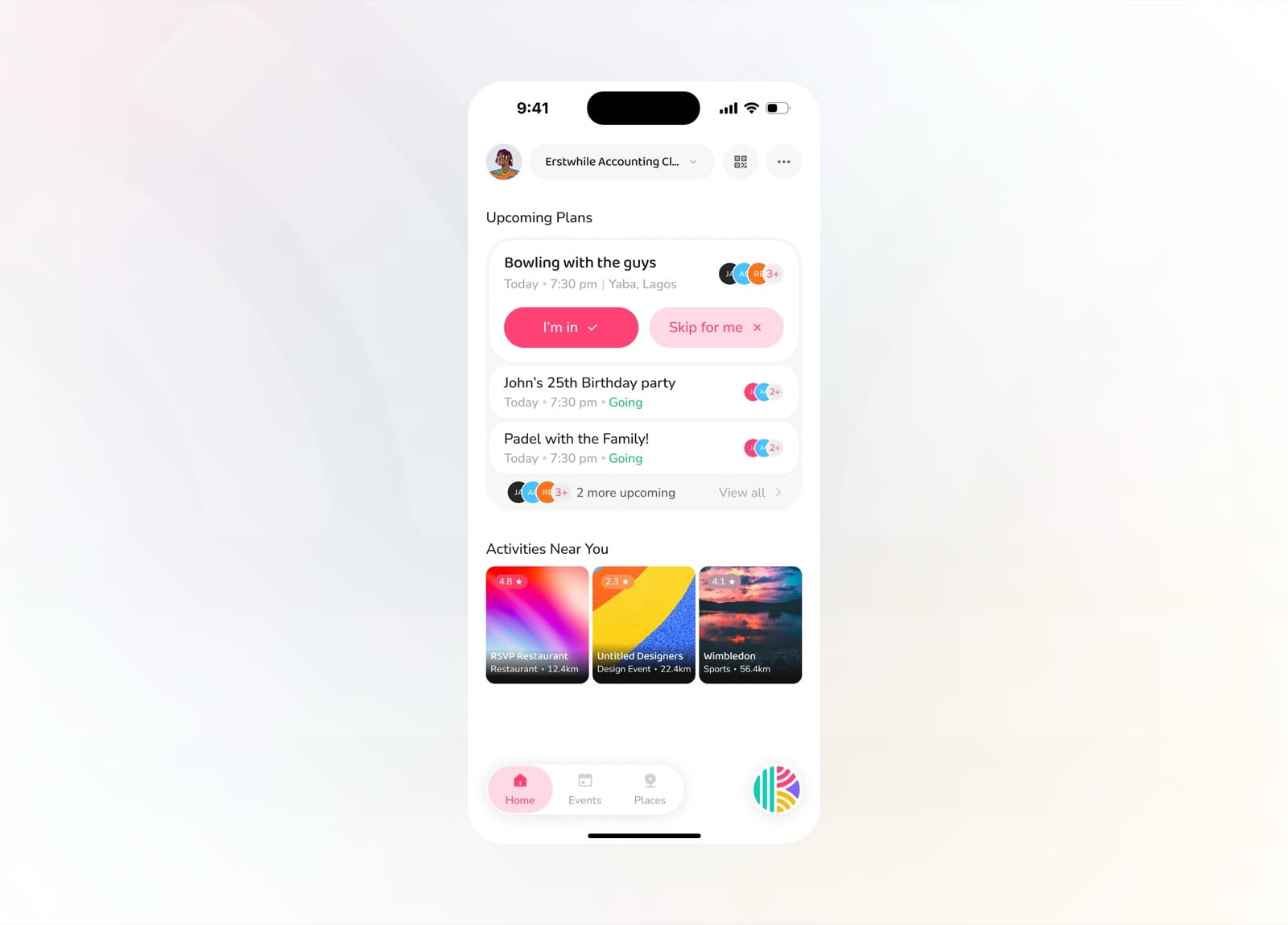
Upcoming plans with quick RSVP right from home
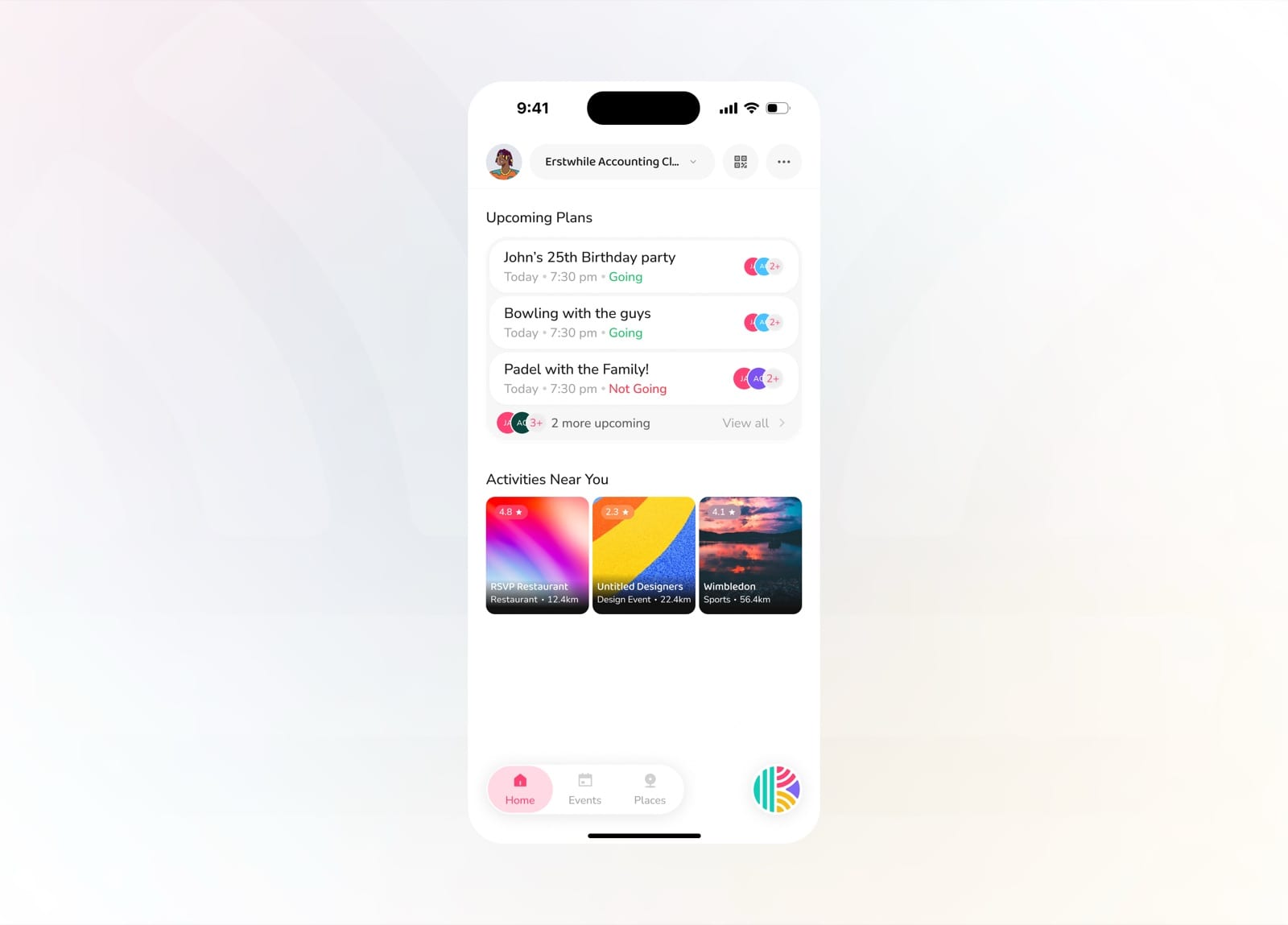
Track who's going across all your upcoming plans
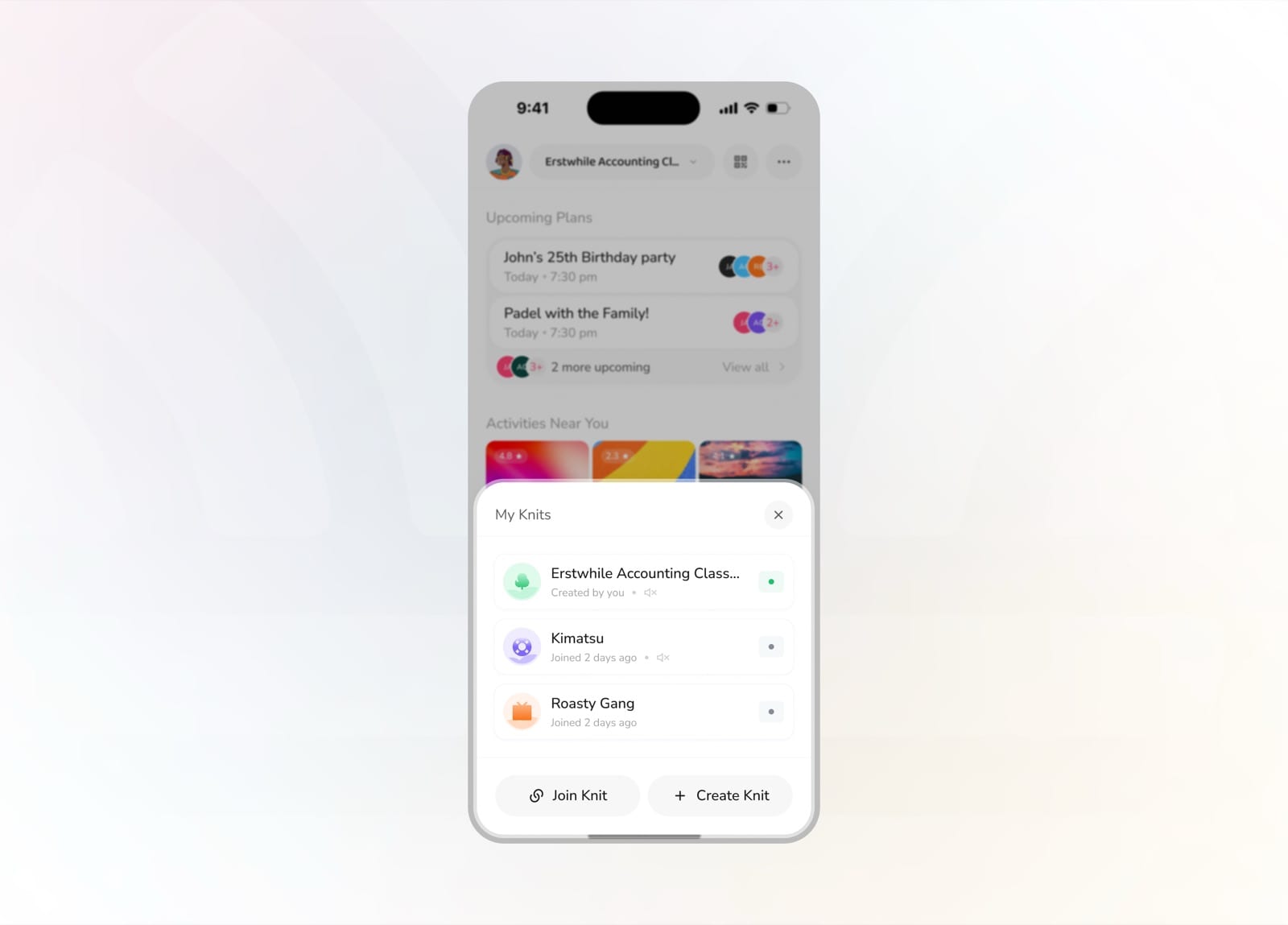
Switch between all the Knits you belong to
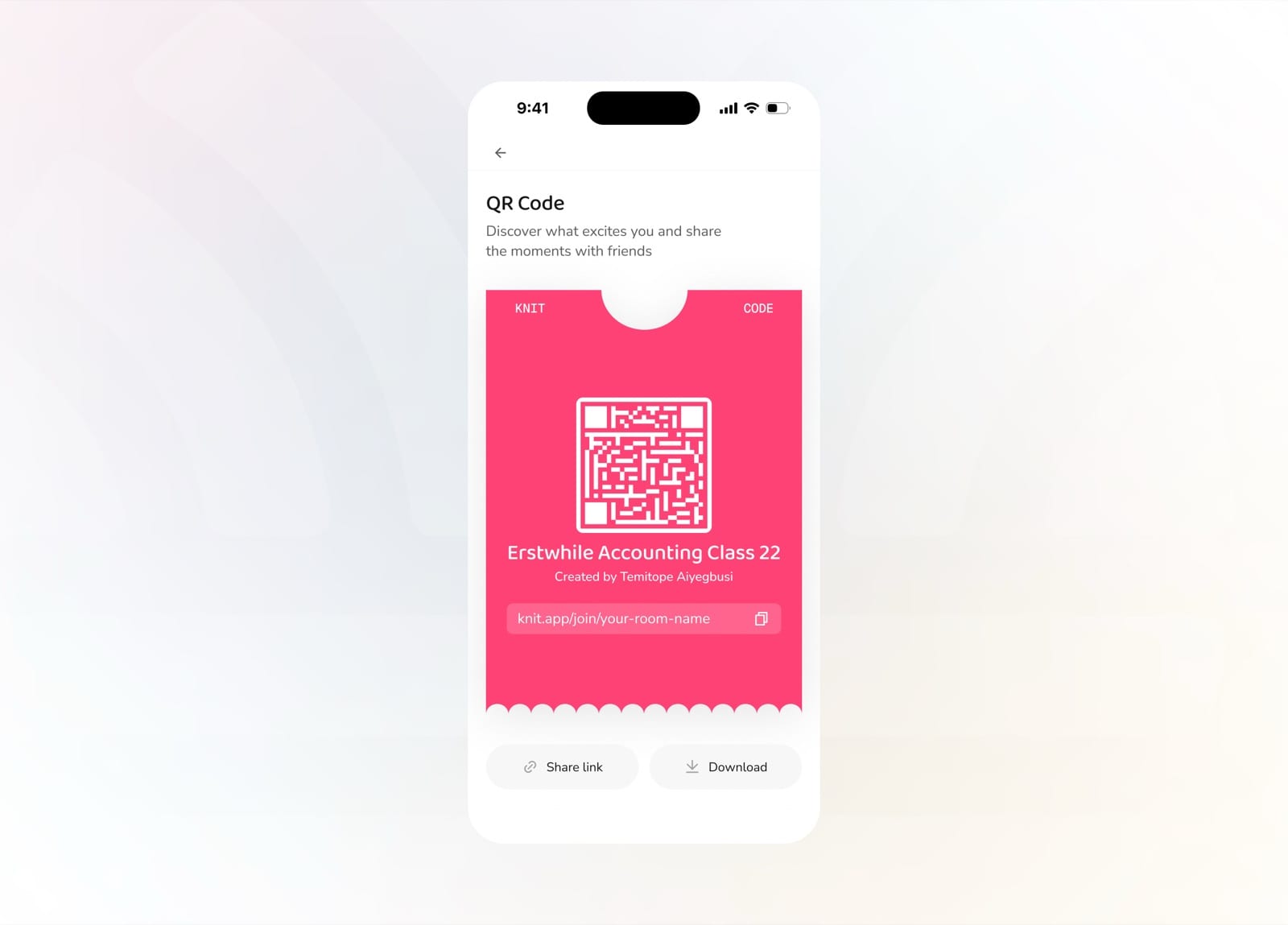
Share your Knit with a scannable QR code and link
Create Knit
Starting a Knit on mobile is playful and quick. Name your group, pick an icon and color, set the size, and add an optional security question to keep it private.
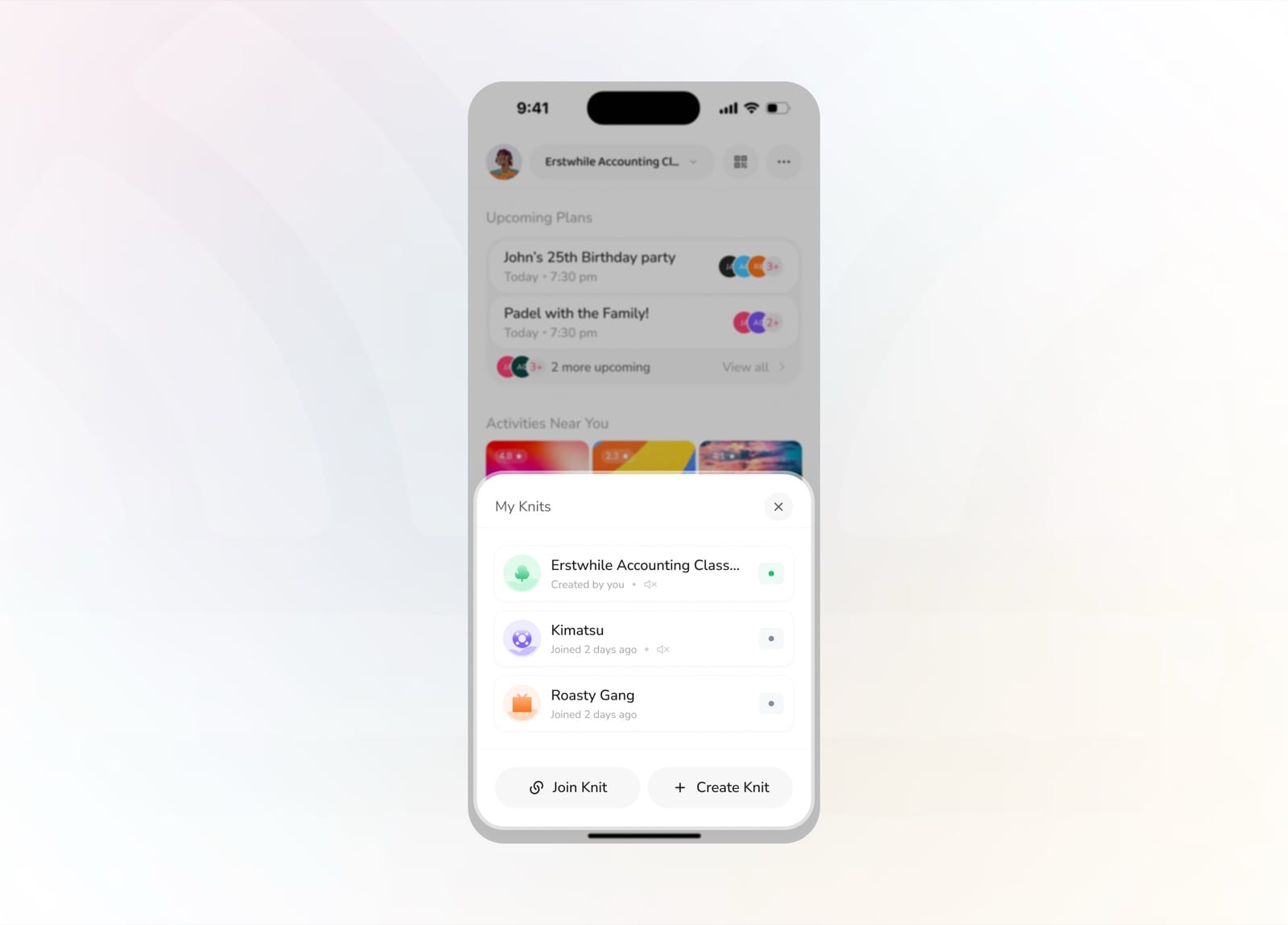
Start from My Knits and tap Create Knit
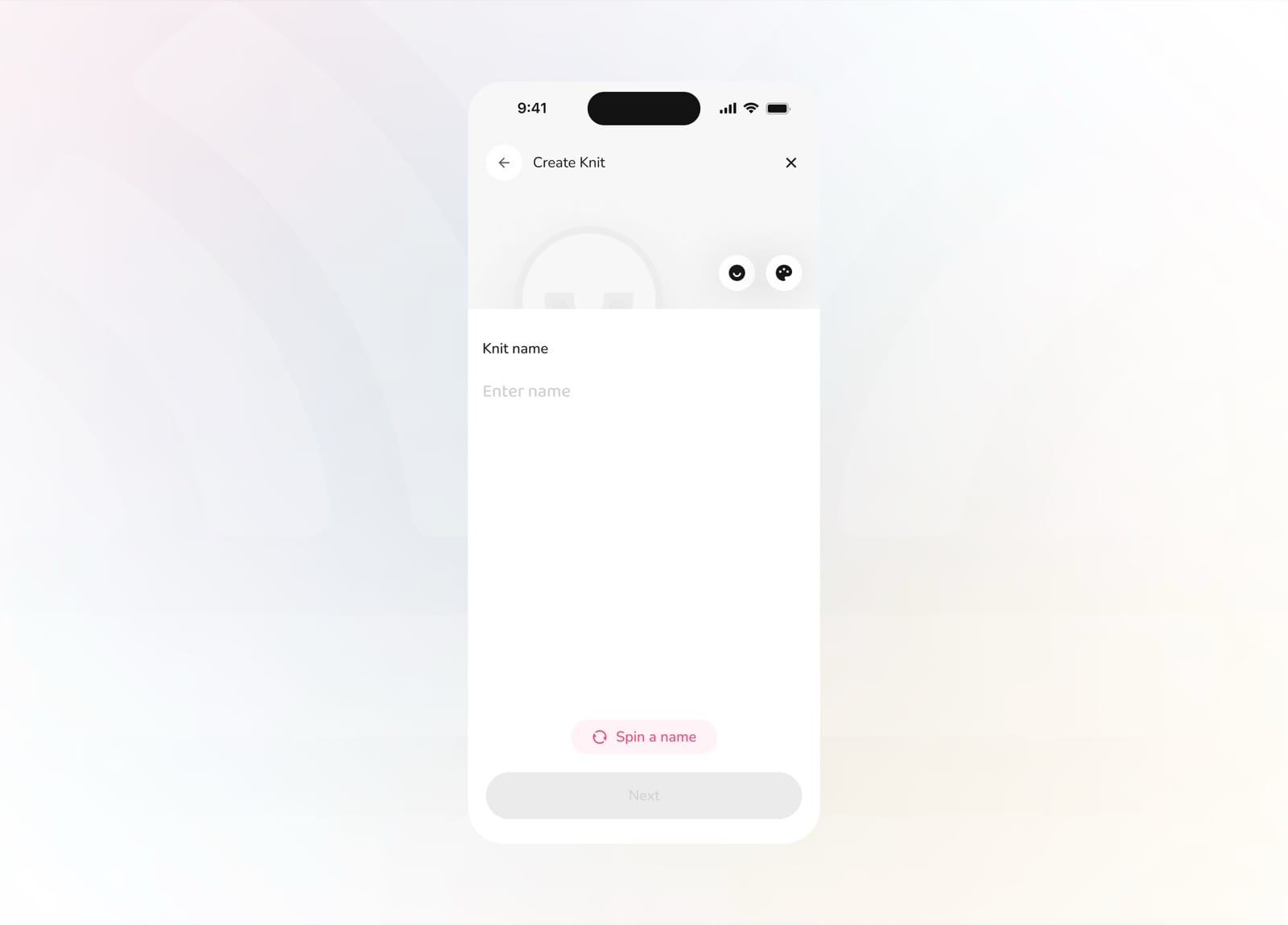
Name your Knit or spin one at random
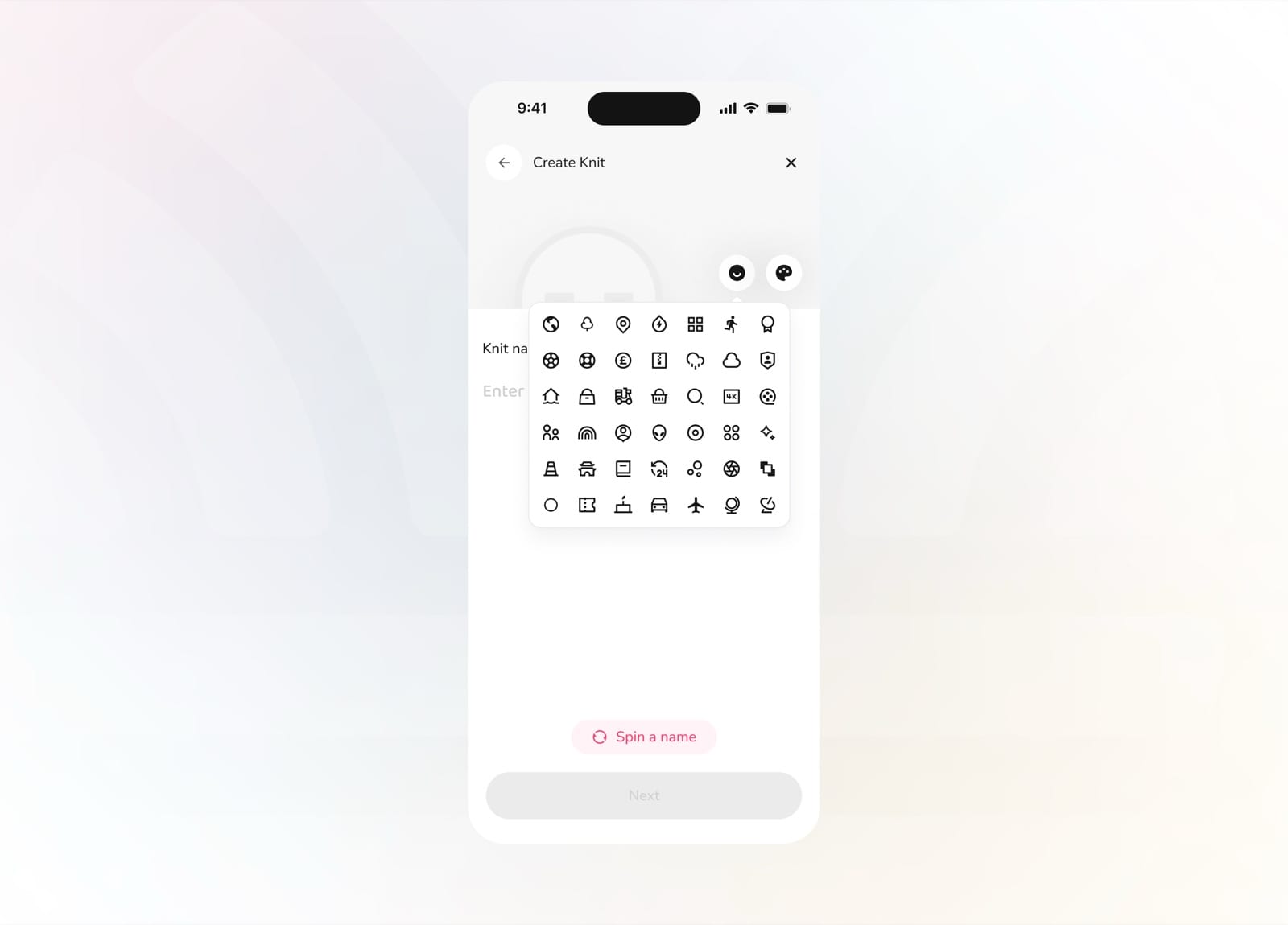
Pick an icon that represents your group
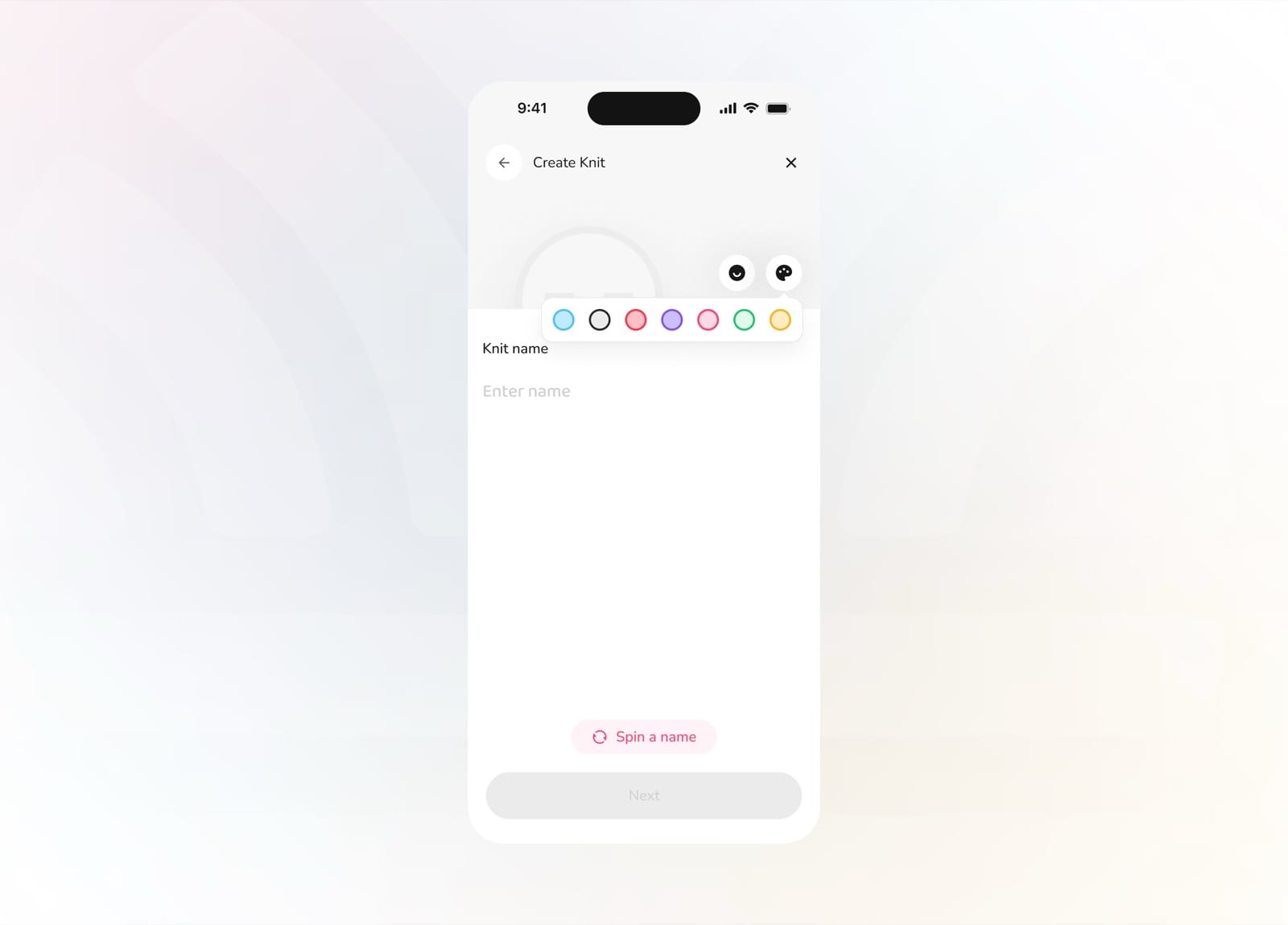
Choose a color theme for your Knit
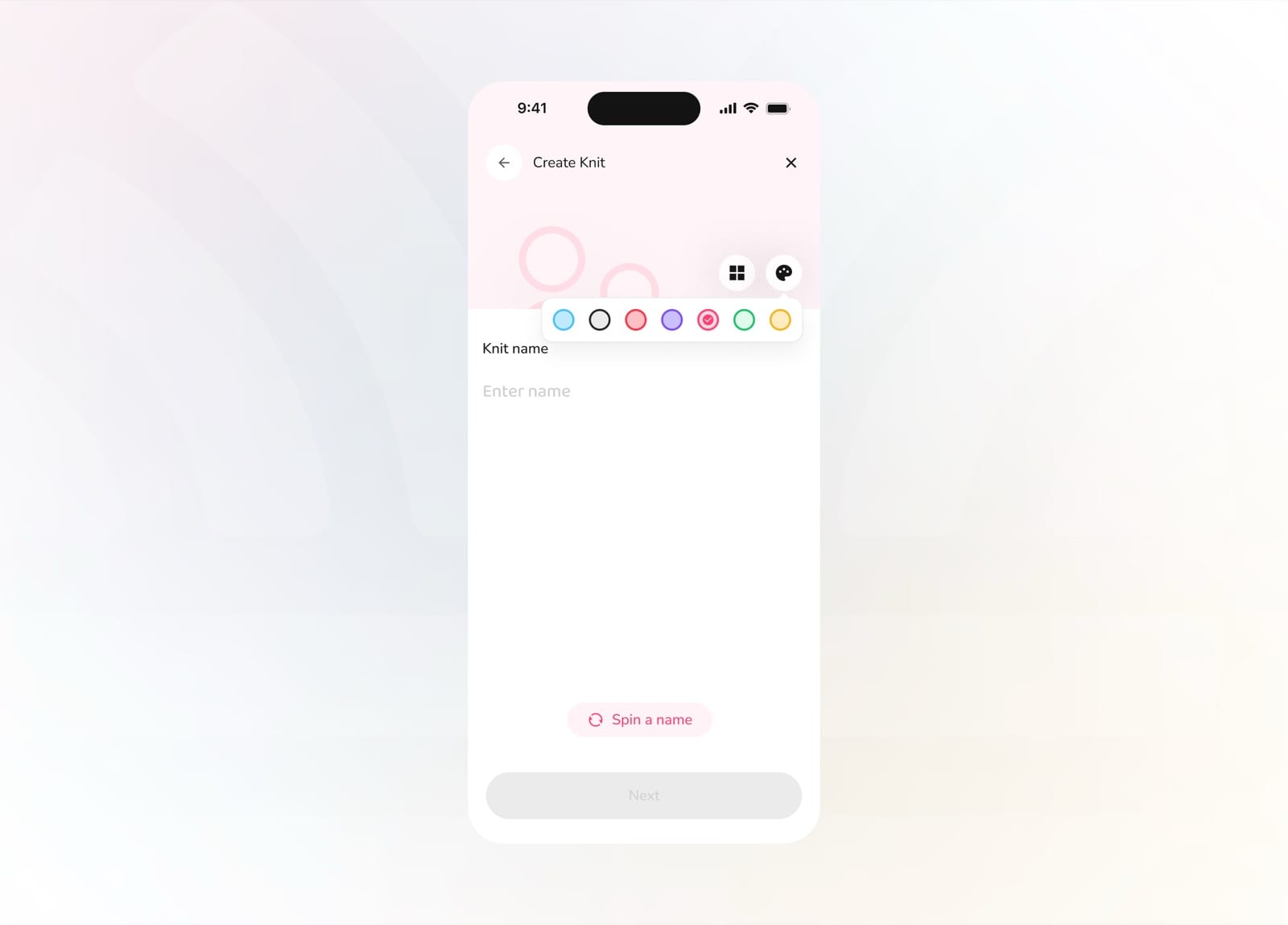
See the theme applied instantly
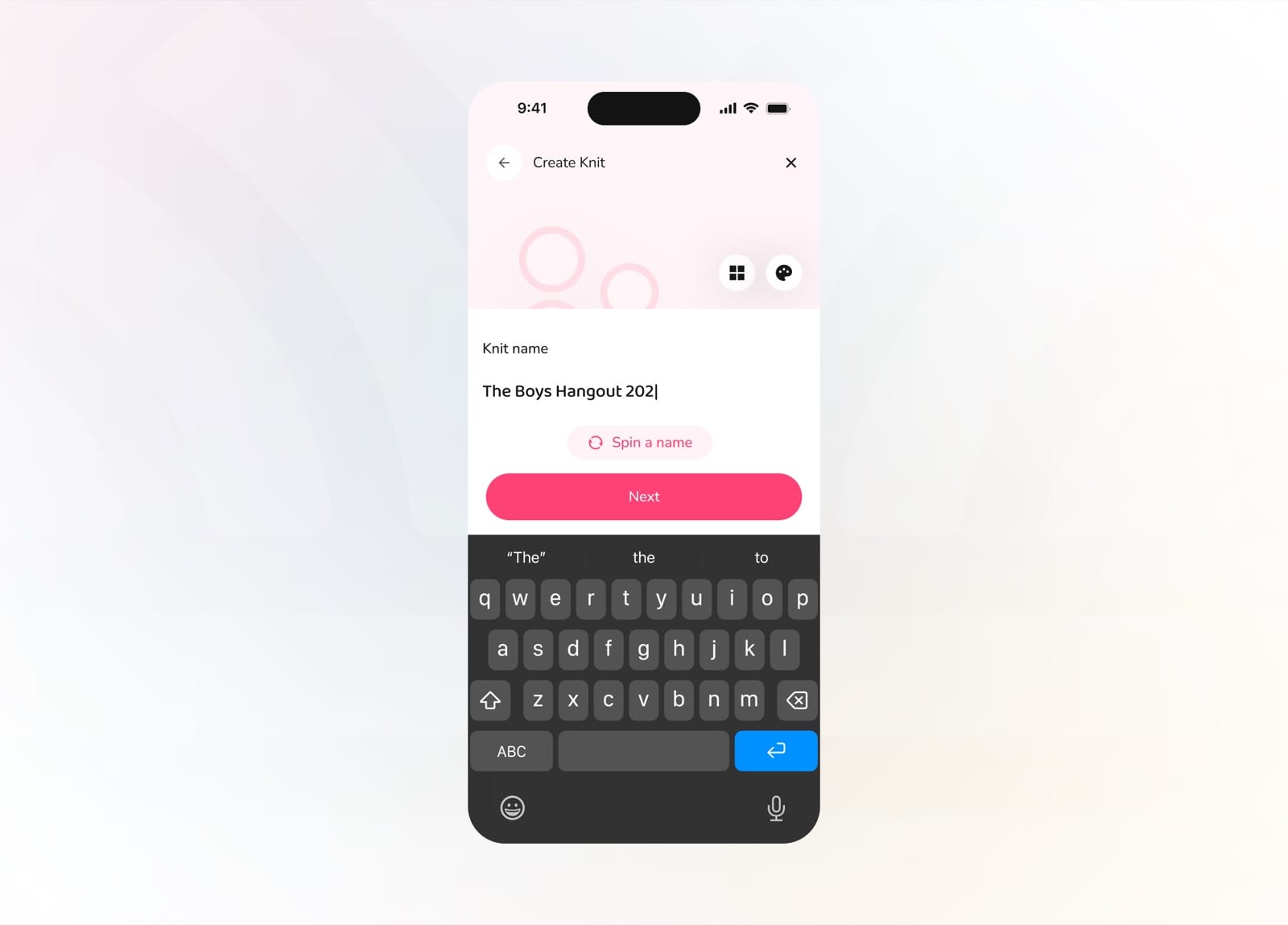
Type in your final name and continue
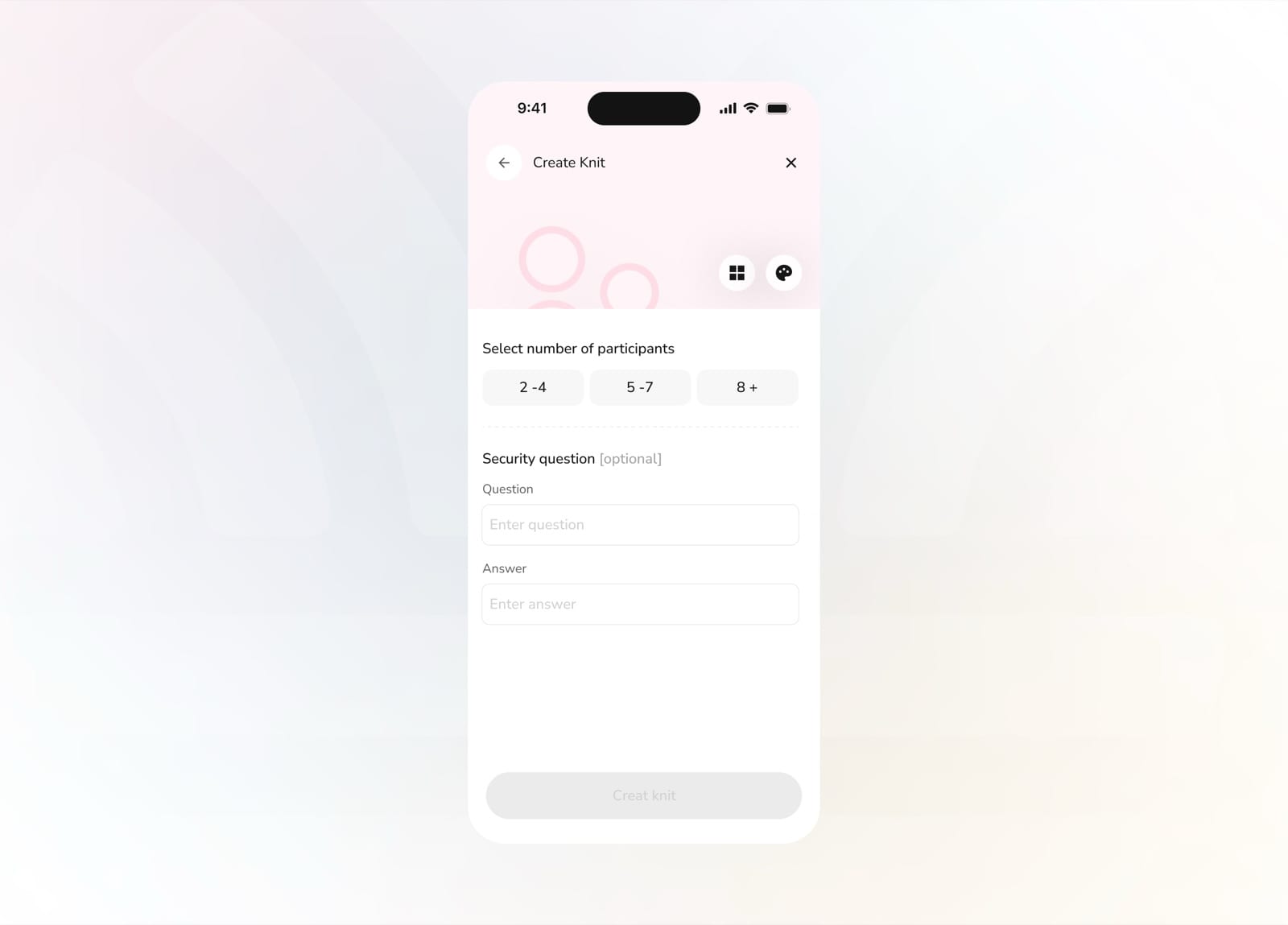
Set the group size and an optional security question
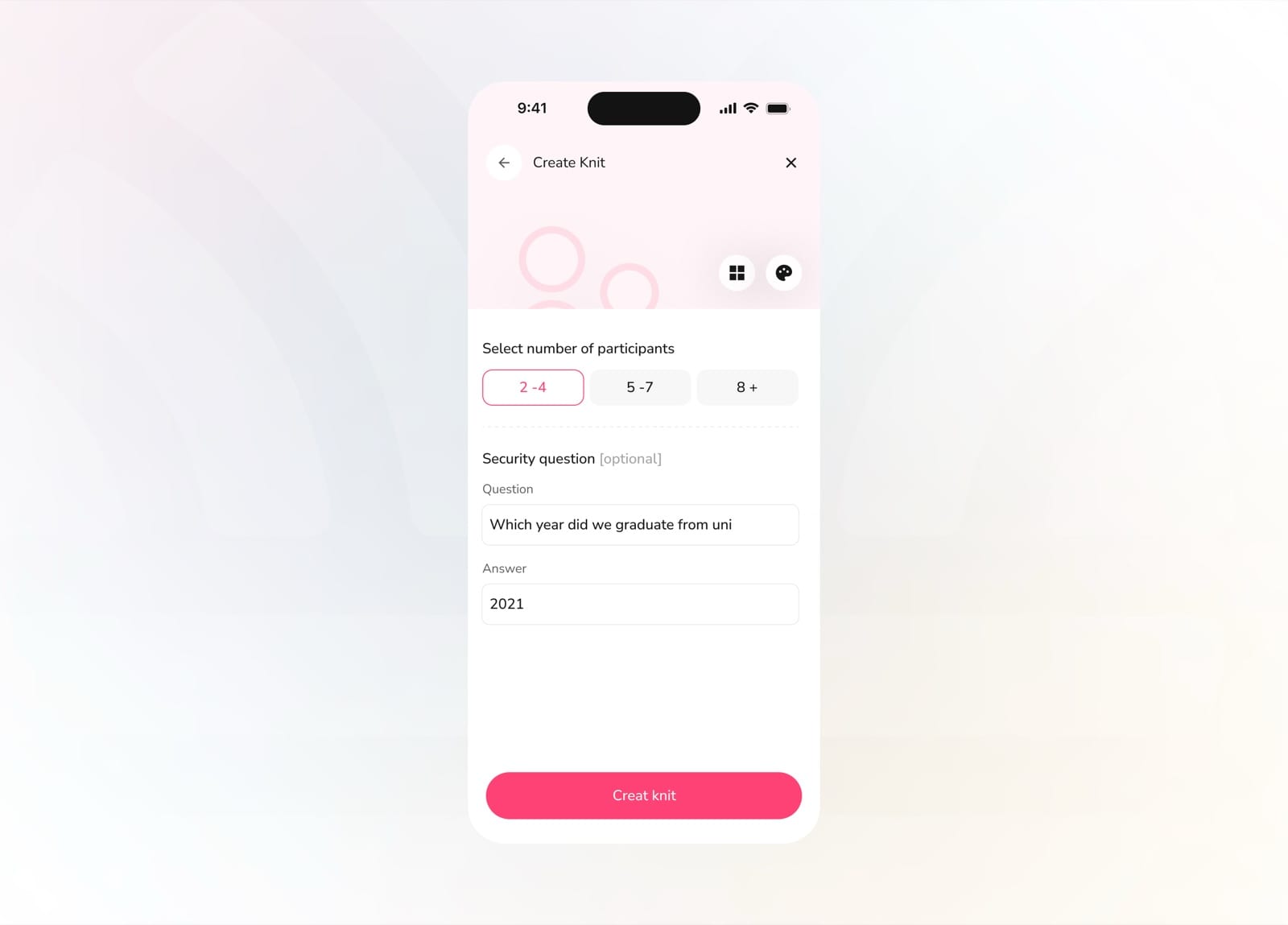
Fill the details and create your Knit
Join Knit (Link)
Joining by link is frictionless. Paste an invite link, preview the group and its plans, and hop in with a single tap.
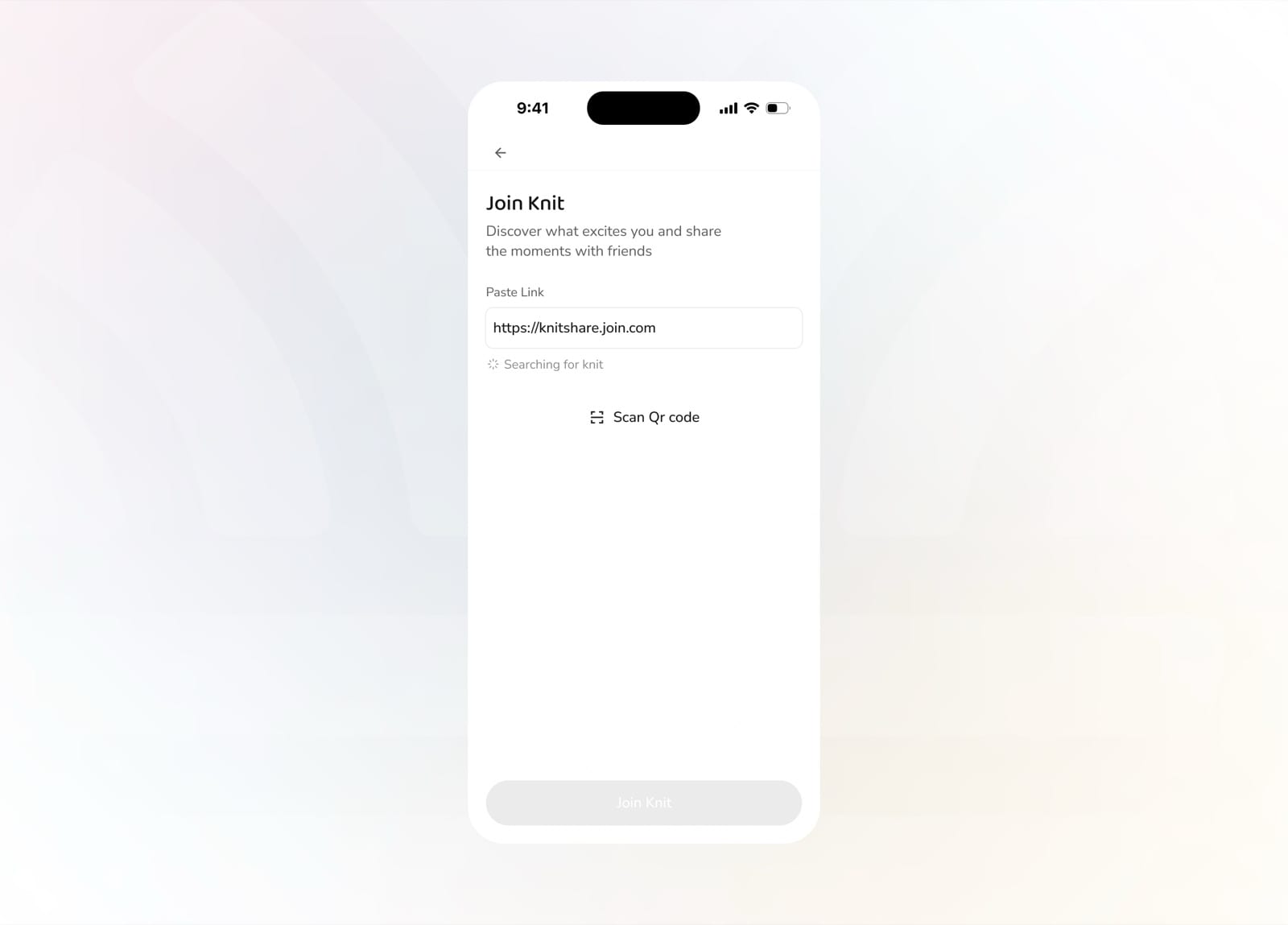
Paste a link and Knit searches for the group
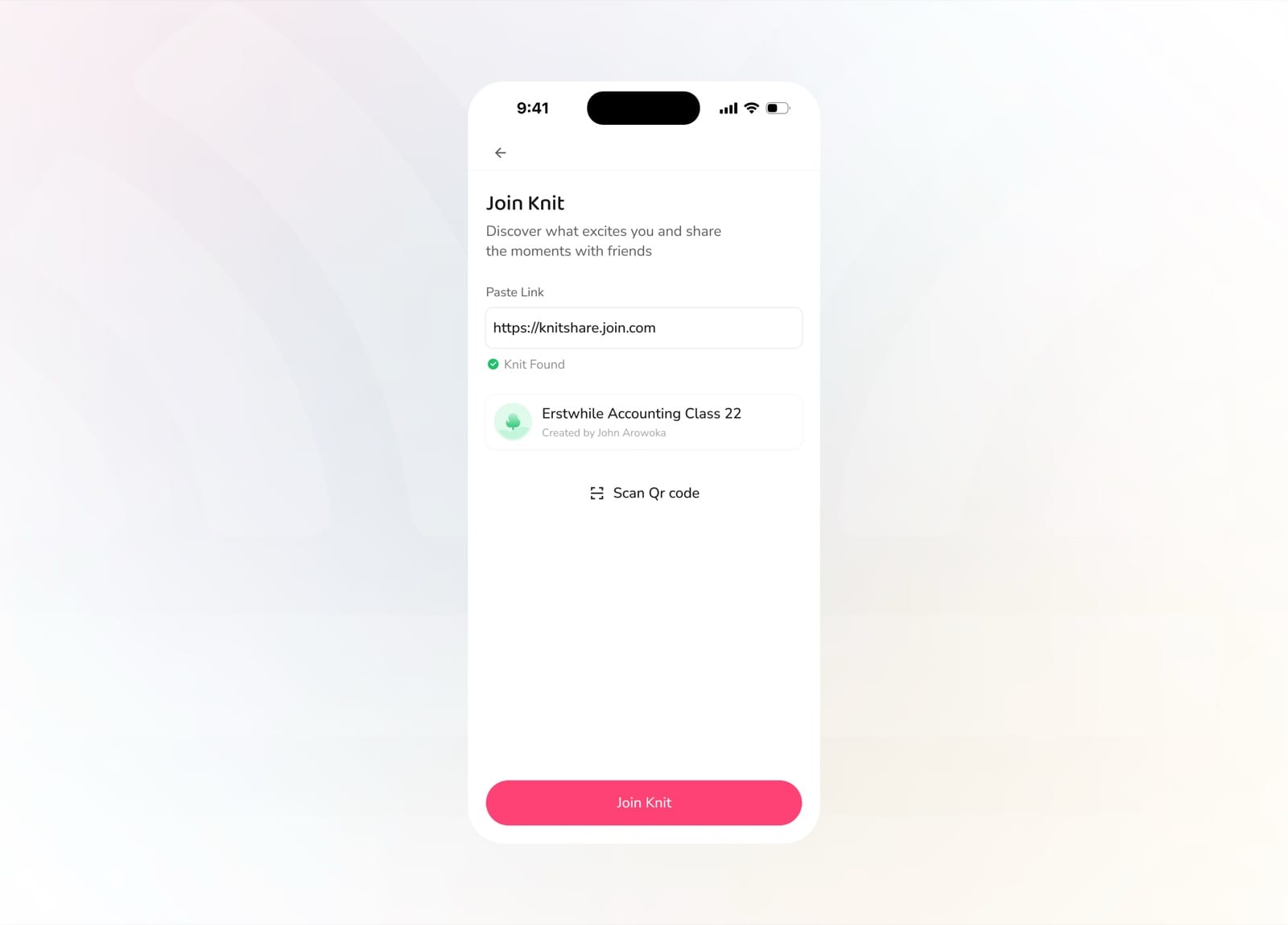
The matching Knit is found and confirmed
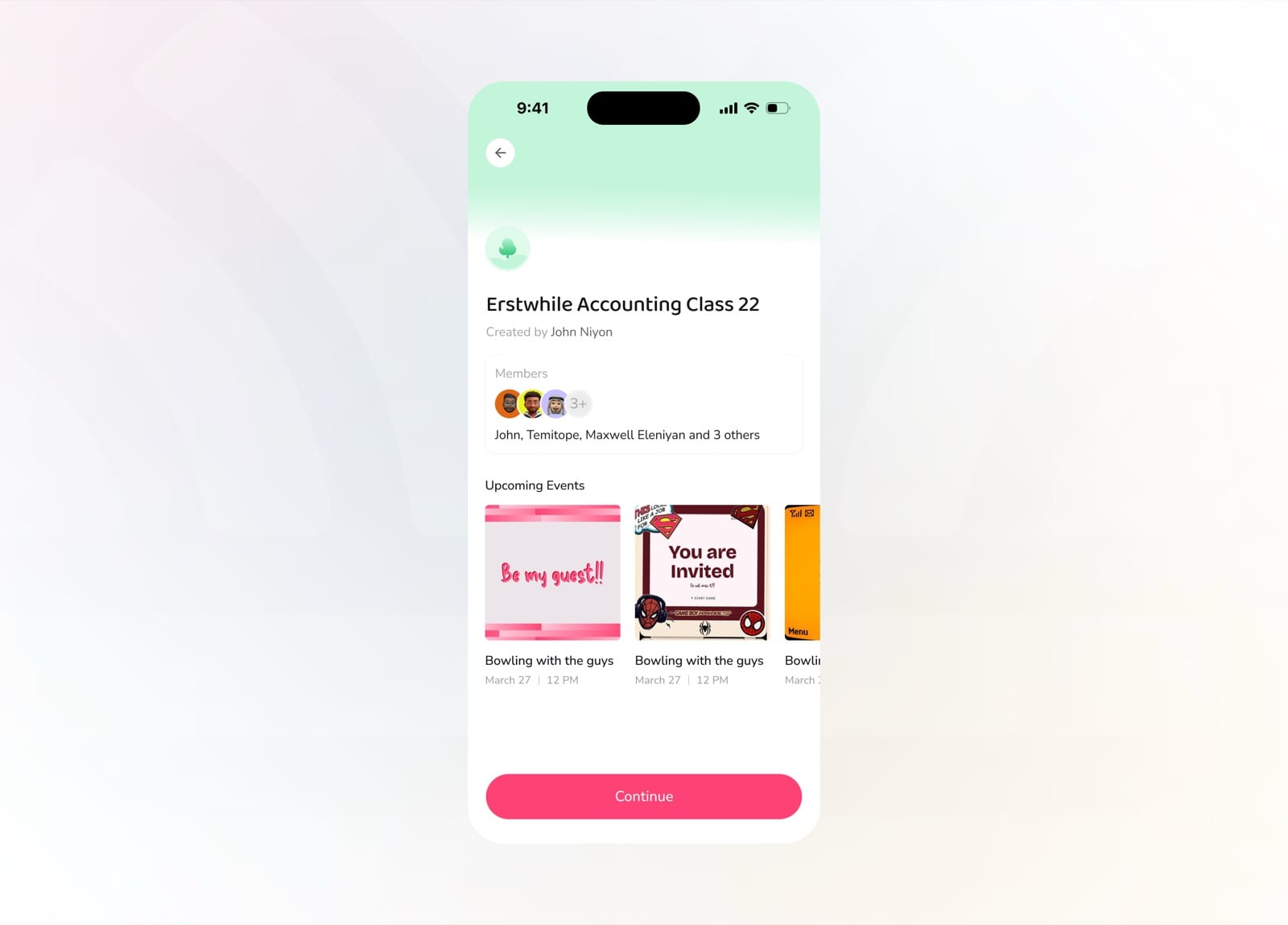
Preview the members and upcoming events
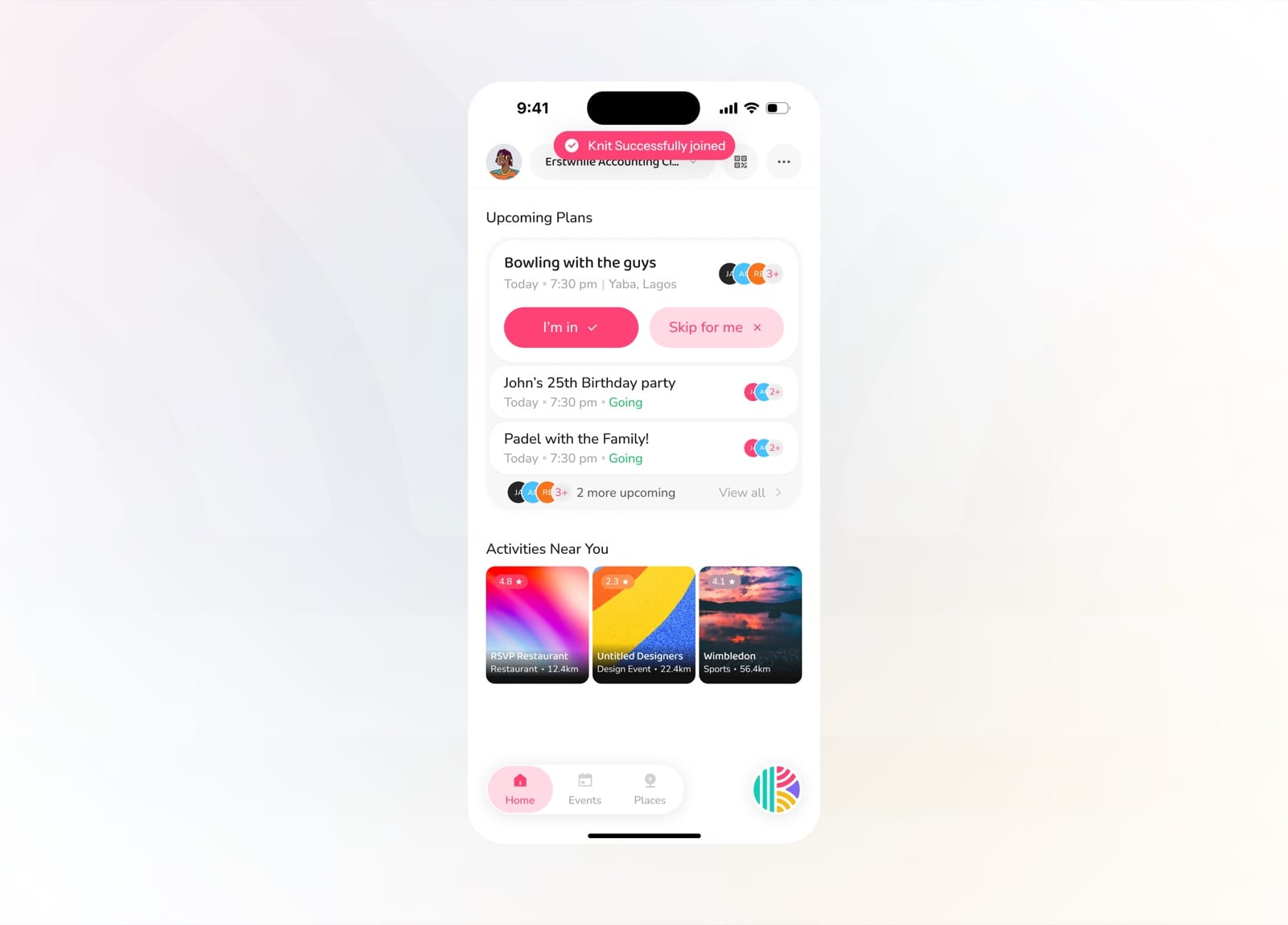
You've successfully joined the Knit
Join Knit (QR)
Prefer to join in person? Scan a friend's QR code to find the Knit instantly and confirm your spot.
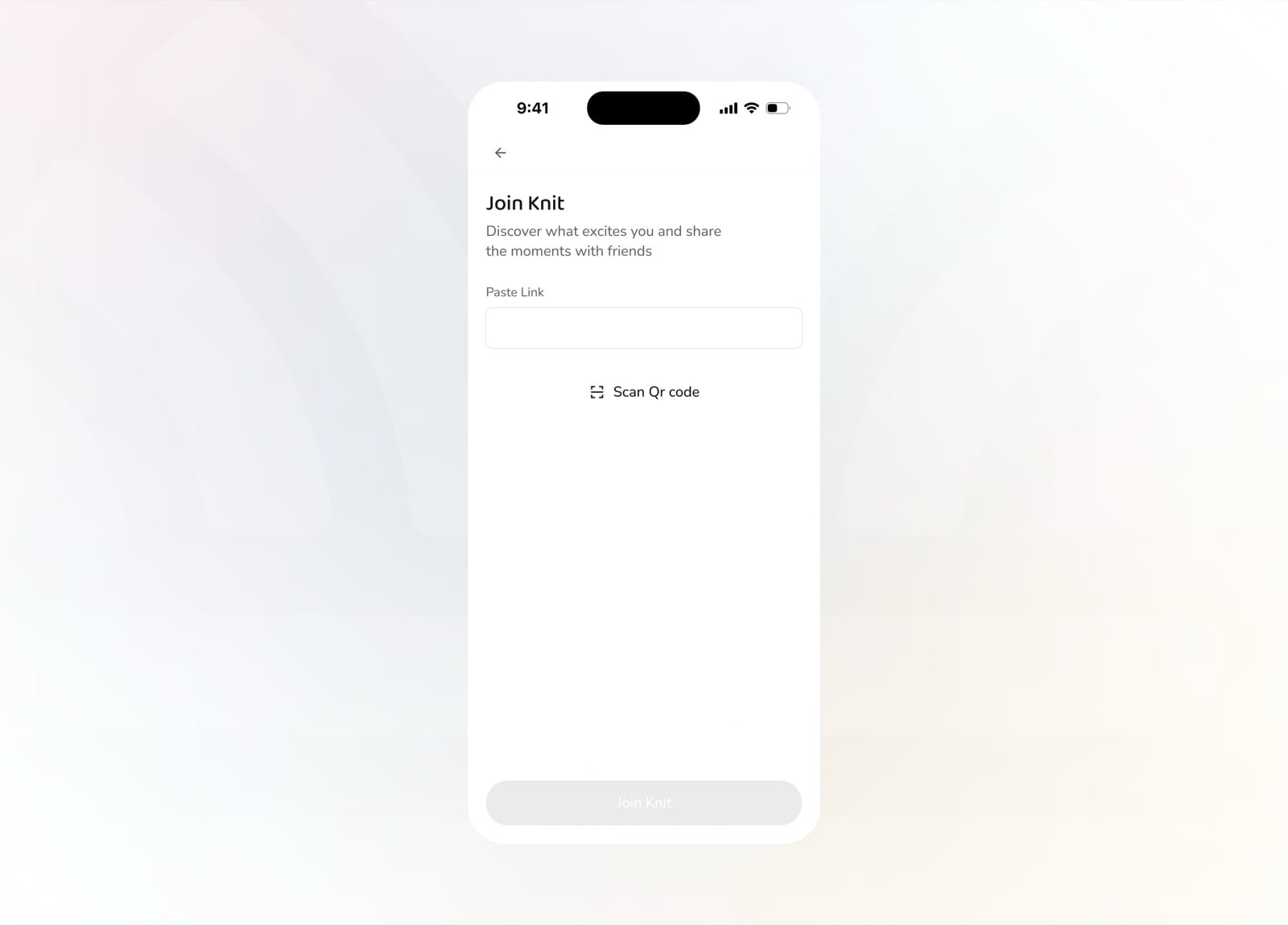
Open Join Knit and choose to scan a QR code
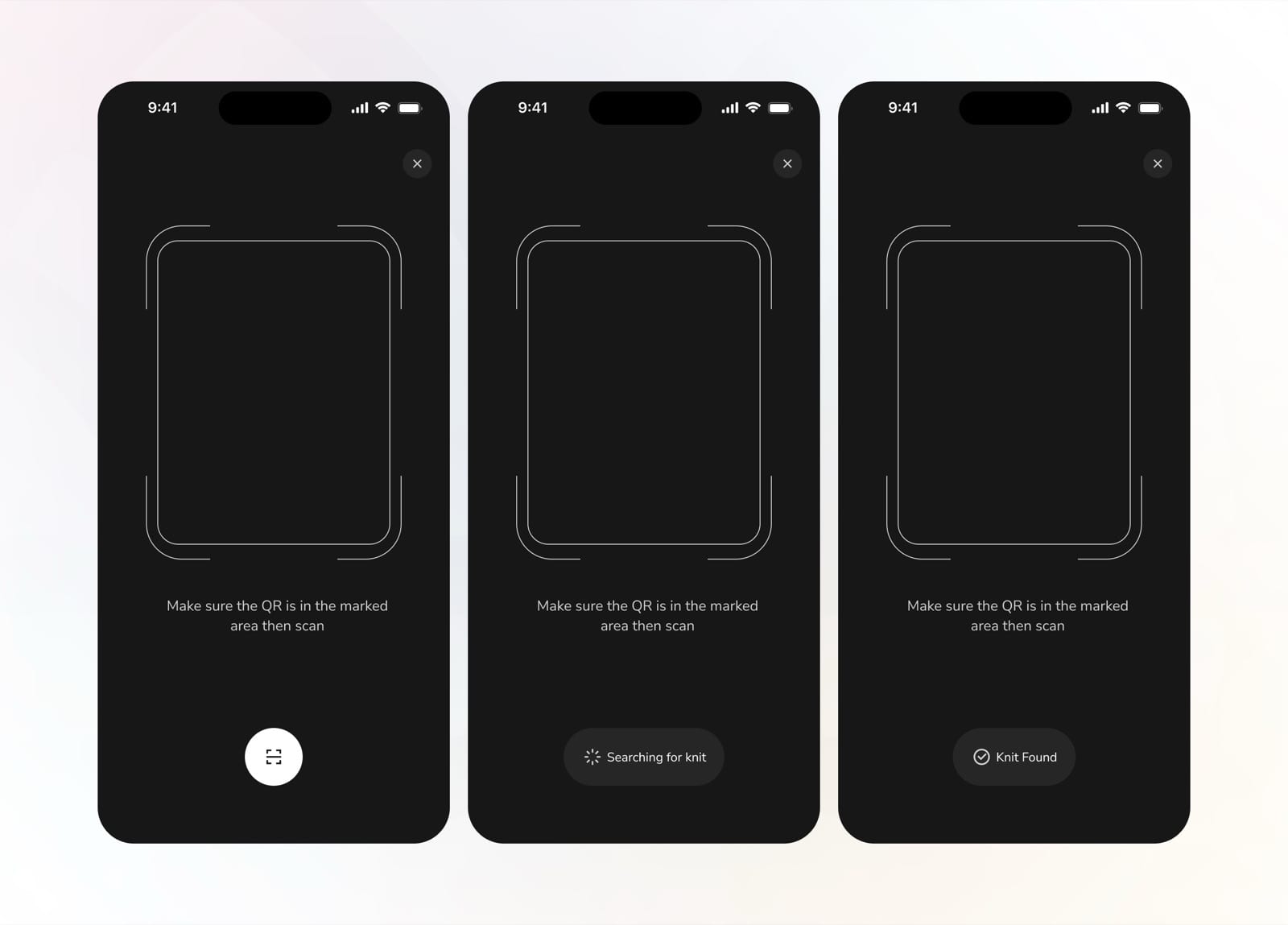
Point at the code to search, then the Knit is found
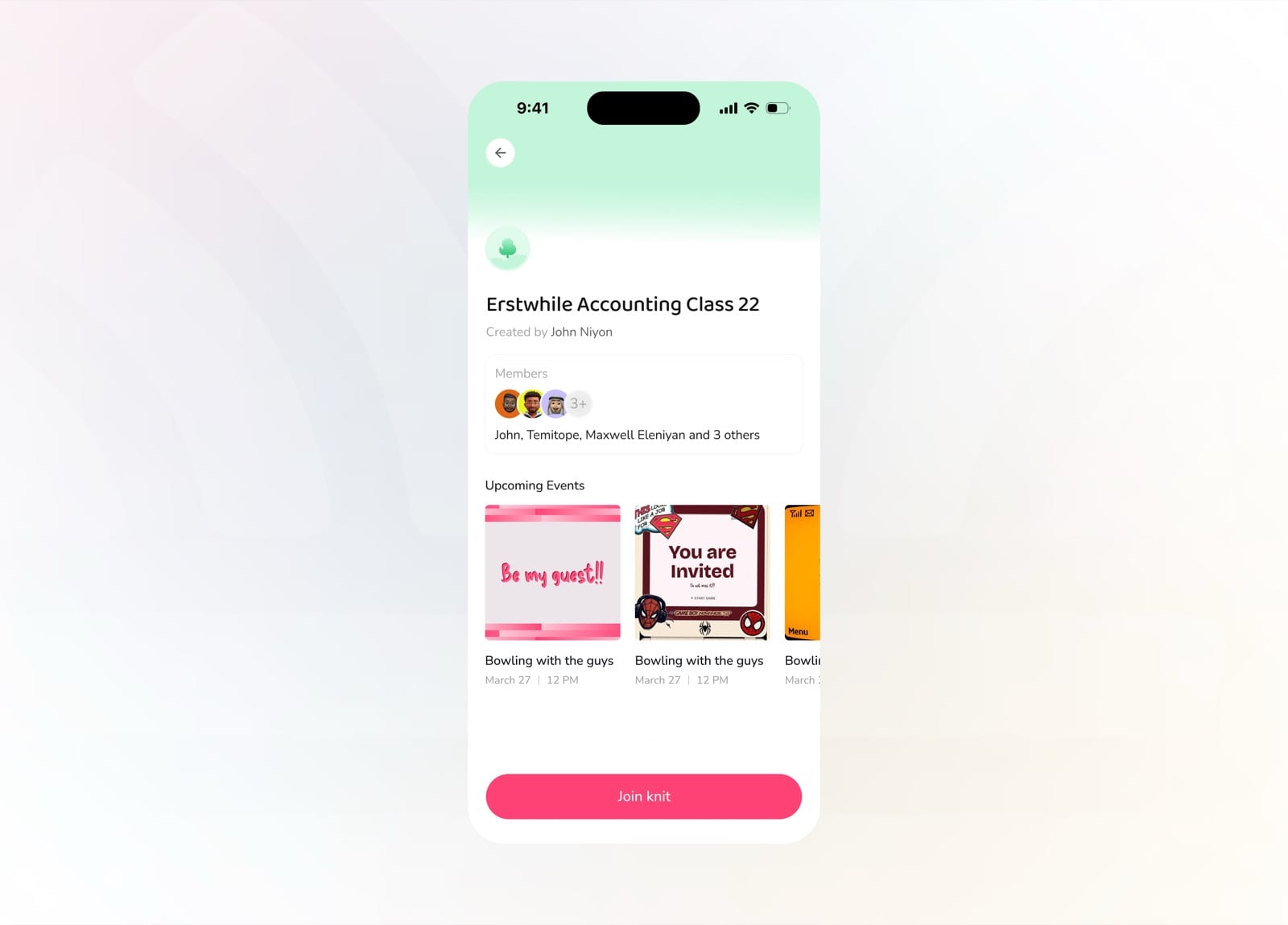
Preview the group and tap Join knit
Create Events
Planning an event on the go is effortless. Add a title and cover, write a rich description, set the date and time, pin a location, and publish it to your Knit.
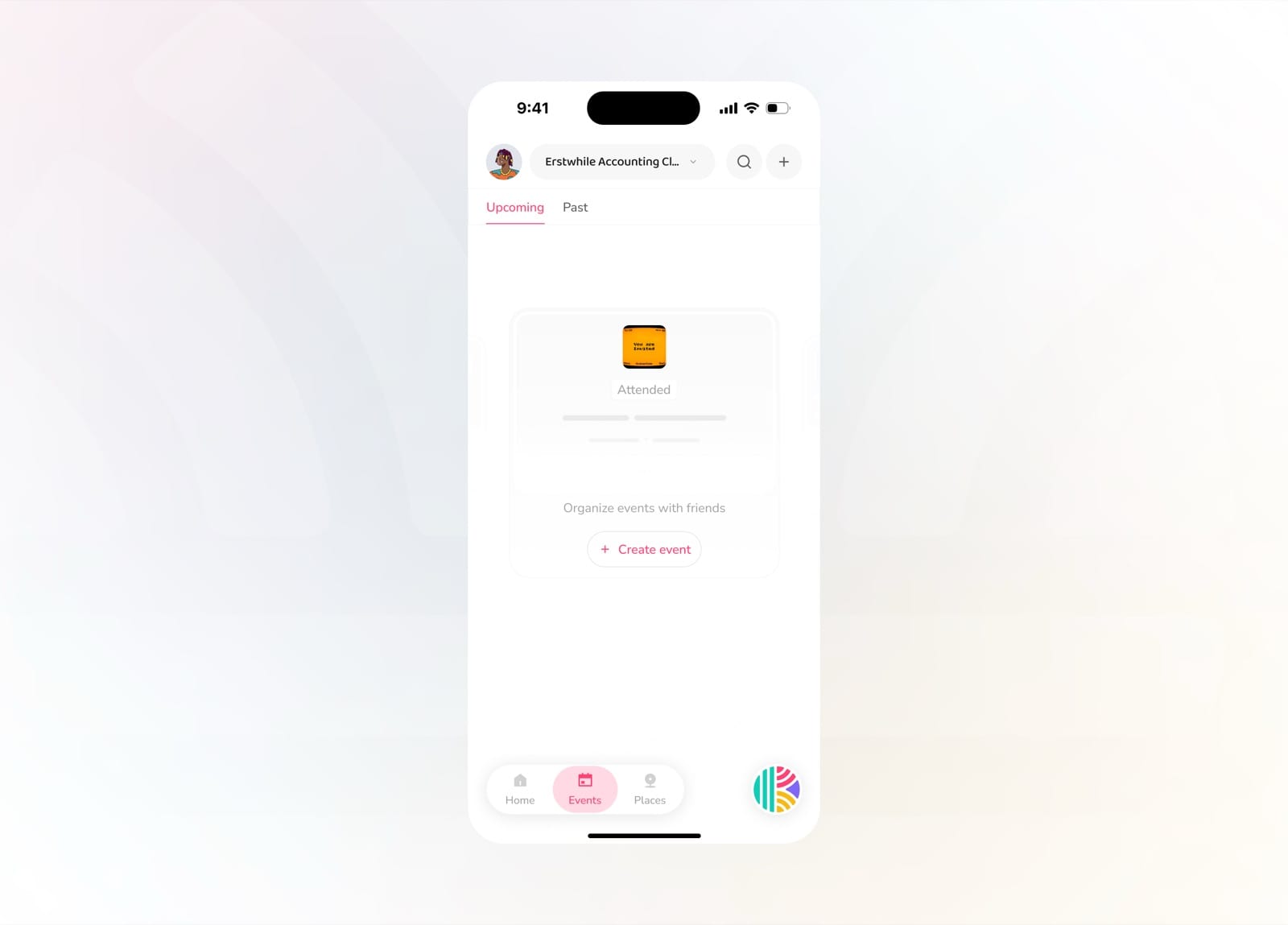
Empty events tab with a prompt to create one
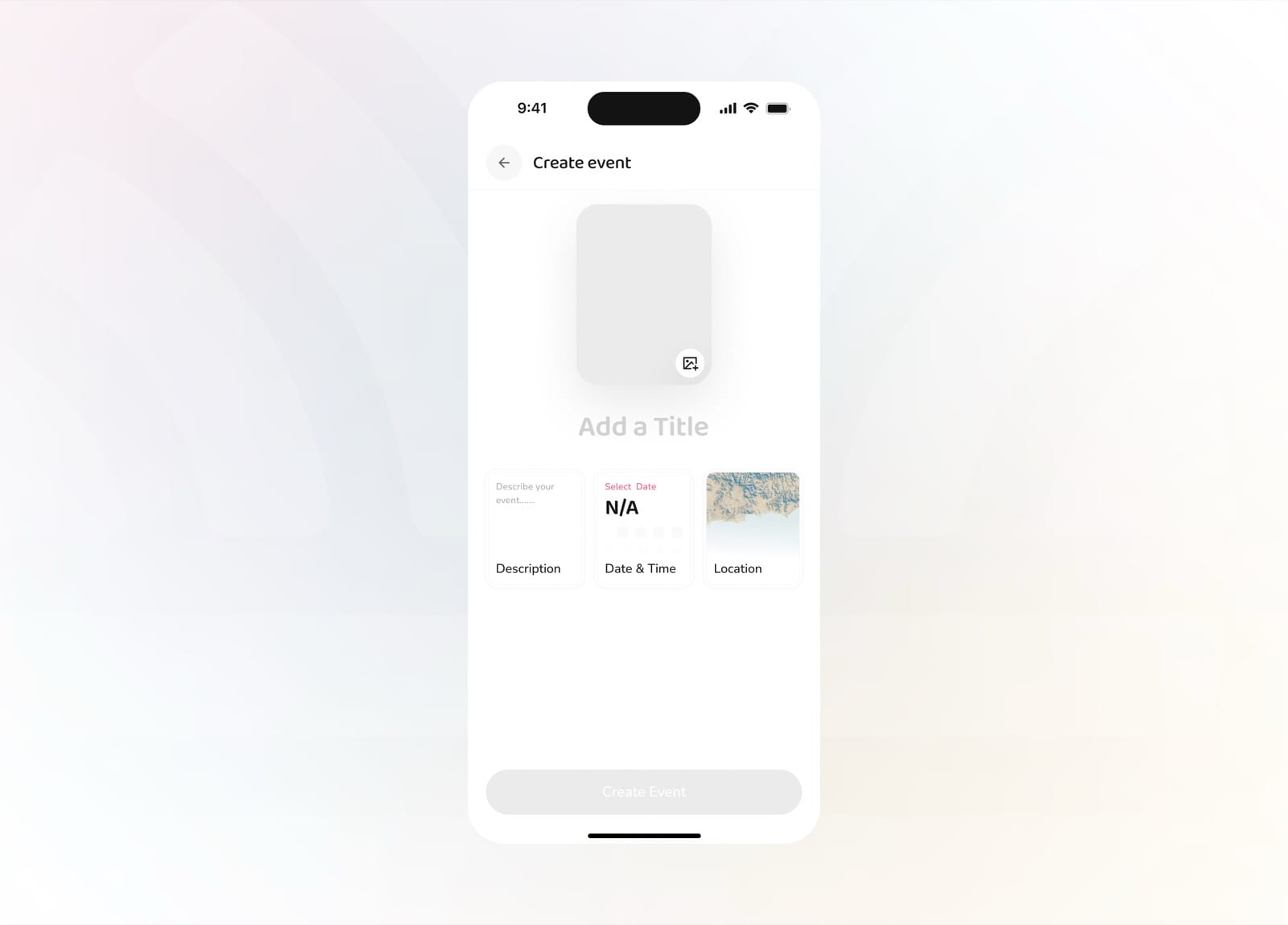
Add a title, cover, description, date, and location
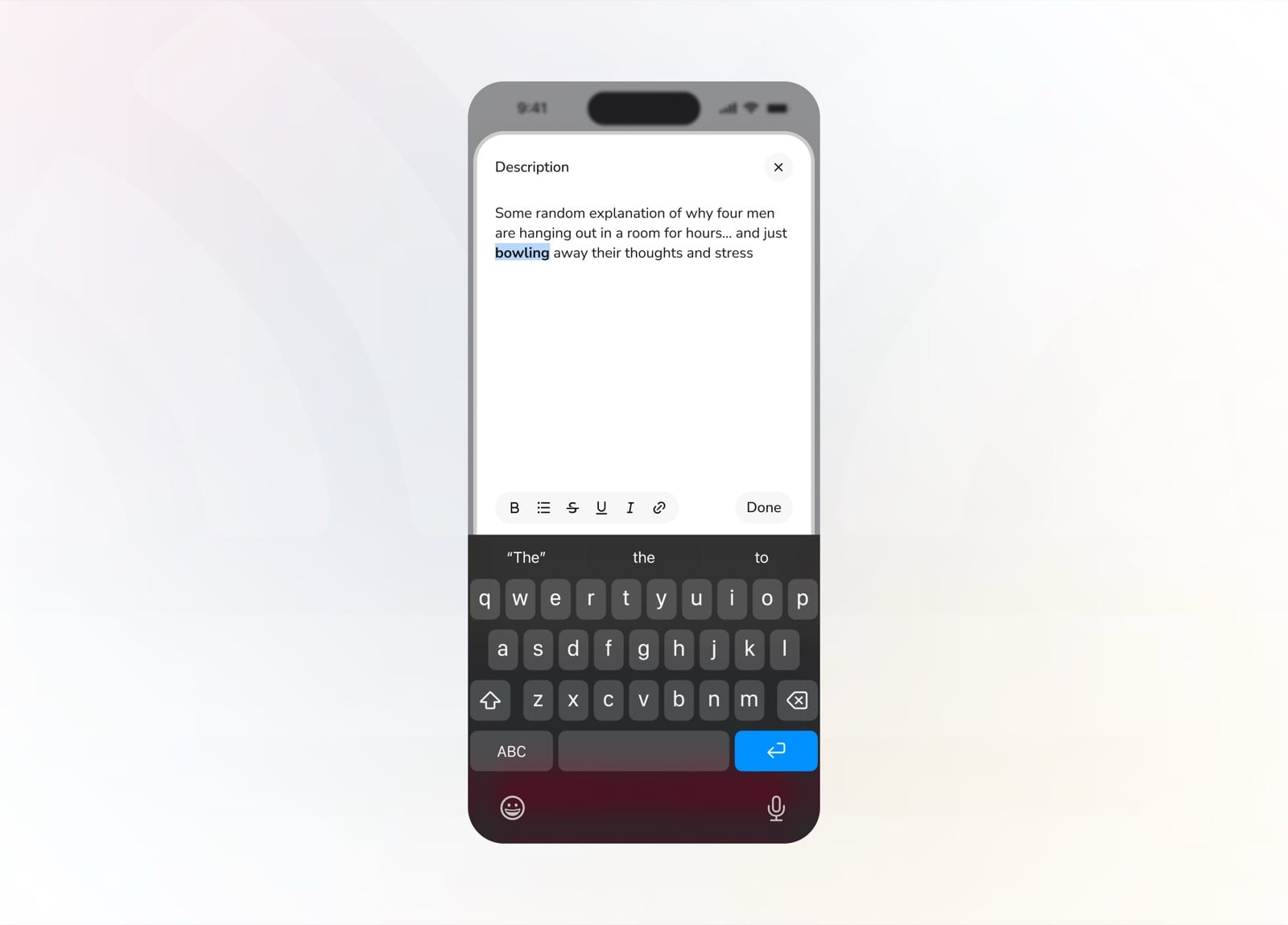
Write a rich description with formatting options
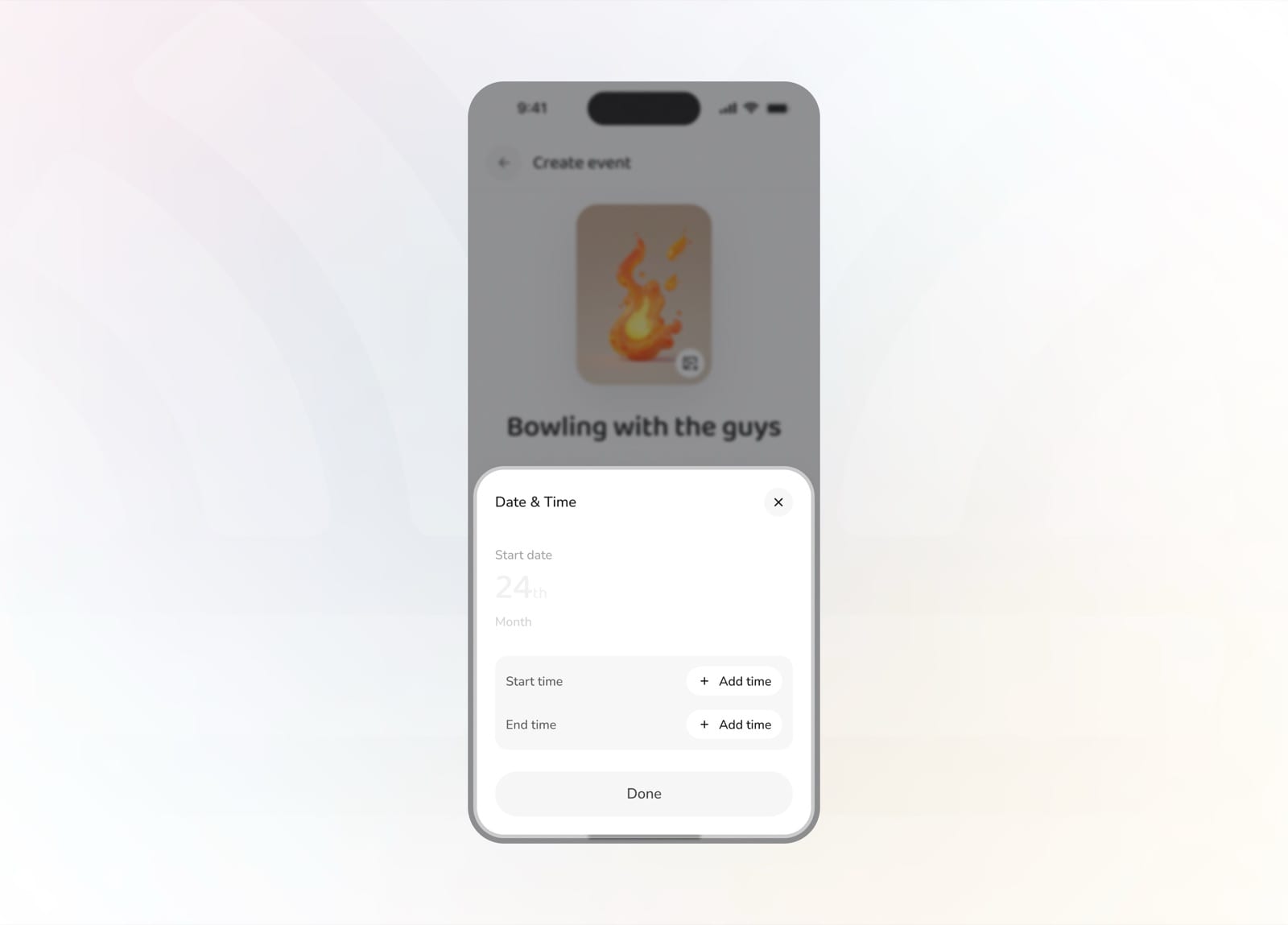
Set the start date, month, and time
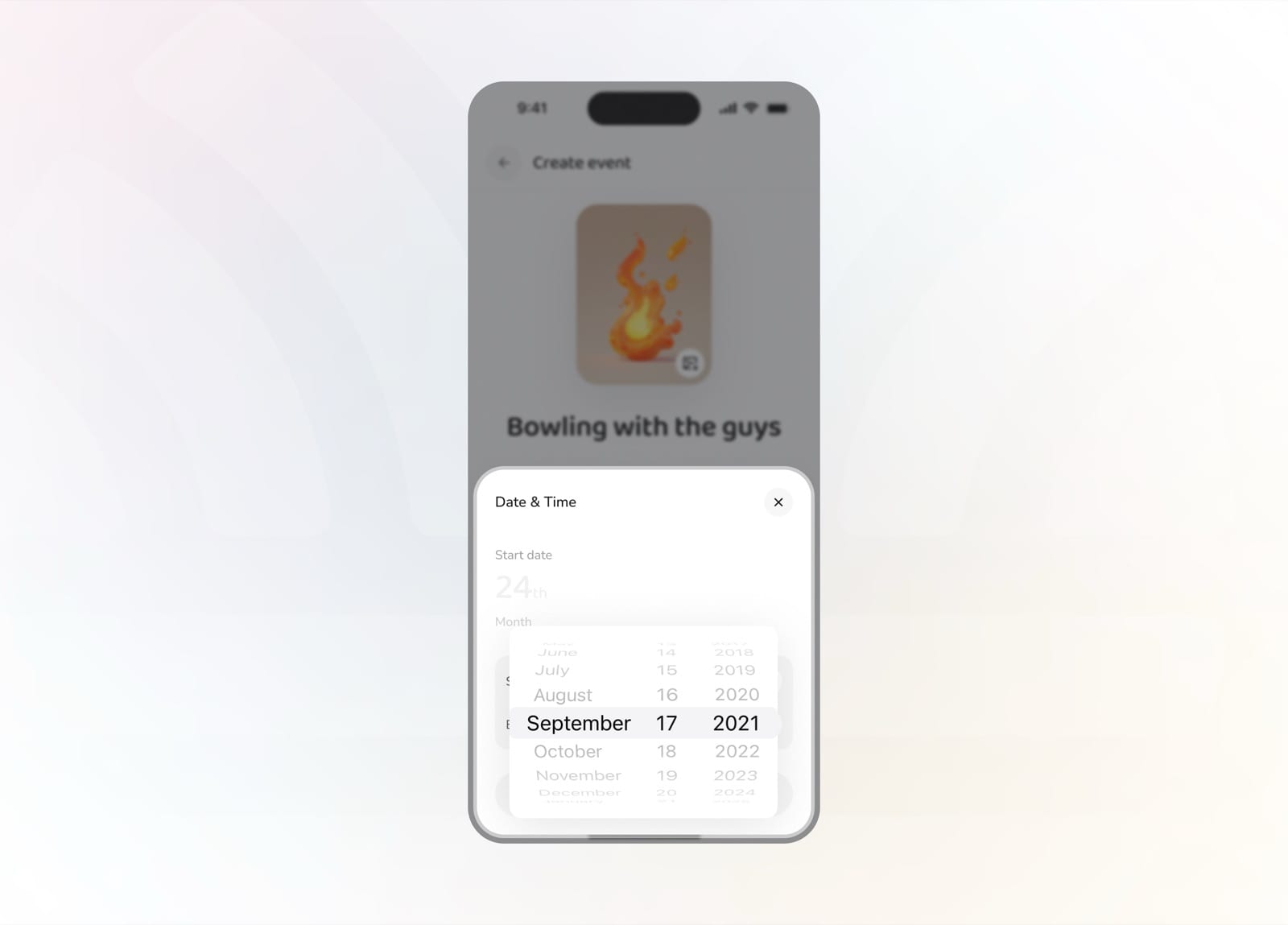
Spin the wheel to pick the exact date
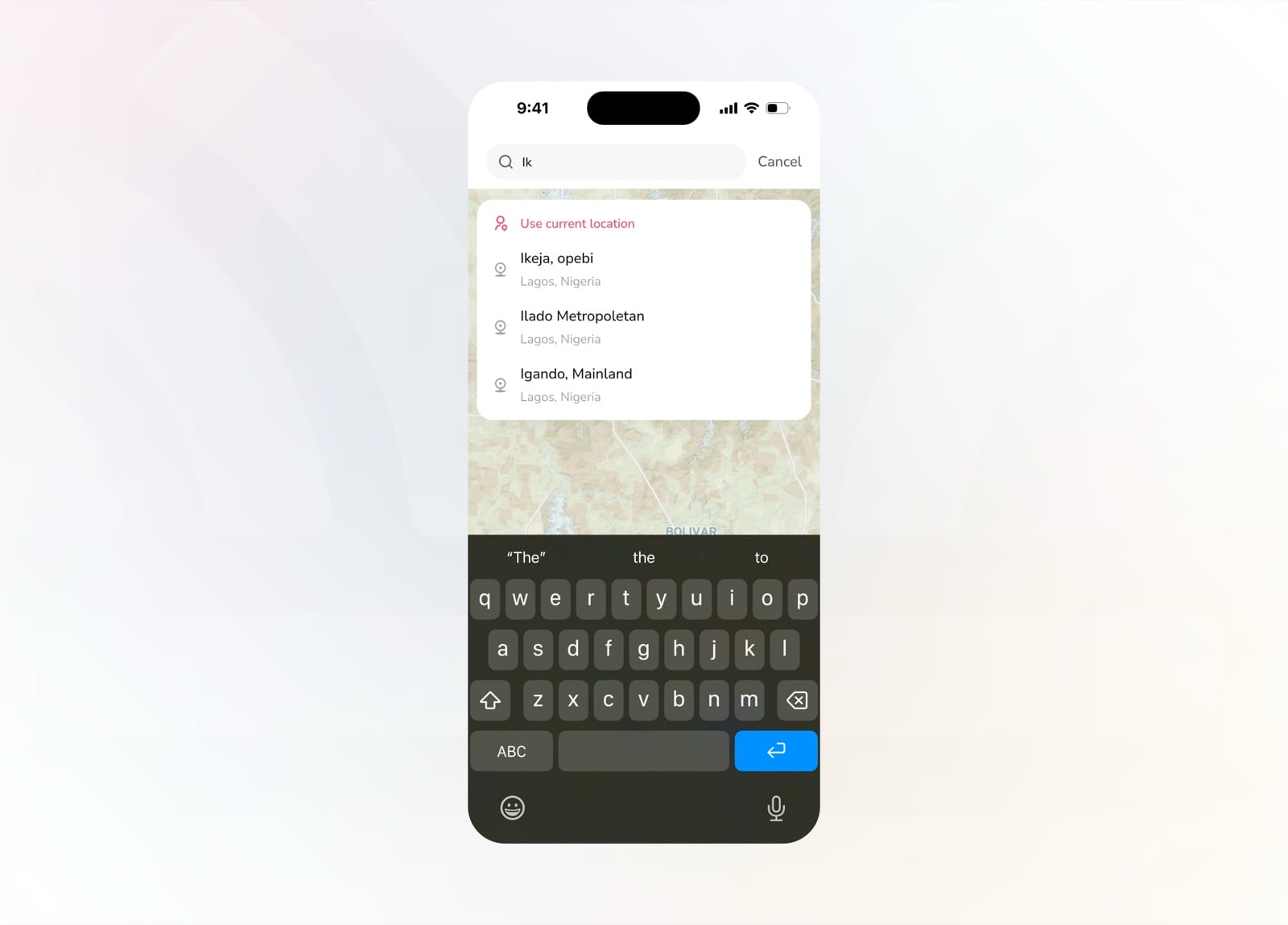
Search and pin the event location
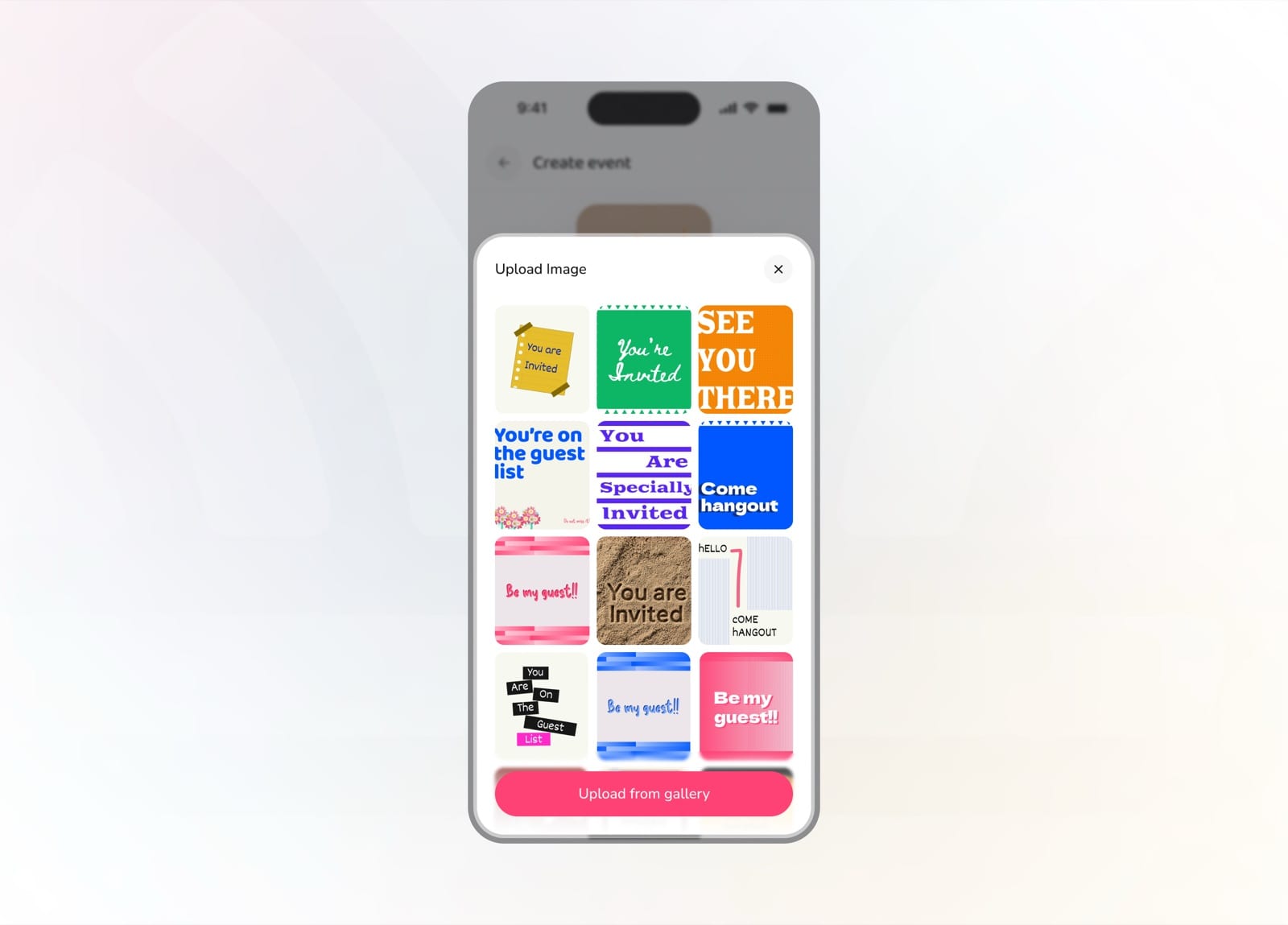
Choose a cover from ready-made invite templates
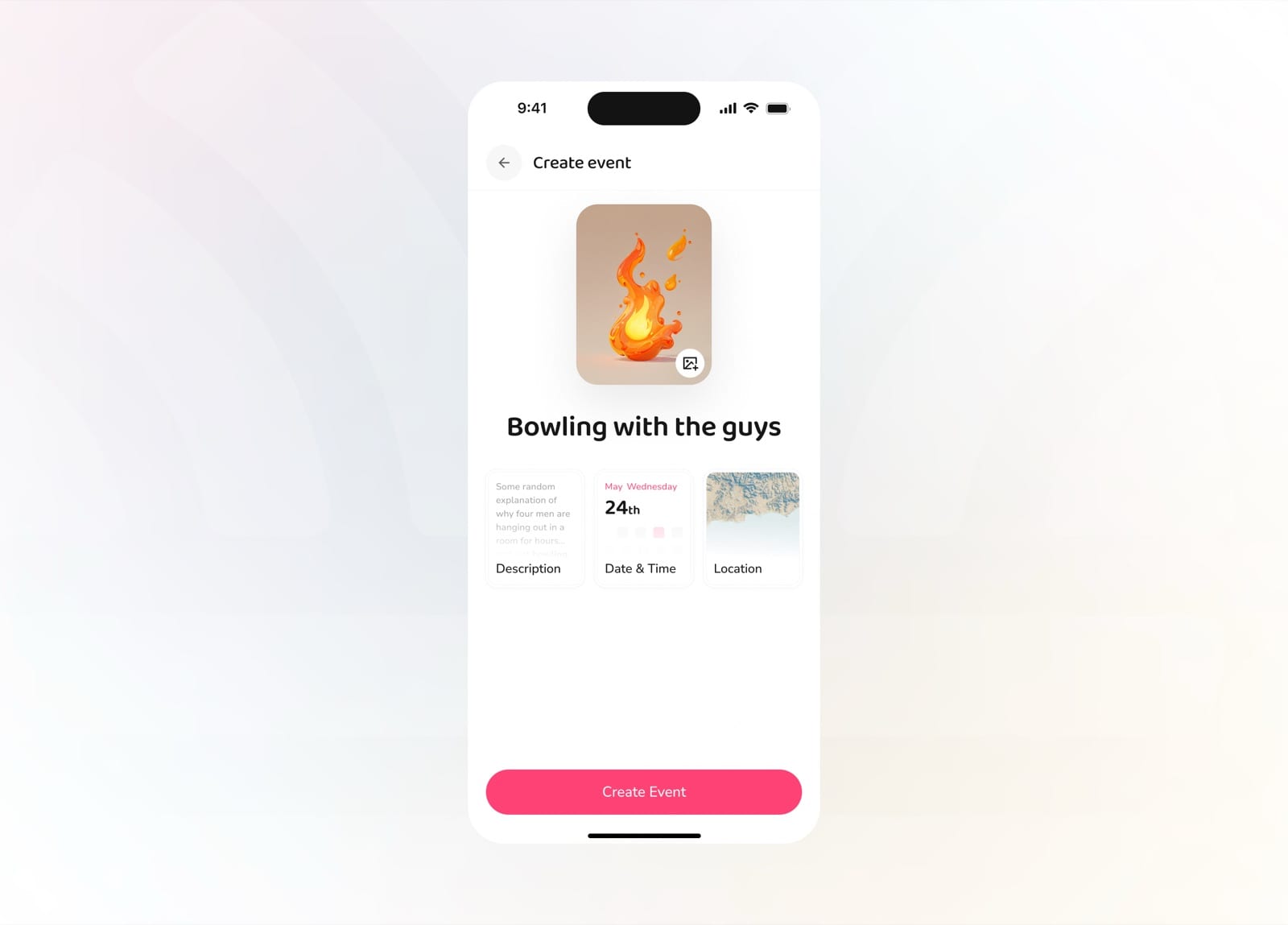
Review the full event before publishing
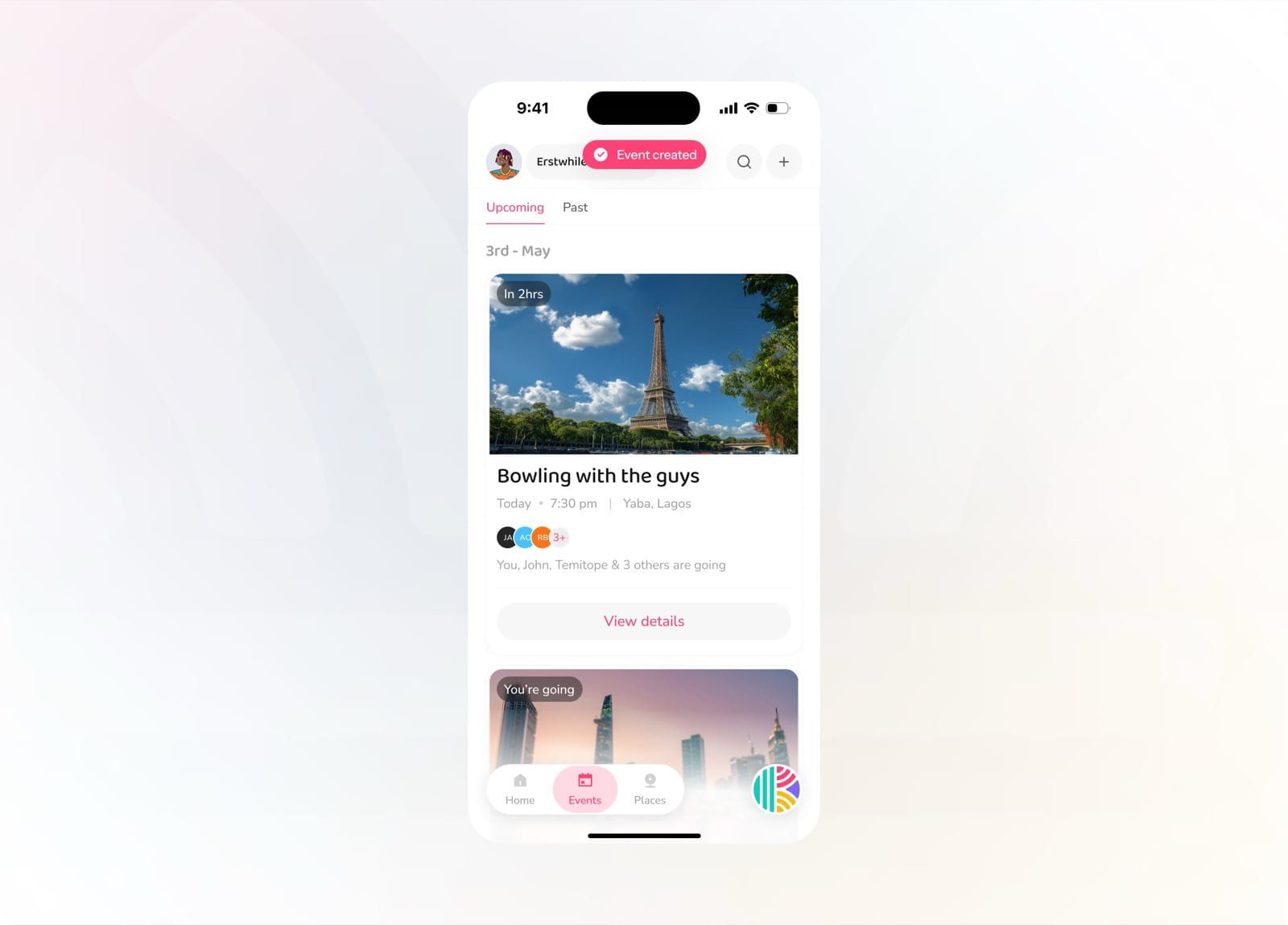
Event created and live in your upcoming list
Events
The events tab keeps every plan in one place. Browse upcoming and past events, see RSVP status at a glance, and respond without leaving the list.
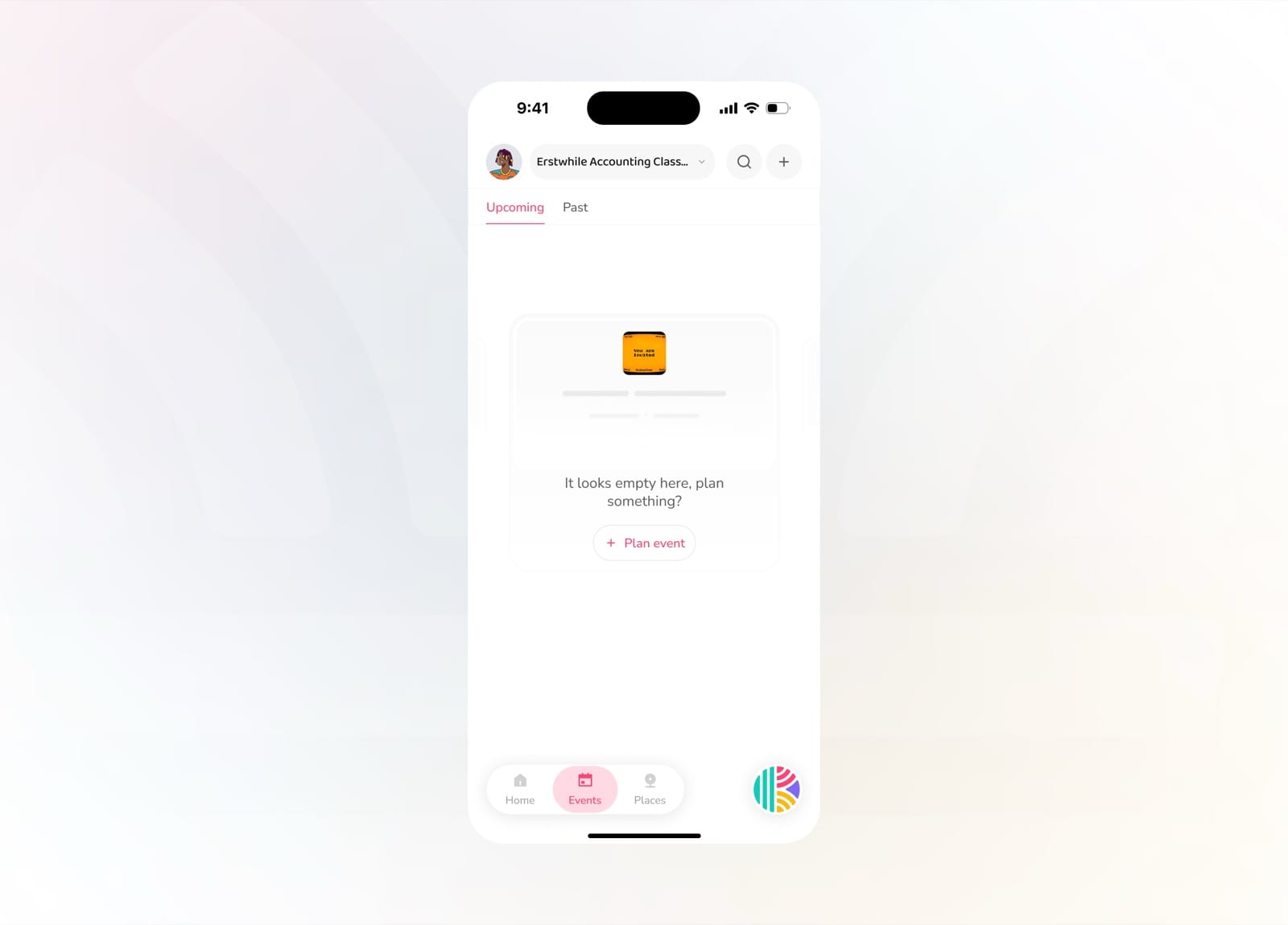
Empty state inviting you to plan something
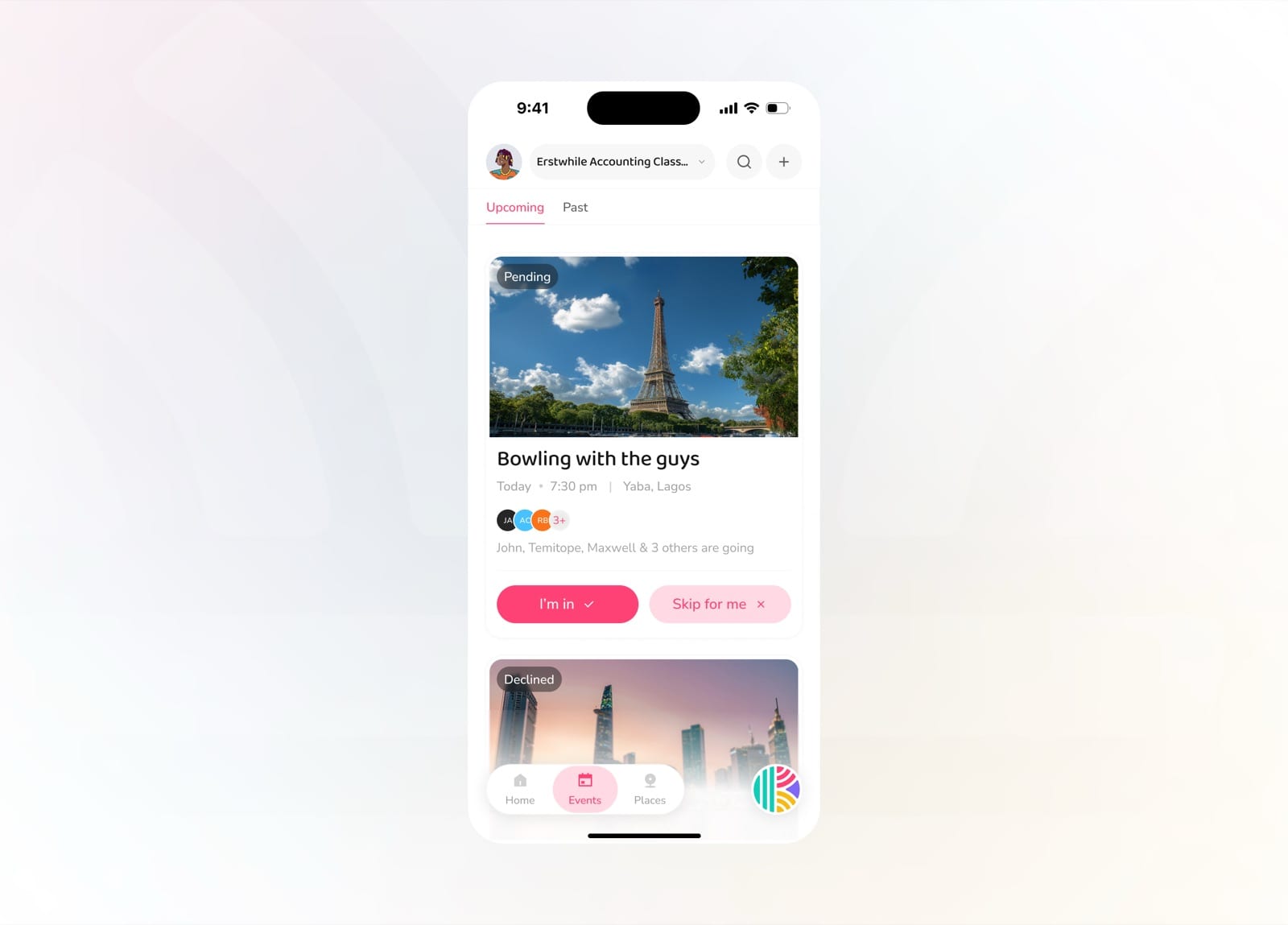
Respond to pending invites right from the list
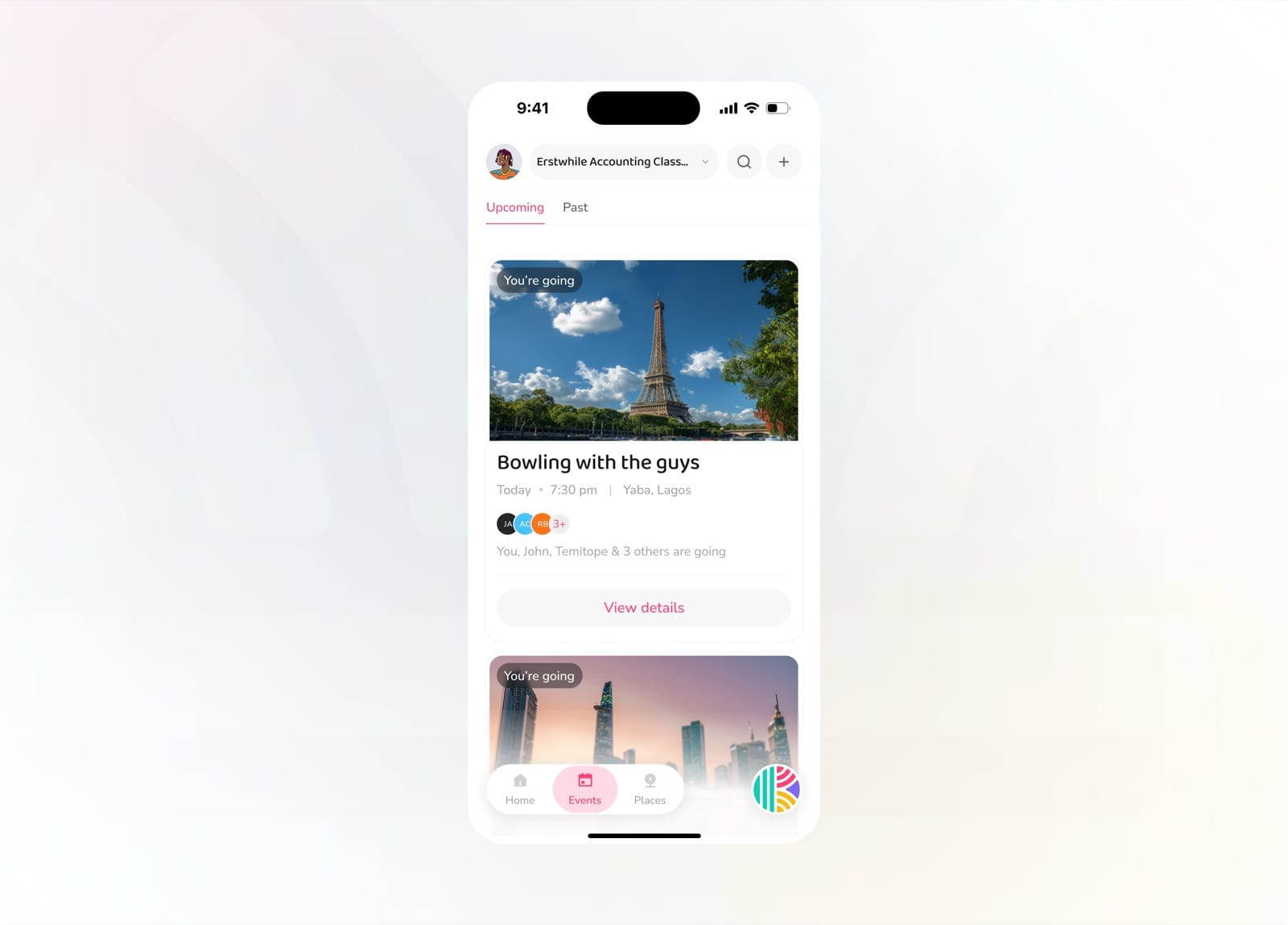
See the events you've confirmed you're going to
Event Details
The event detail page is the hub for a single plan. See the cover, description, location, and time, browse guests and their RSVP status, and manage the event kit, all across a few tabs.
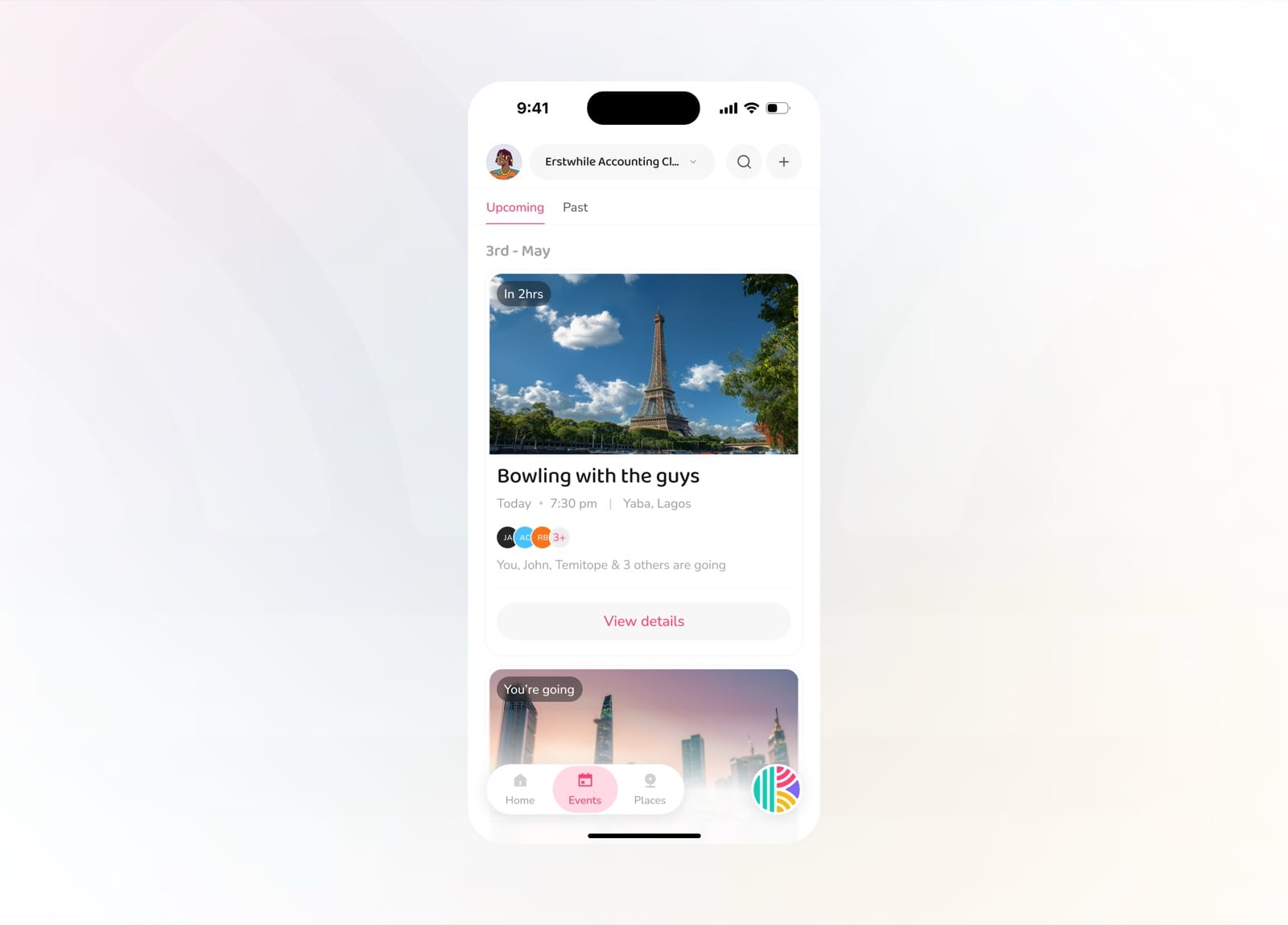
Tap View details on an event to open it
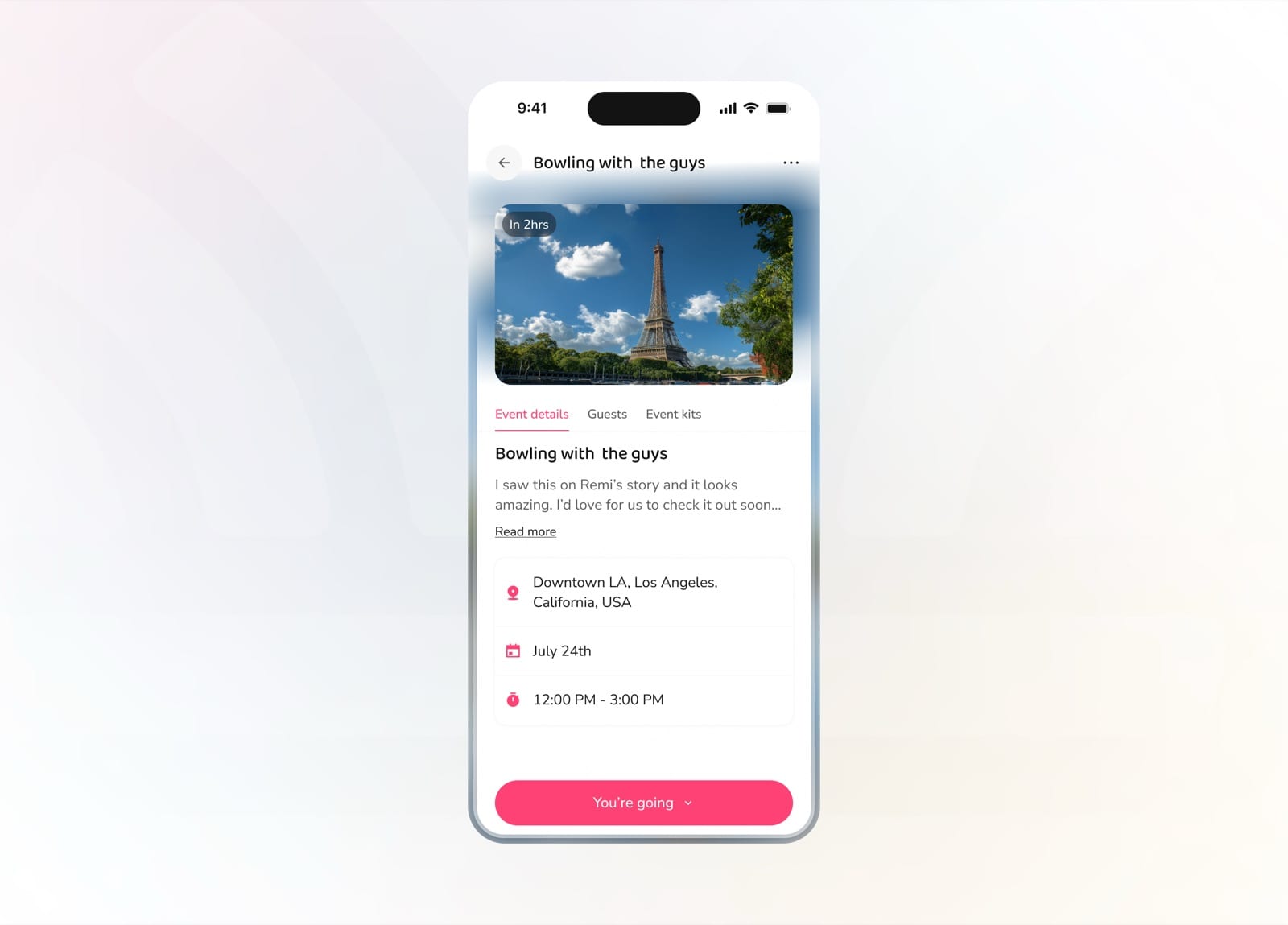
See the description, location, date, and time
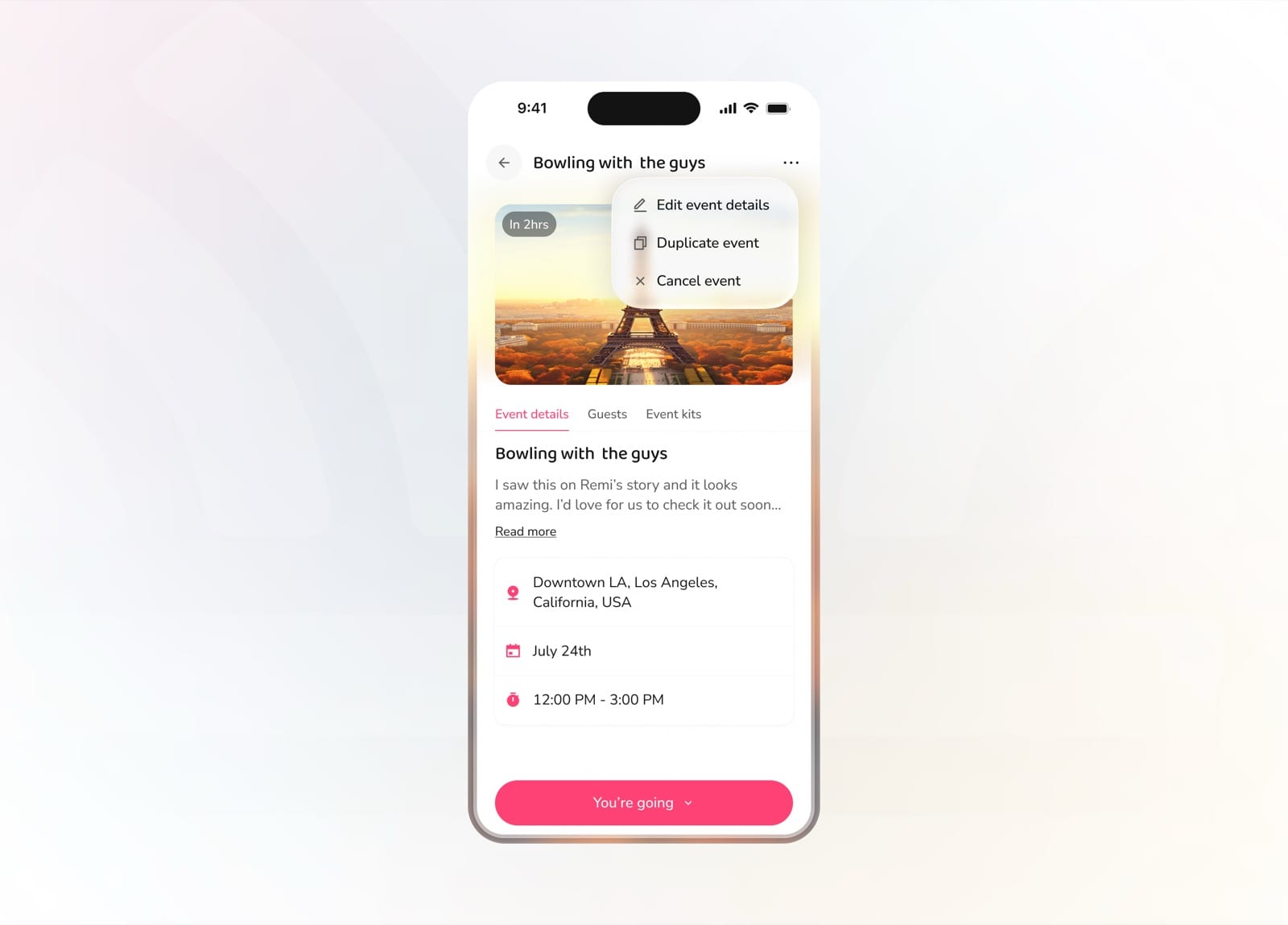
Edit, duplicate, or cancel the event
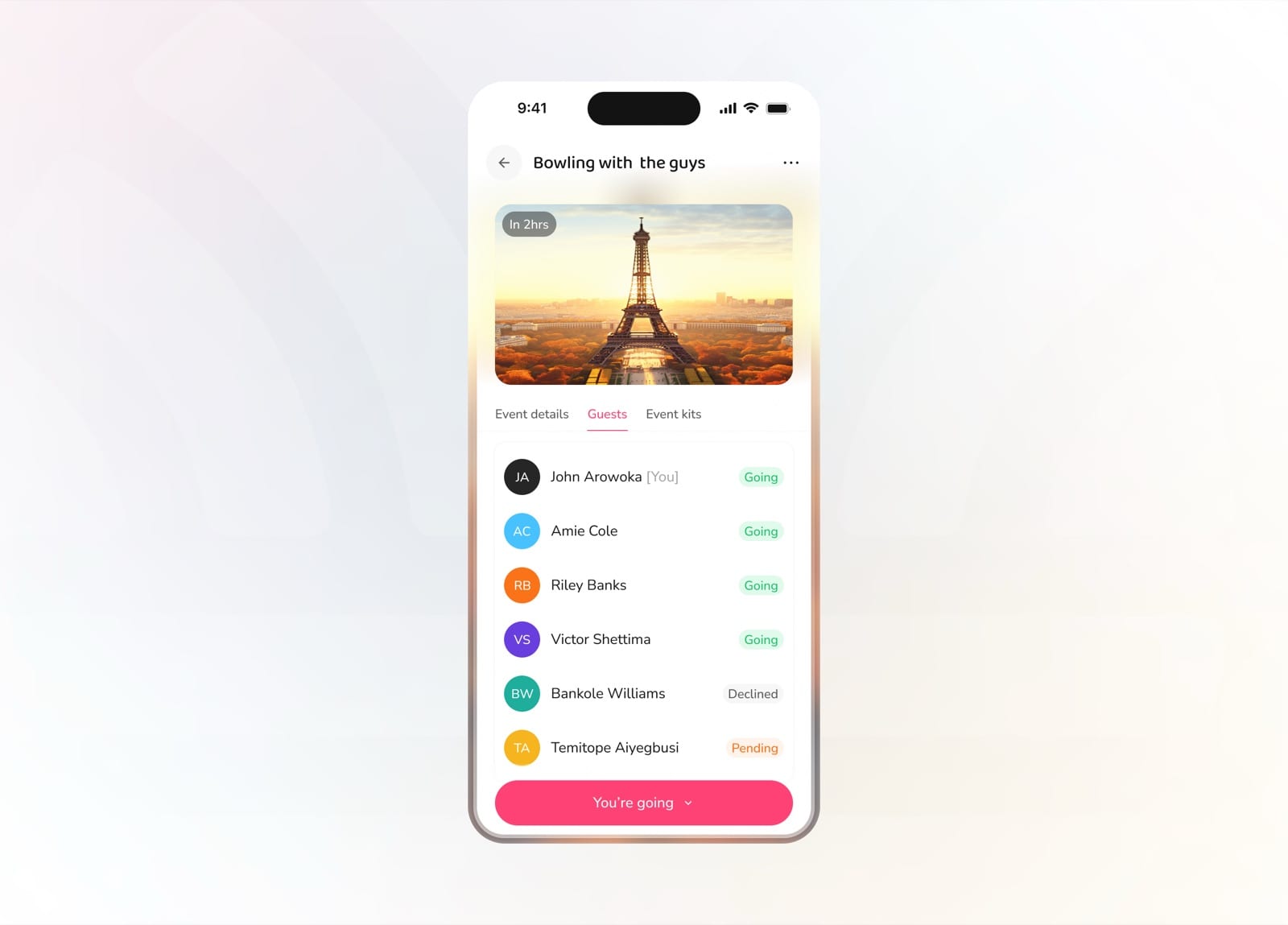
Browse the guest list and their RSVP status
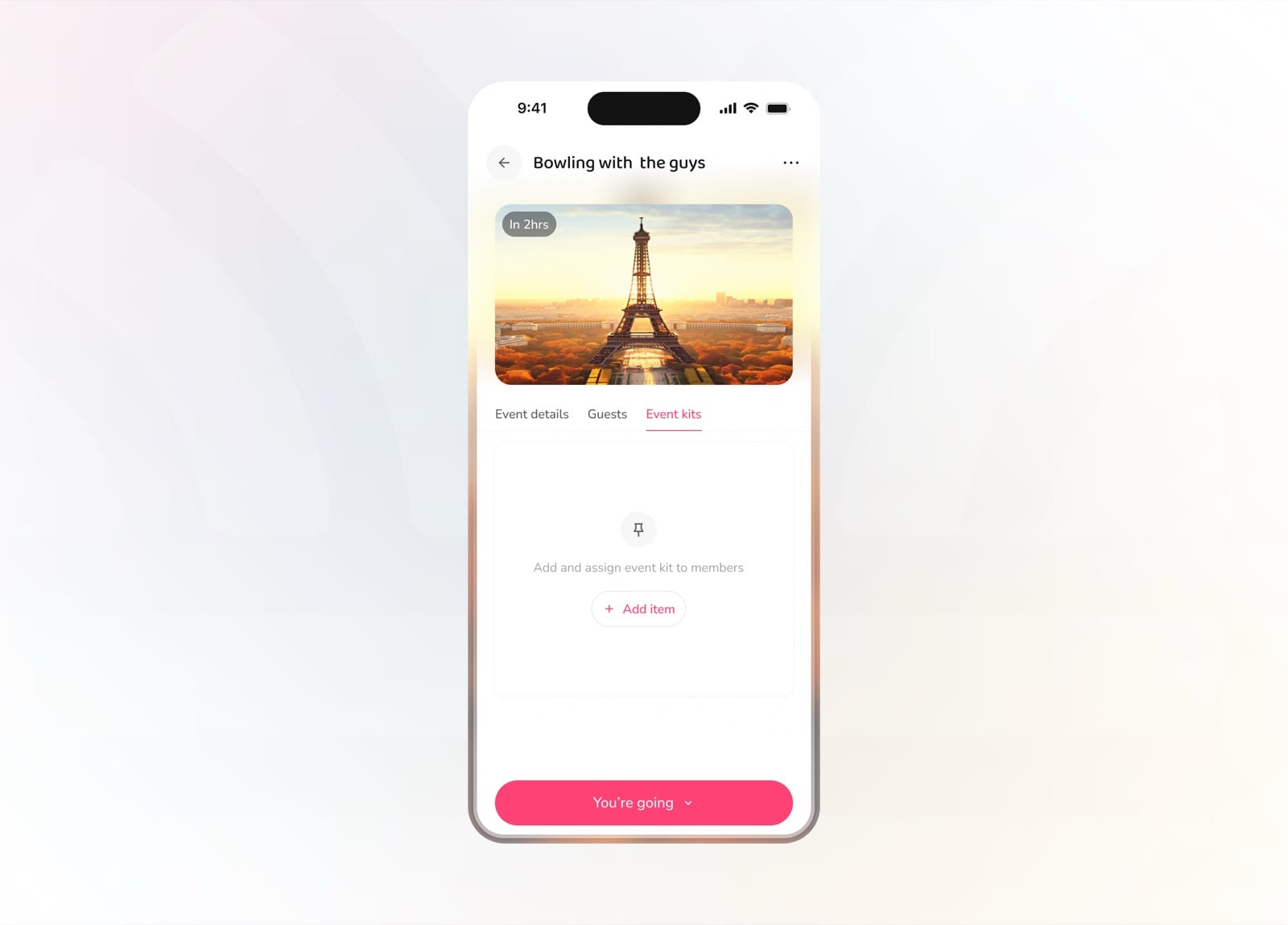
Manage the event kit from its own tab
Event Kit
The mobile event kit distributes the load. Add the items an event needs, assign them to specific guests or everyone, and track who's bringing what.
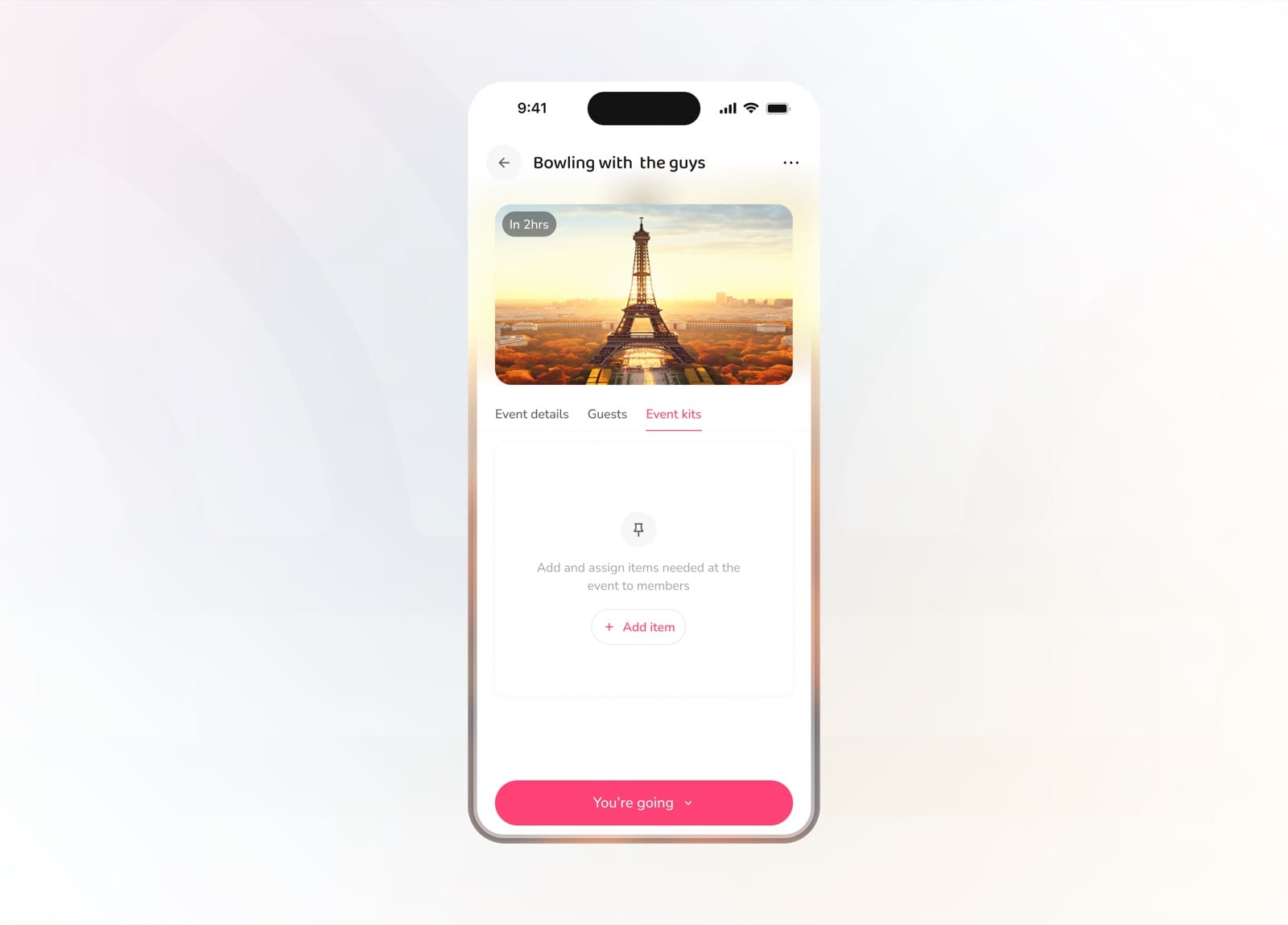
Empty kit prompting you to add items
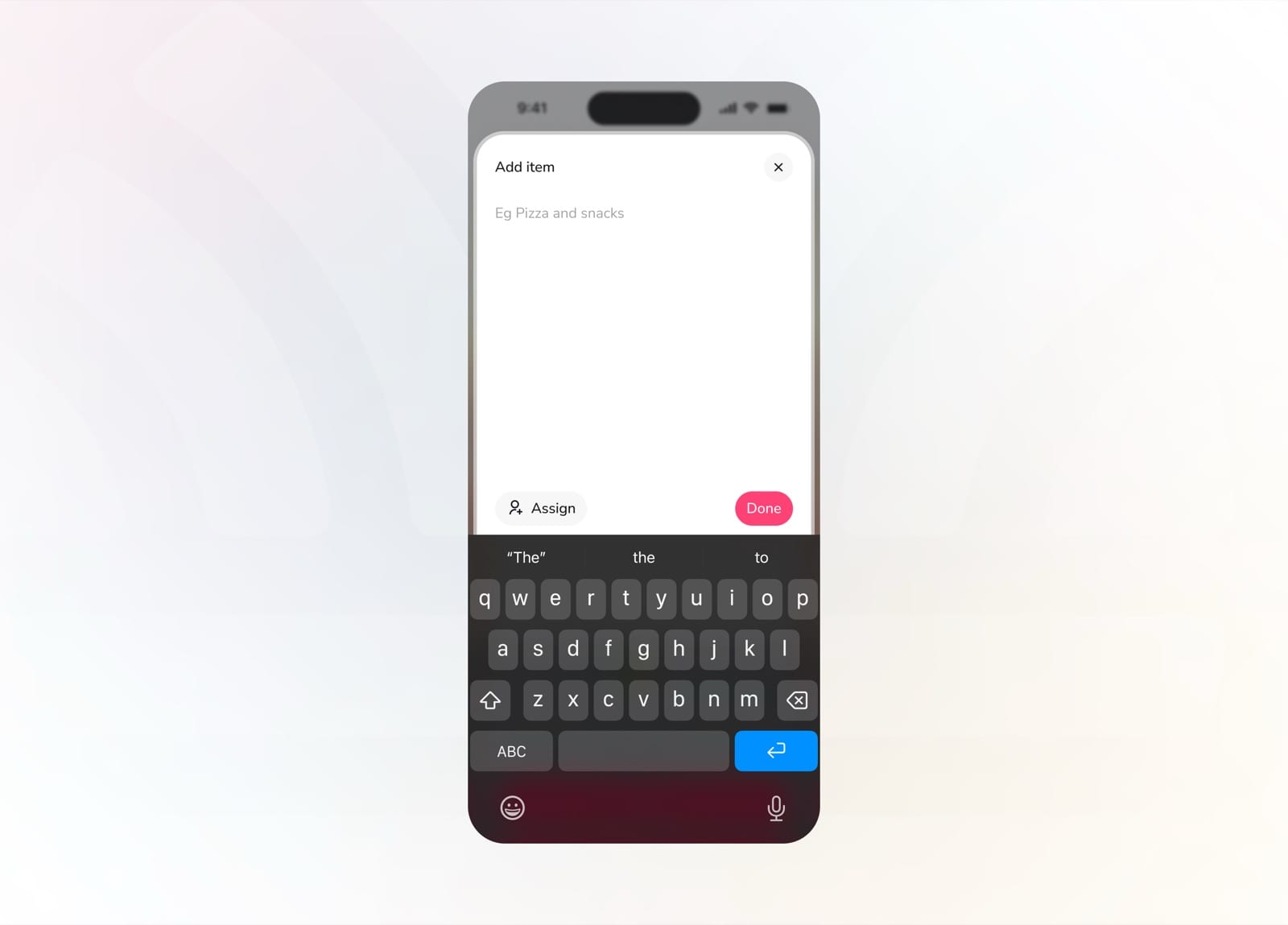
Add an item the event needs
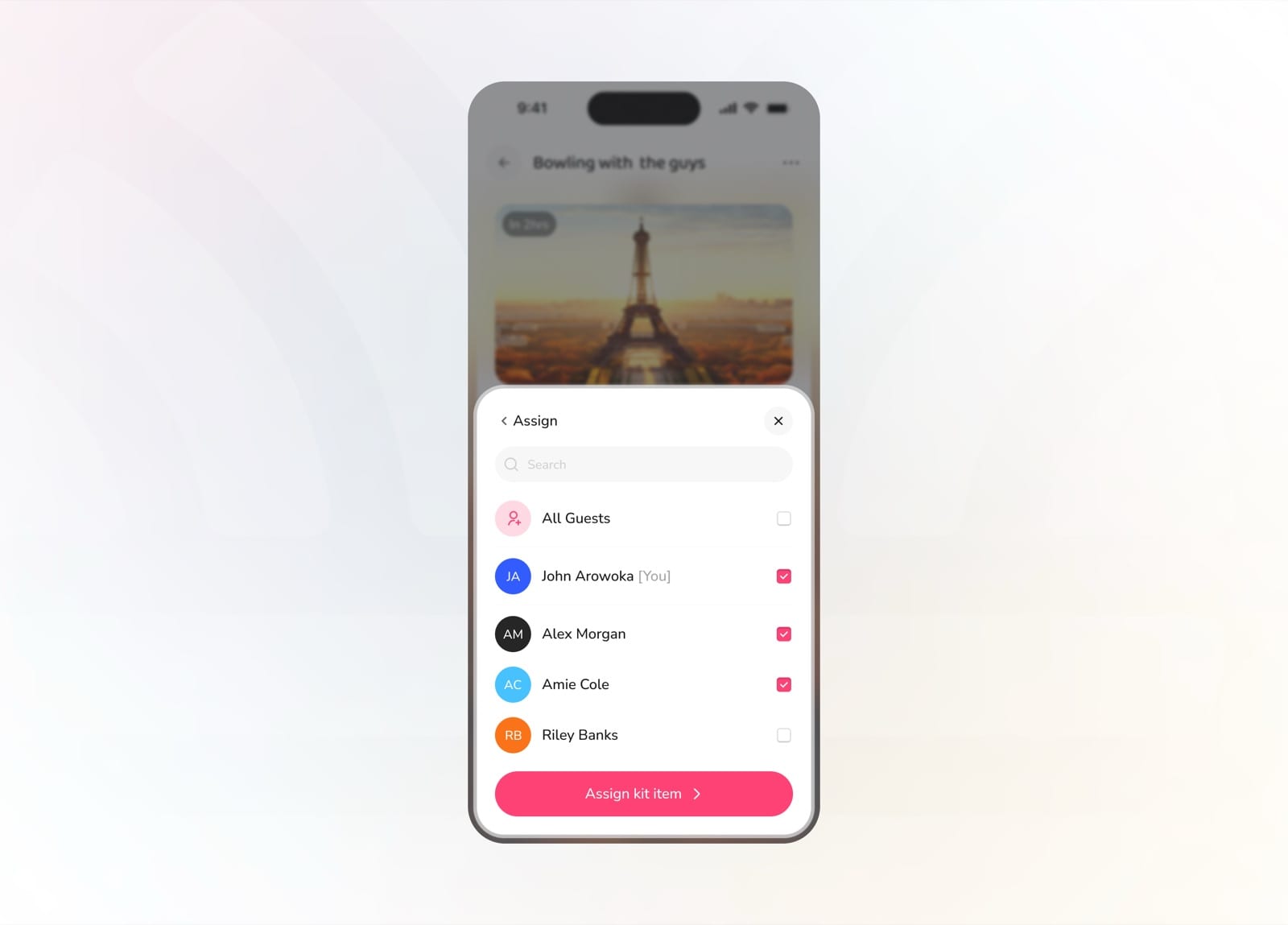
Assign the item to specific guests or everyone
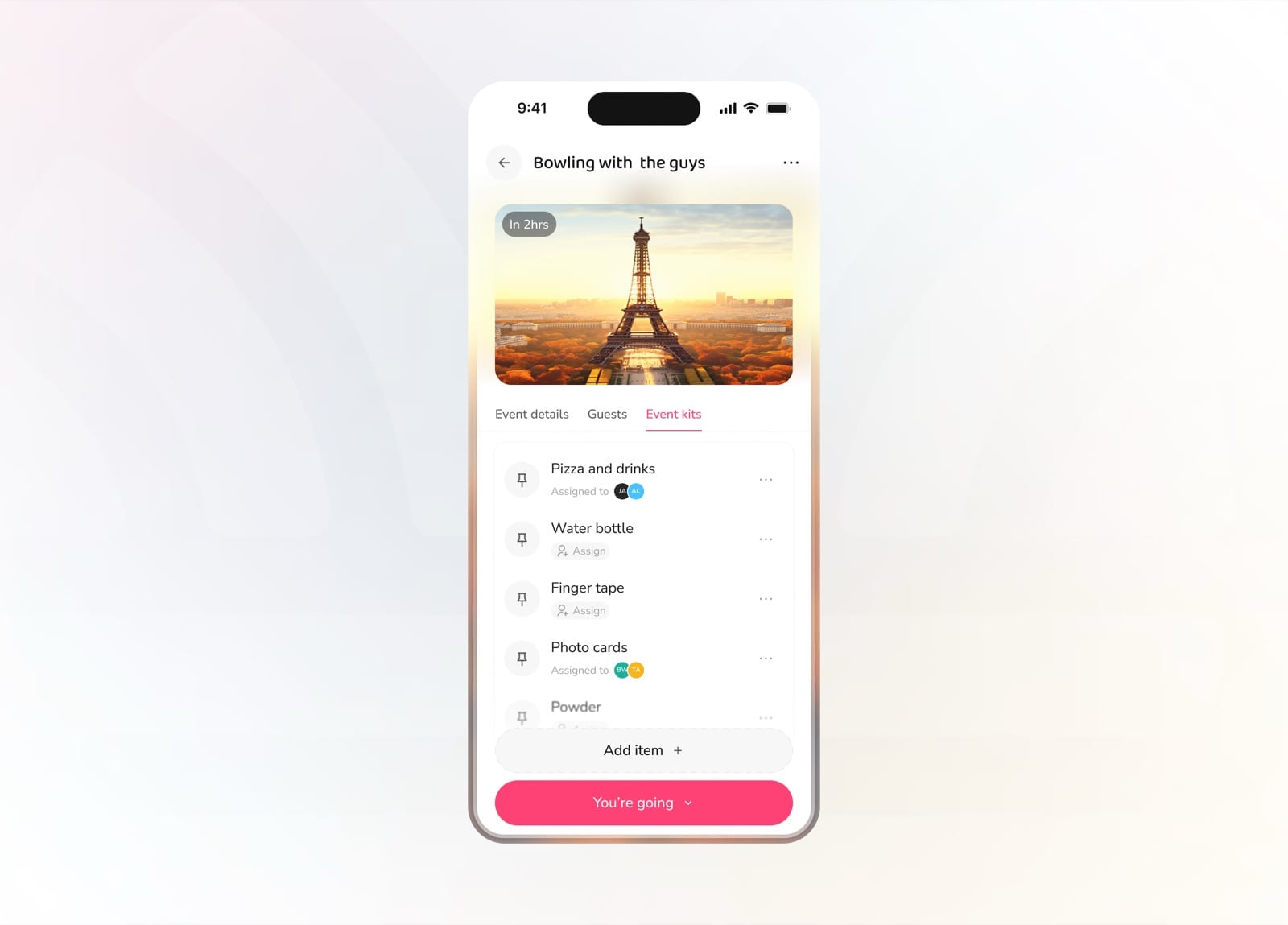
See all items with who's responsible for each
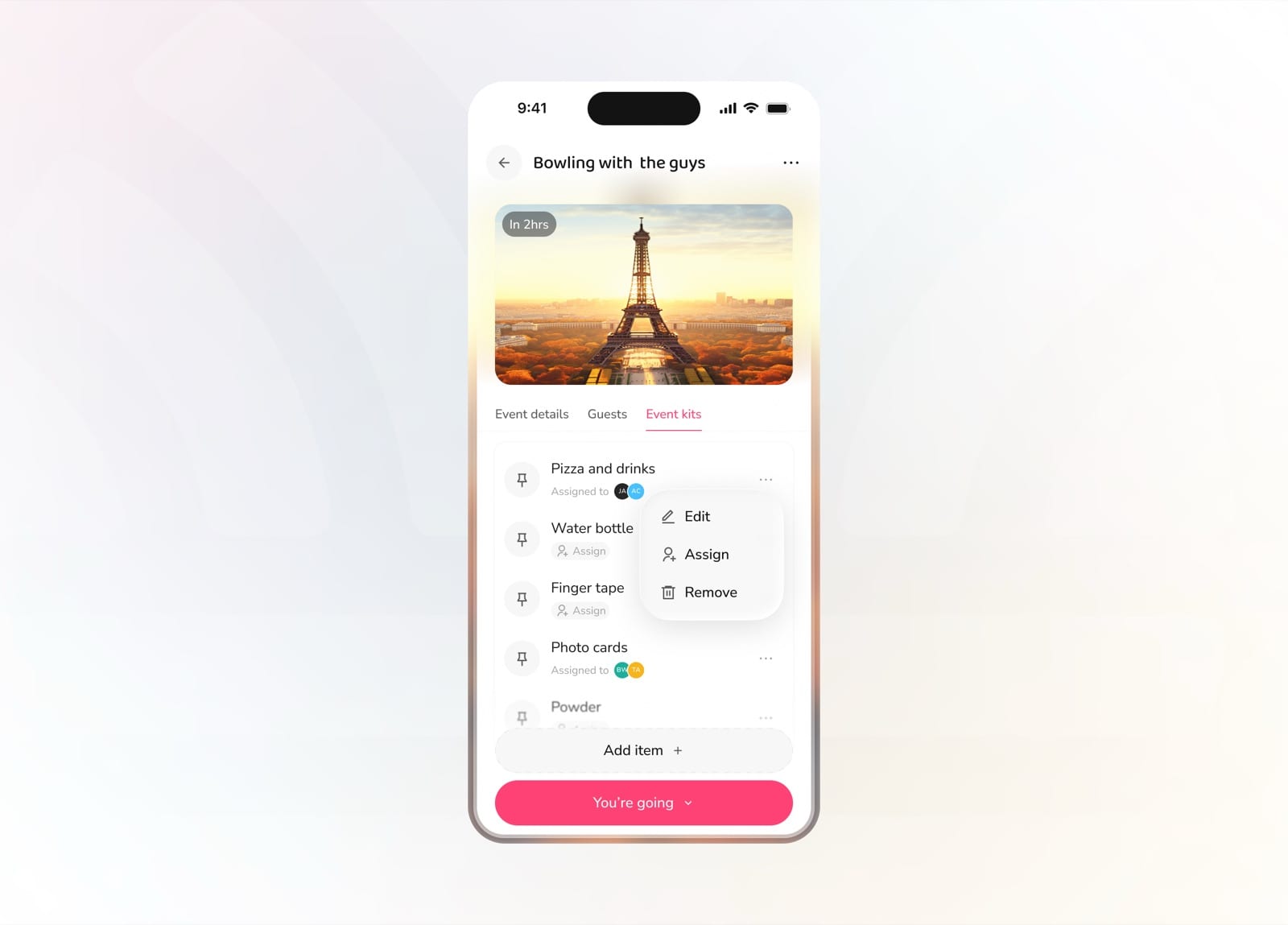
Edit, reassign, or remove any kit item
Place
Places is a shared list of the spots a group wants to check out. Save personal or group places, keep track of what you've already visited, and turn any saved place into a plan.
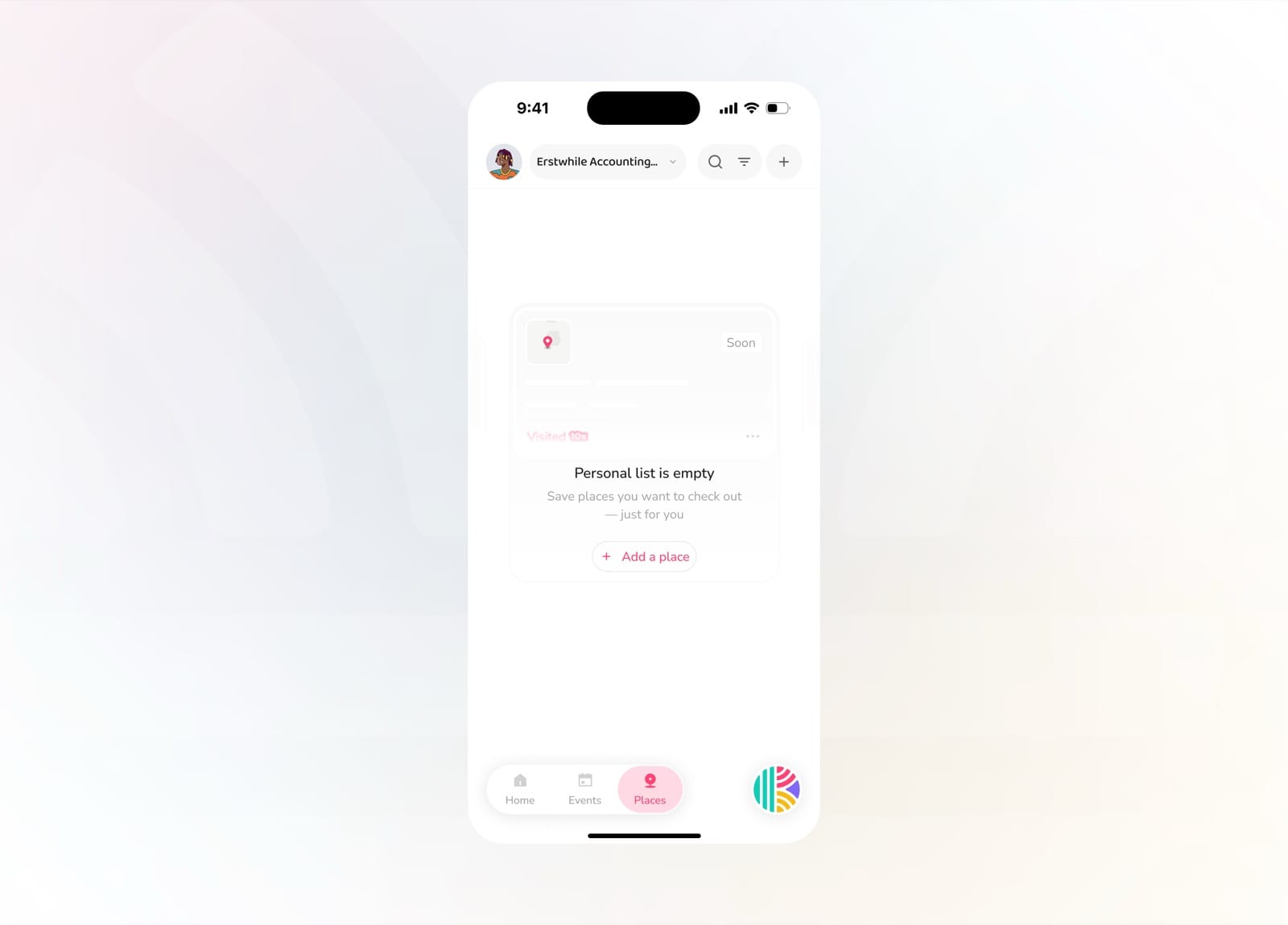
Empty personal list prompting you to add your first place
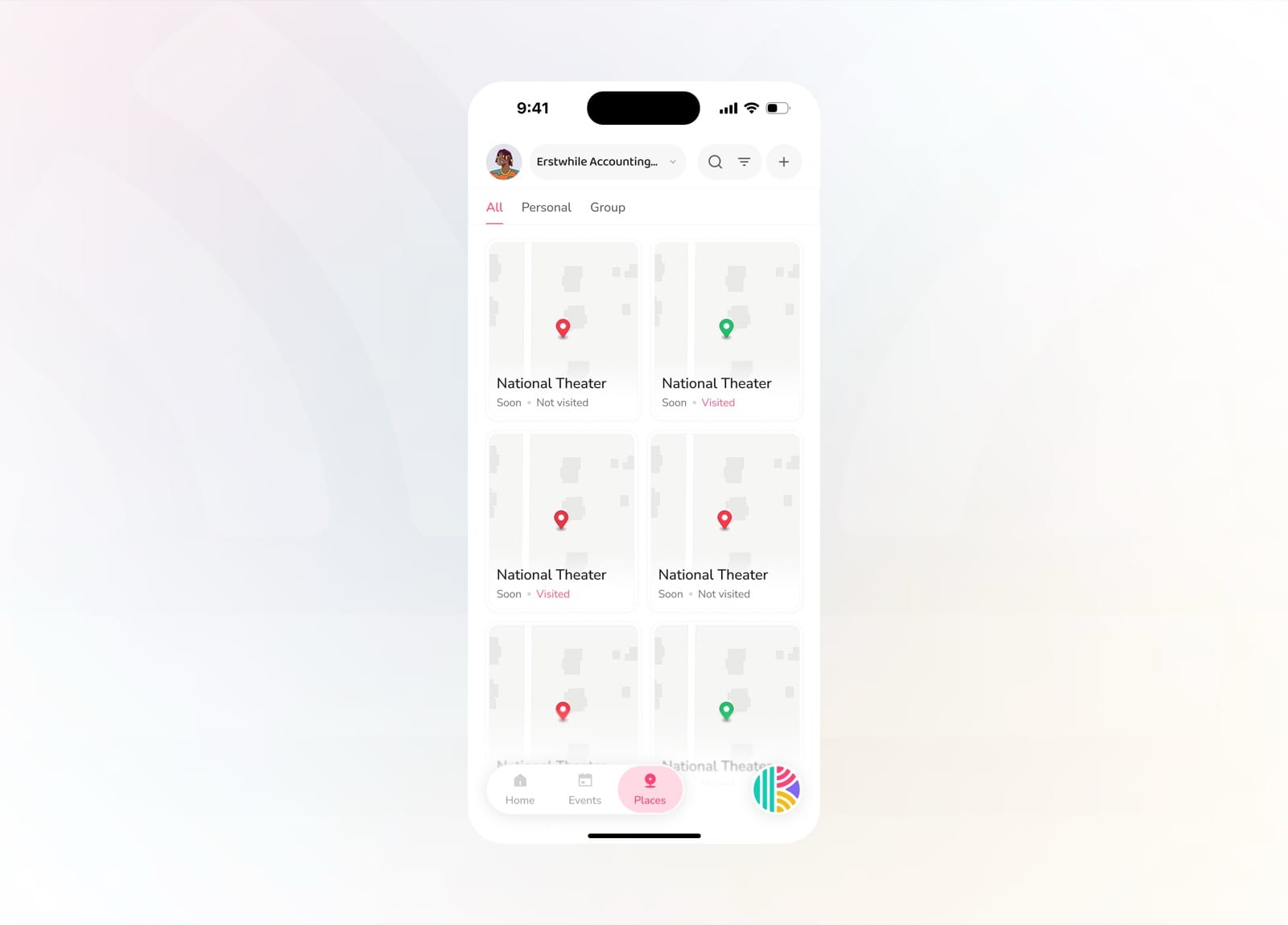
Browse all personal and group places with visited status
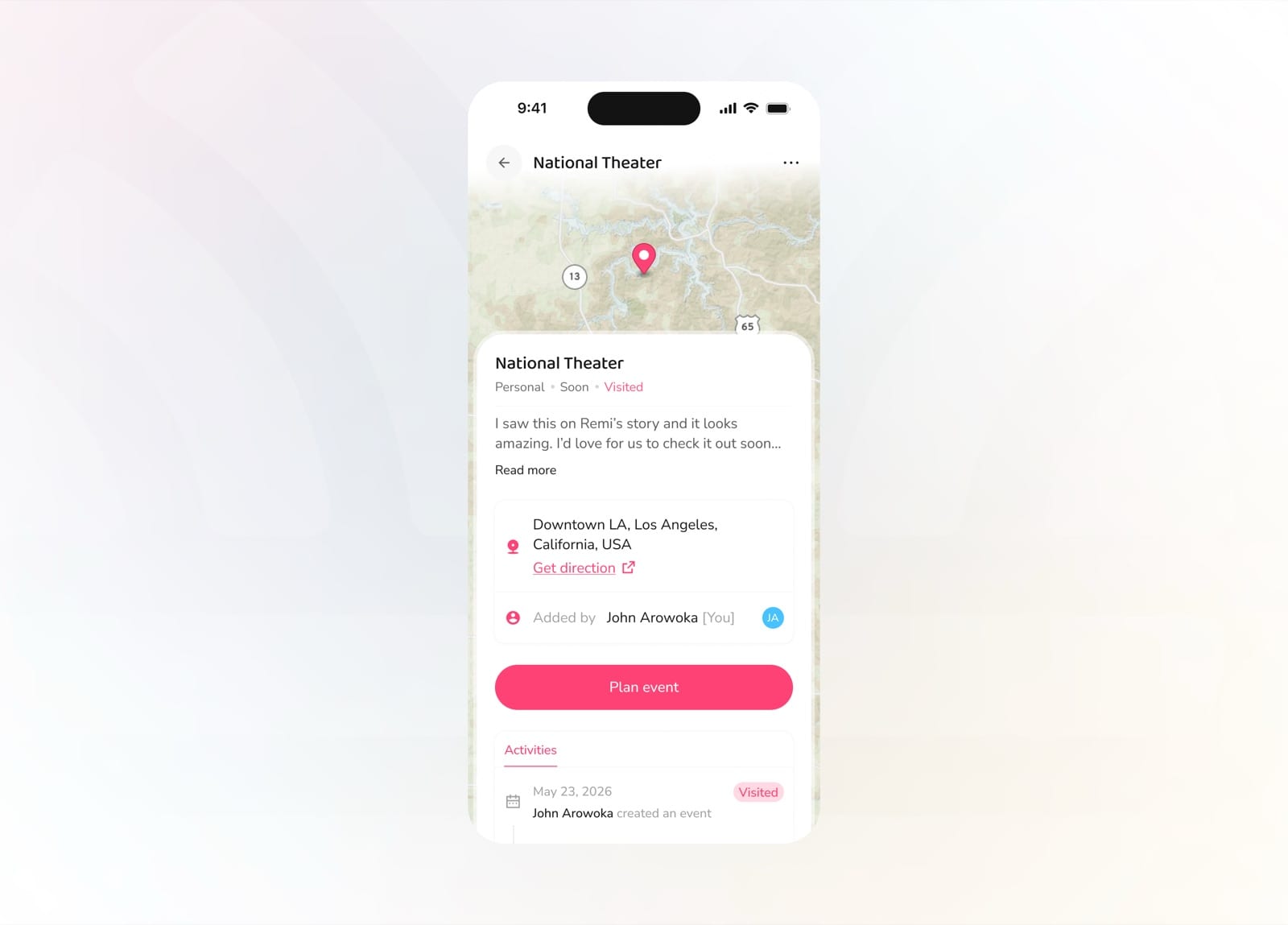
Open a place to see its map, location, and activity history
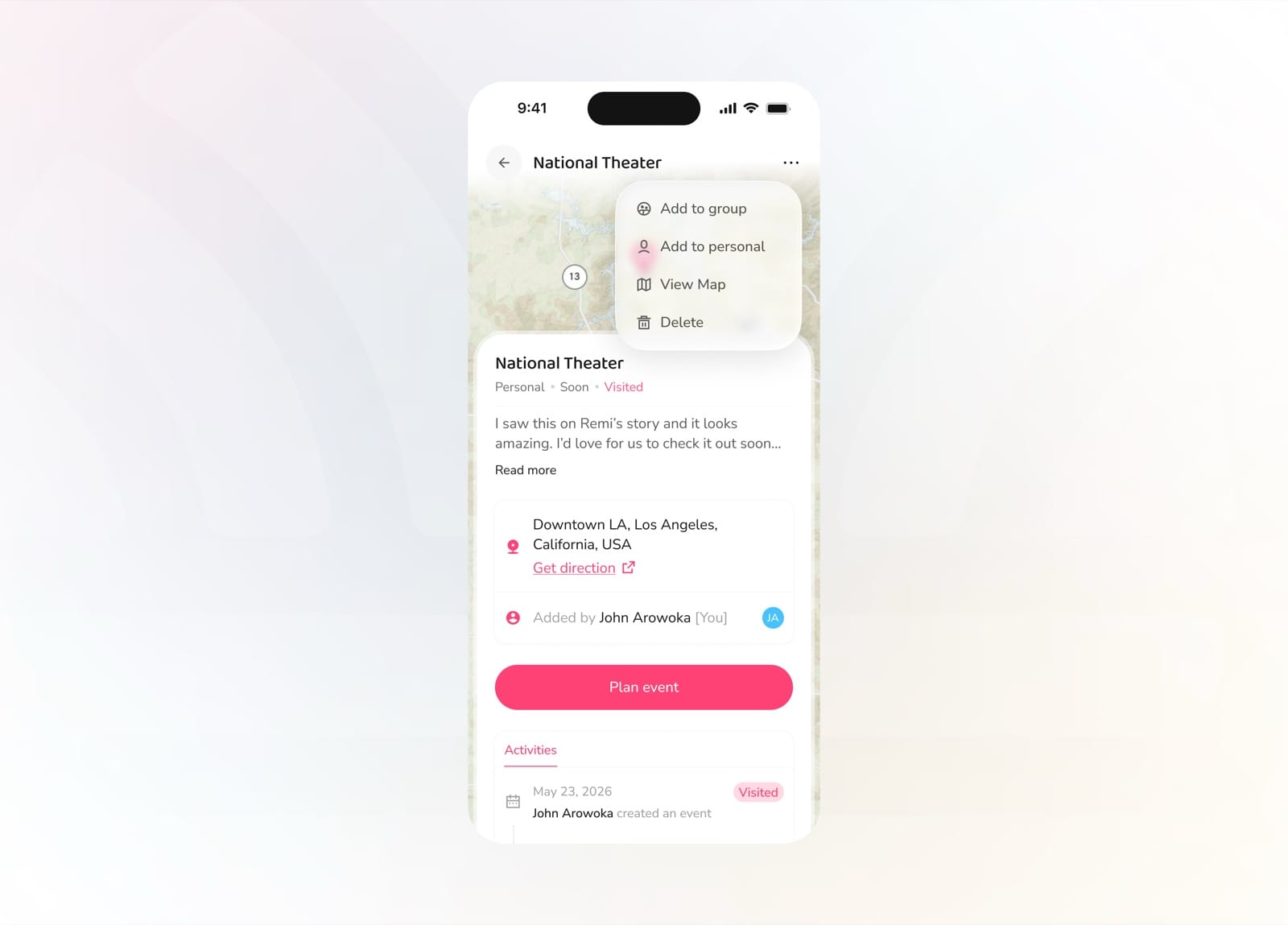
Add it to a list, view the map, or delete it
Add a Place
Adding a place is quick. Name the spot, drop or search its location, set how soon you'd like to go, and save it to your personal or group list.
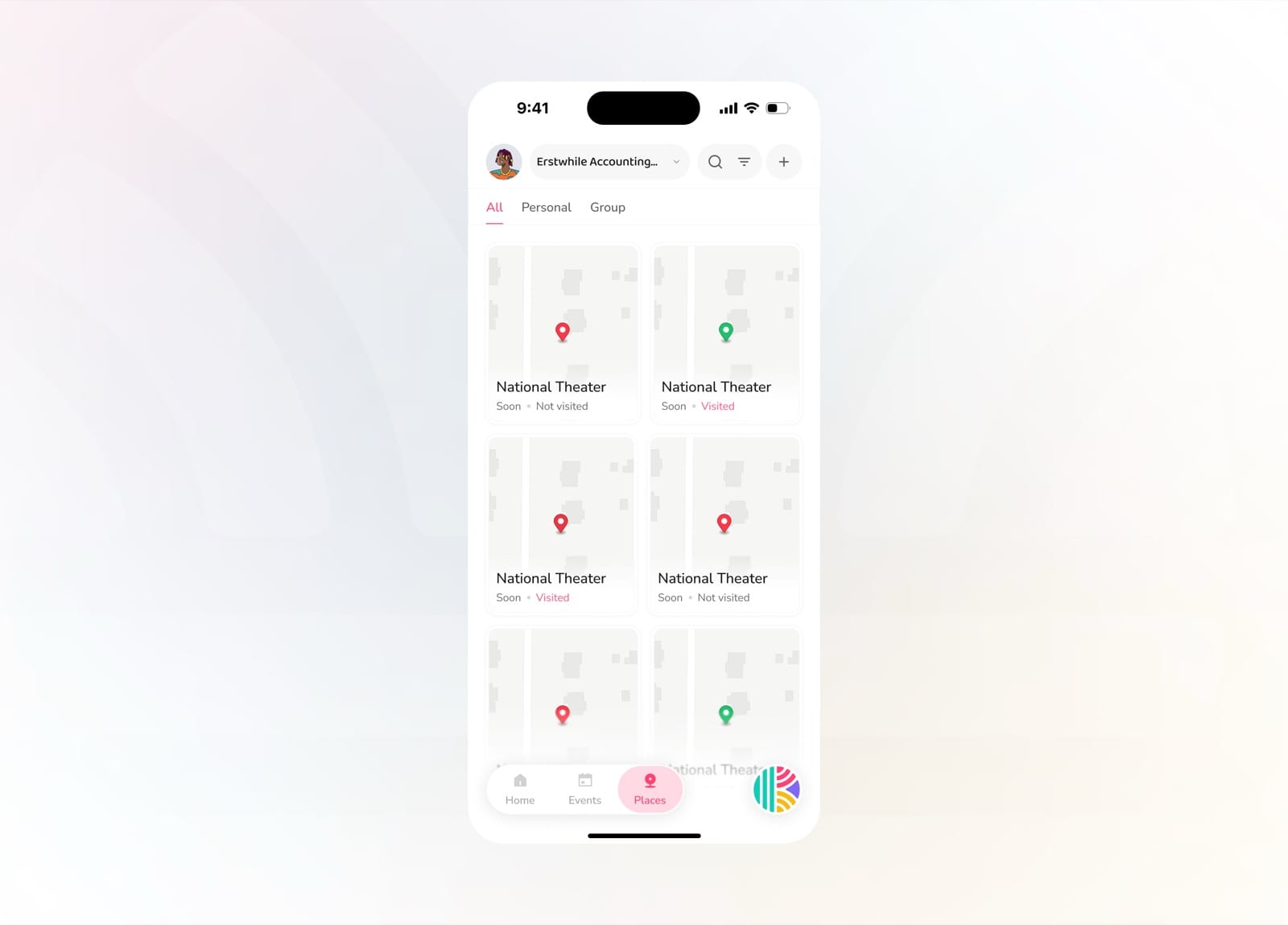
From the Places tab, tap + to add a new place
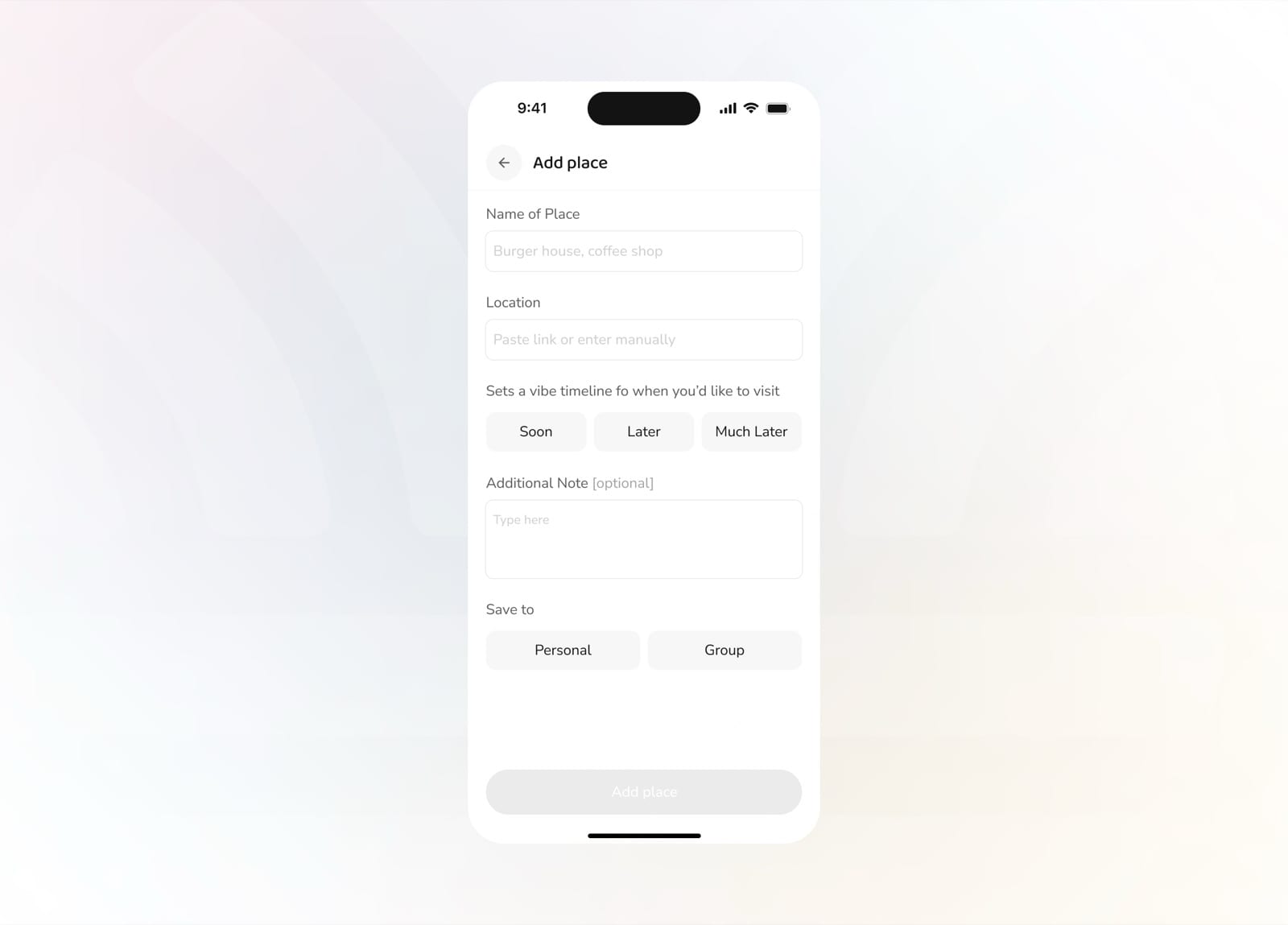
Name the place, set a vibe timeline, and choose where to save it
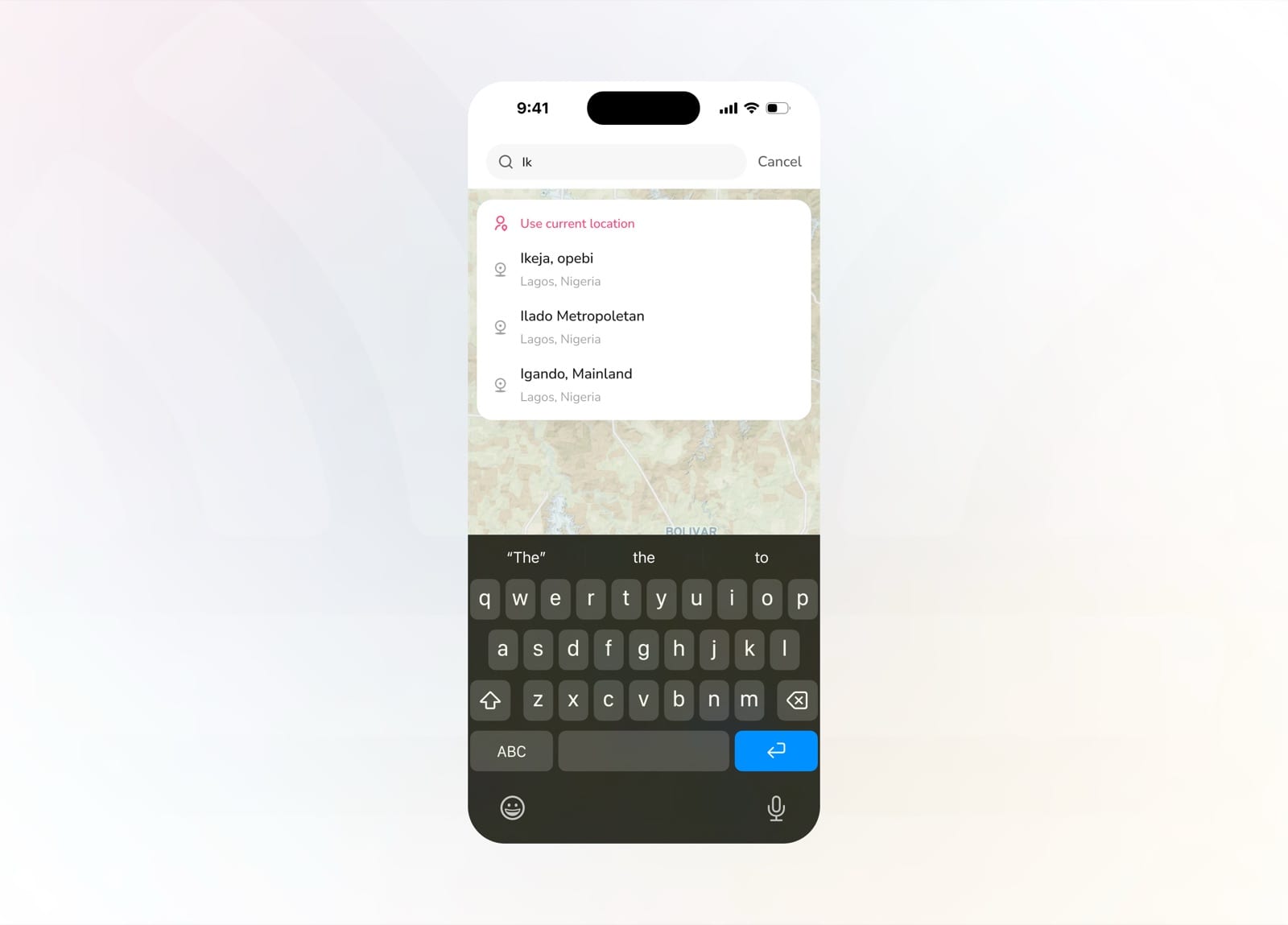
Search for a location or use your current one
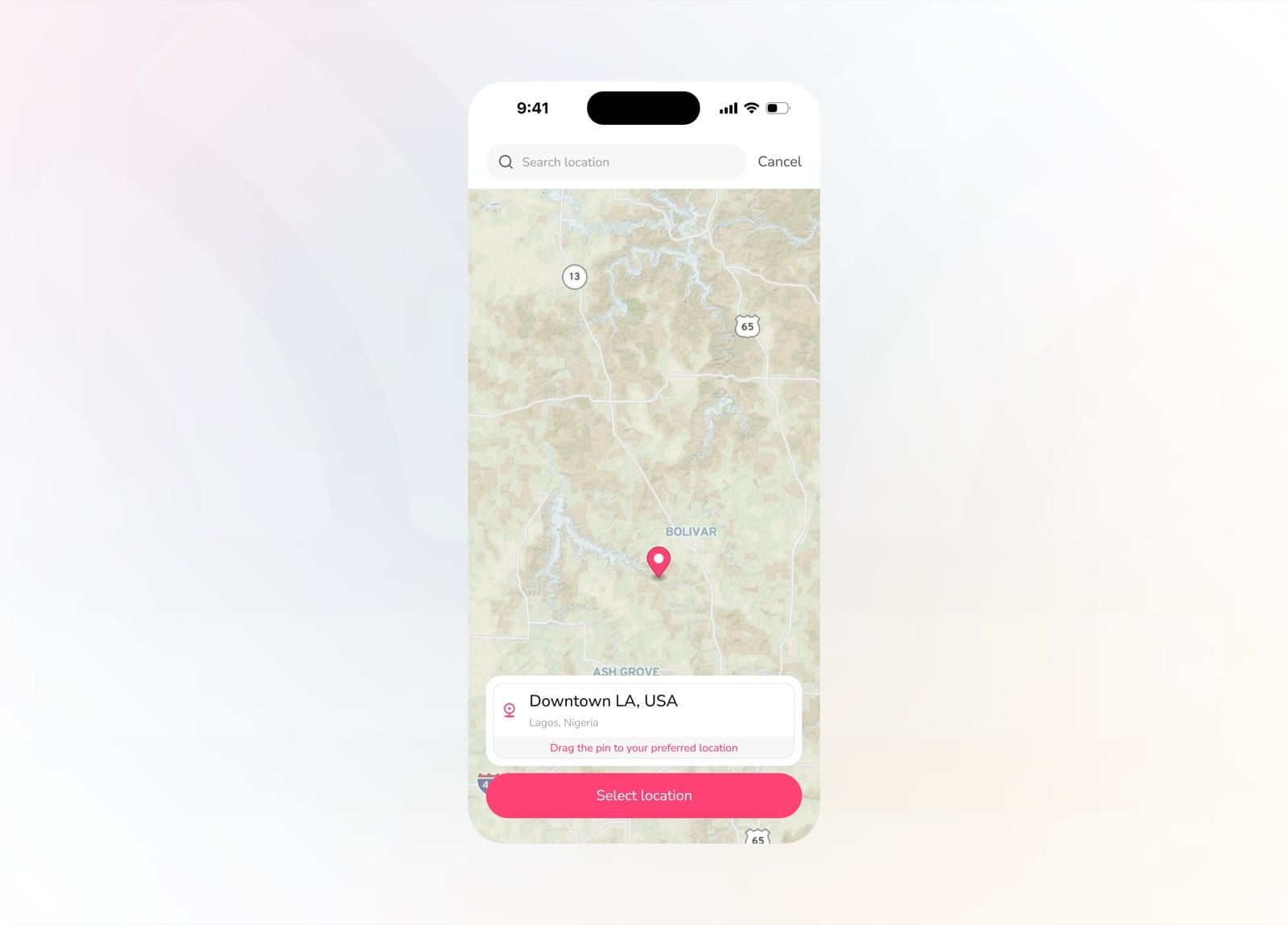
Drag the pin to the exact spot, then select it
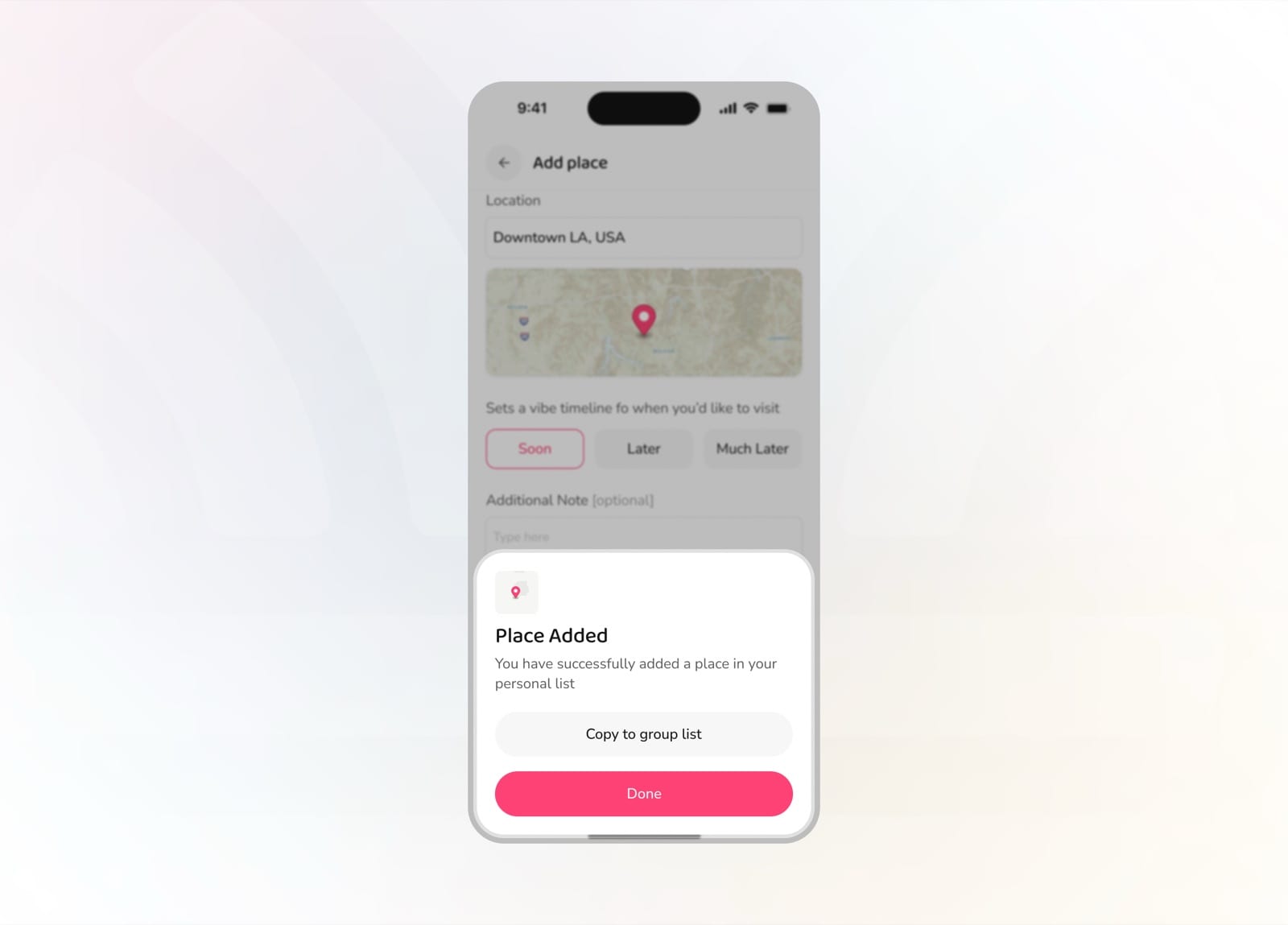
Place added, with the option to copy it to the group list
Smart Suggestion
Smart Suggestion is Knit's built-in assistant for deciding what to do. Tell it the vibe, answer a couple of quick questions, and it recommends places and activities near you, tailored to the group.
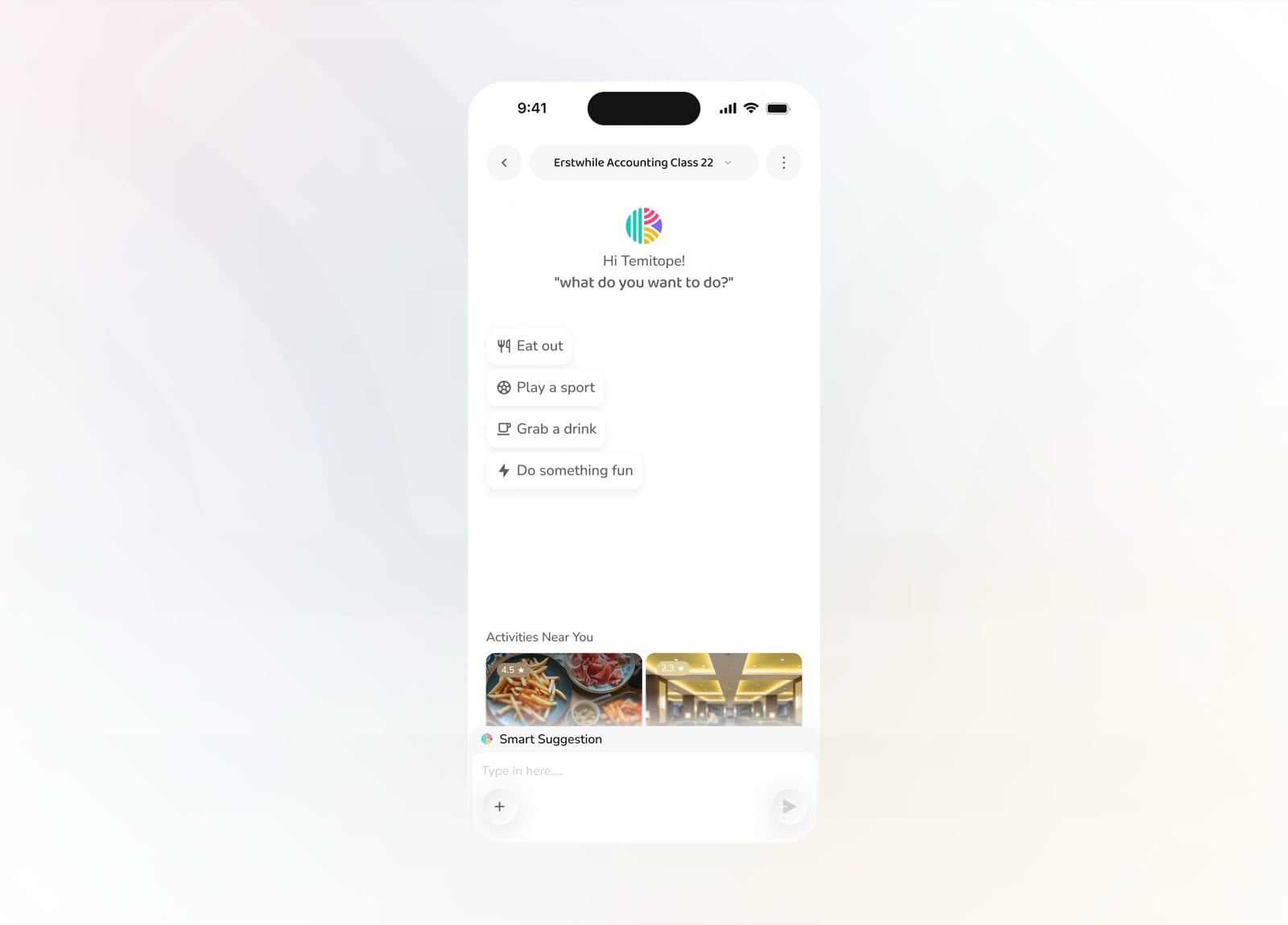
Start from a vibe or browse activities happening near you
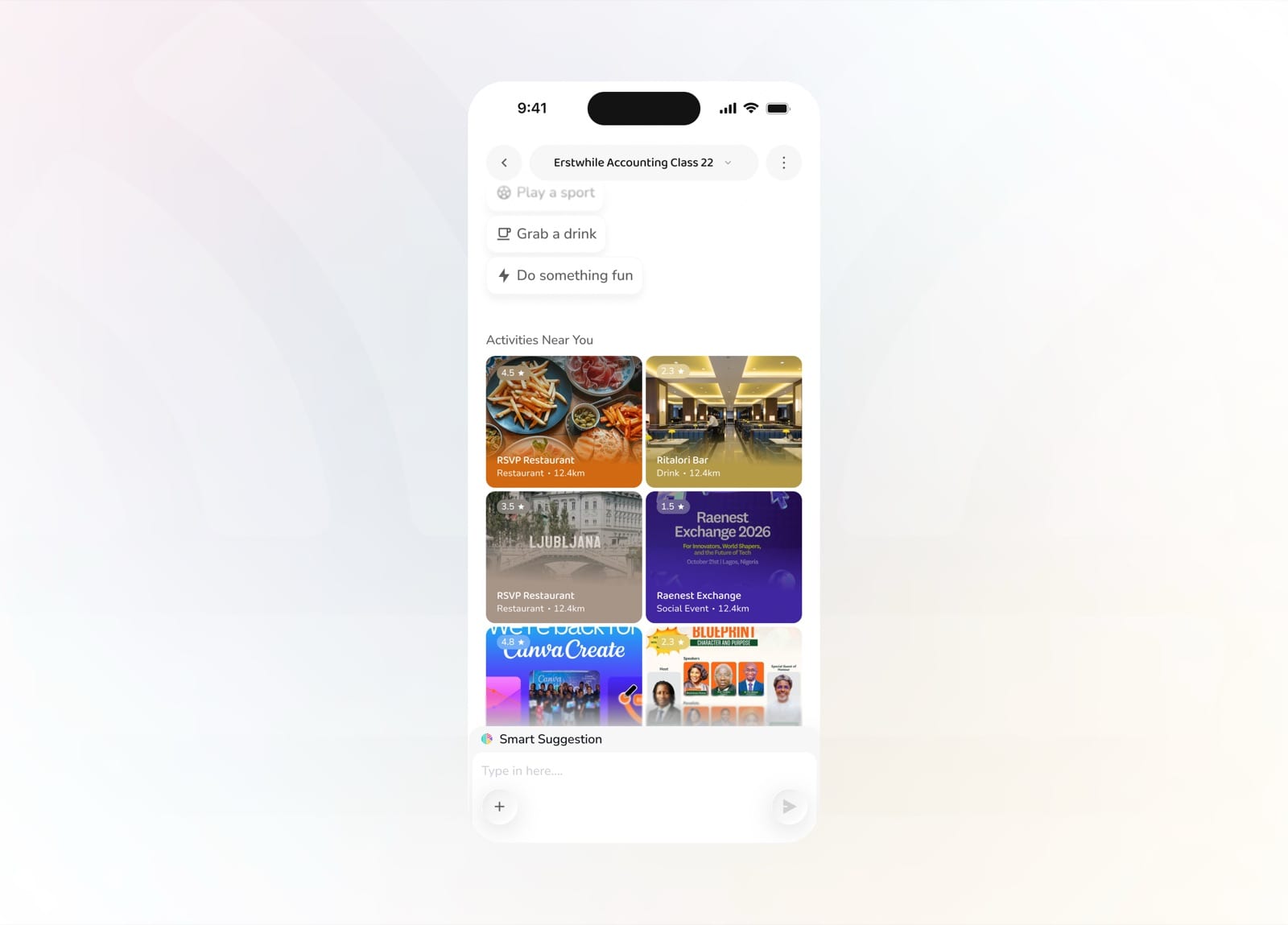
Scroll real activities and events around your location
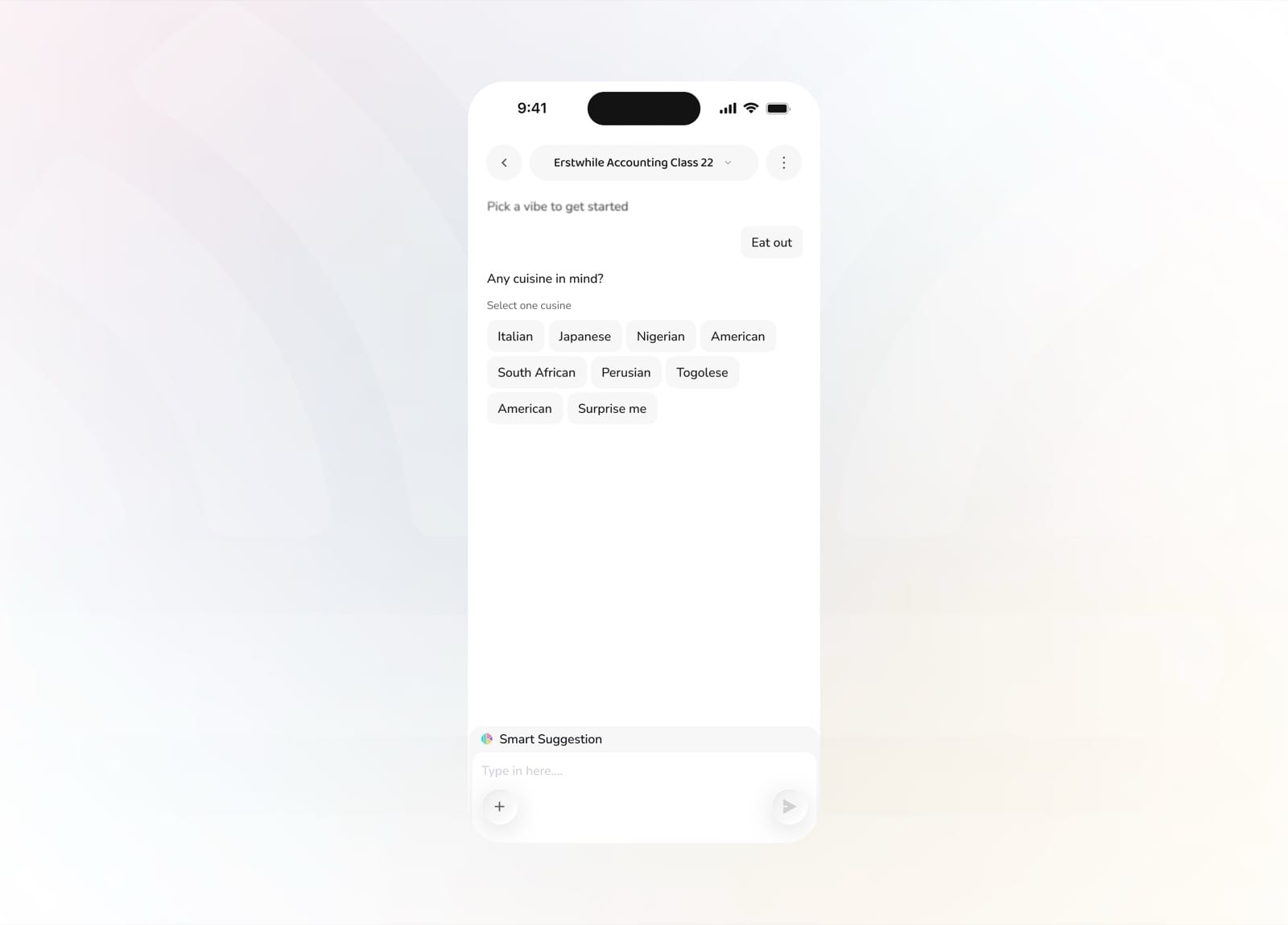
Pick a vibe, then narrow it down by cuisine
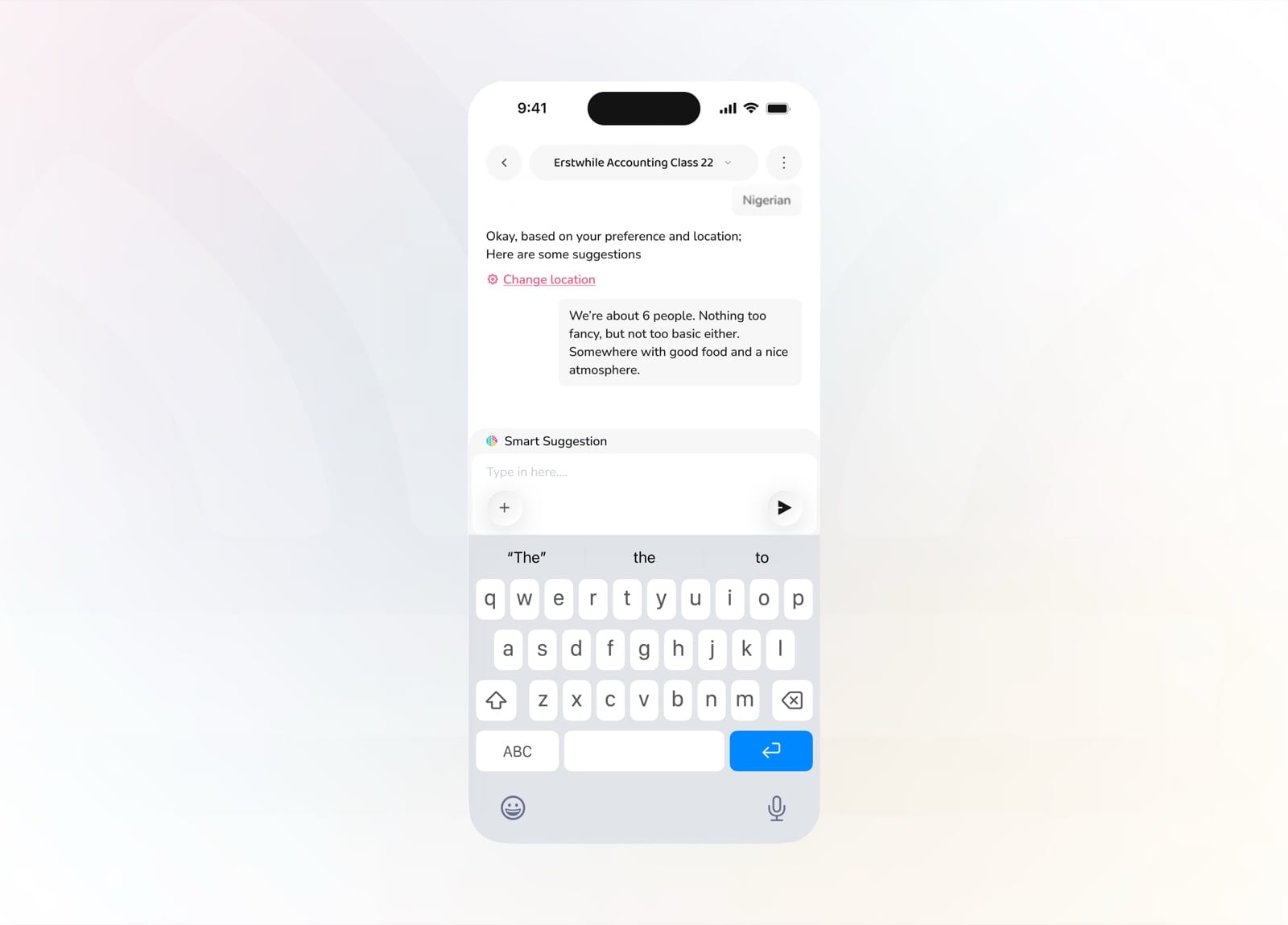
Chat naturally about group size, budget, and atmosphere
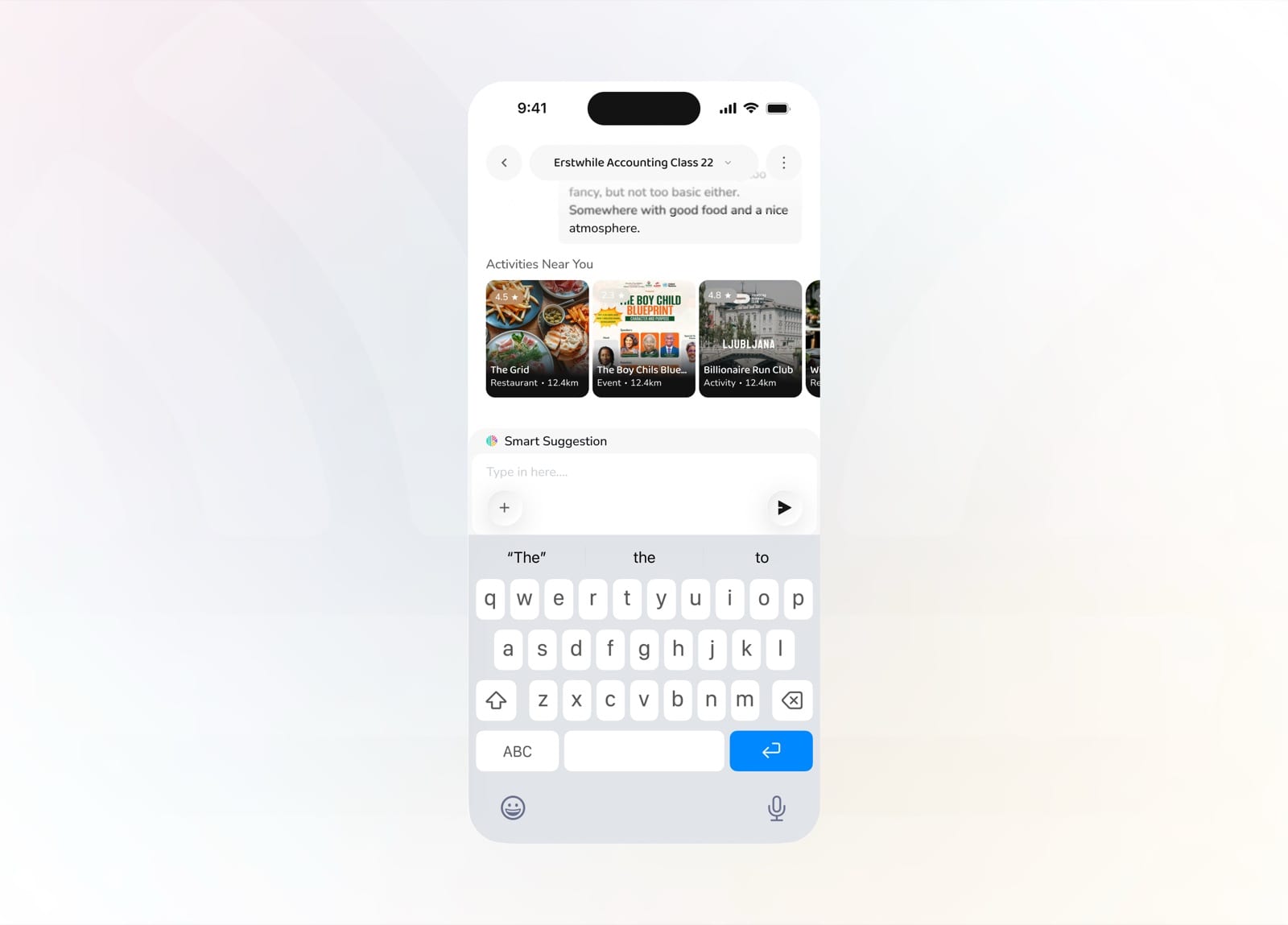
Get tailored suggestions matched to your preferences
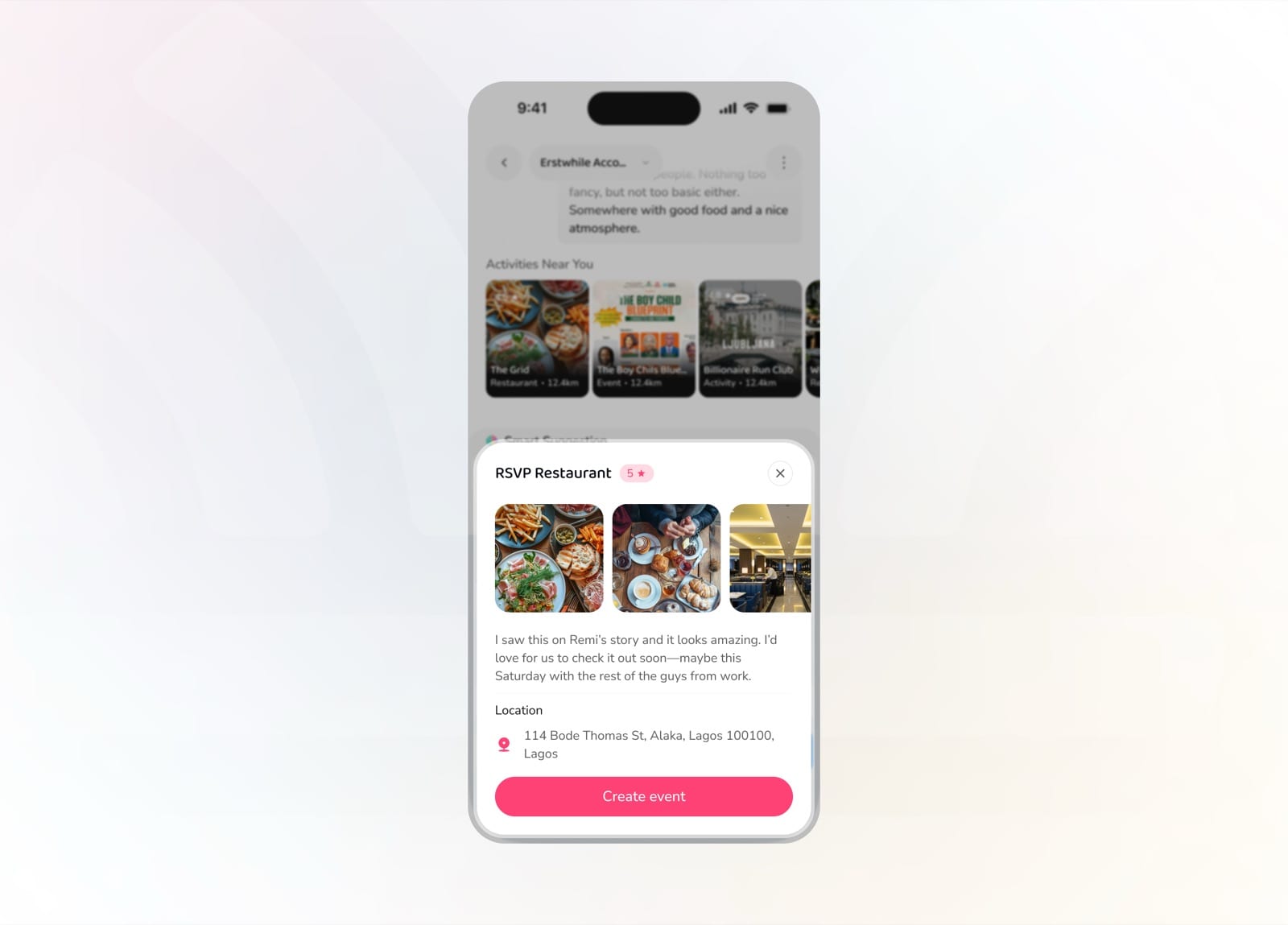
Open a suggestion to see photos, notes, and turn it into an event
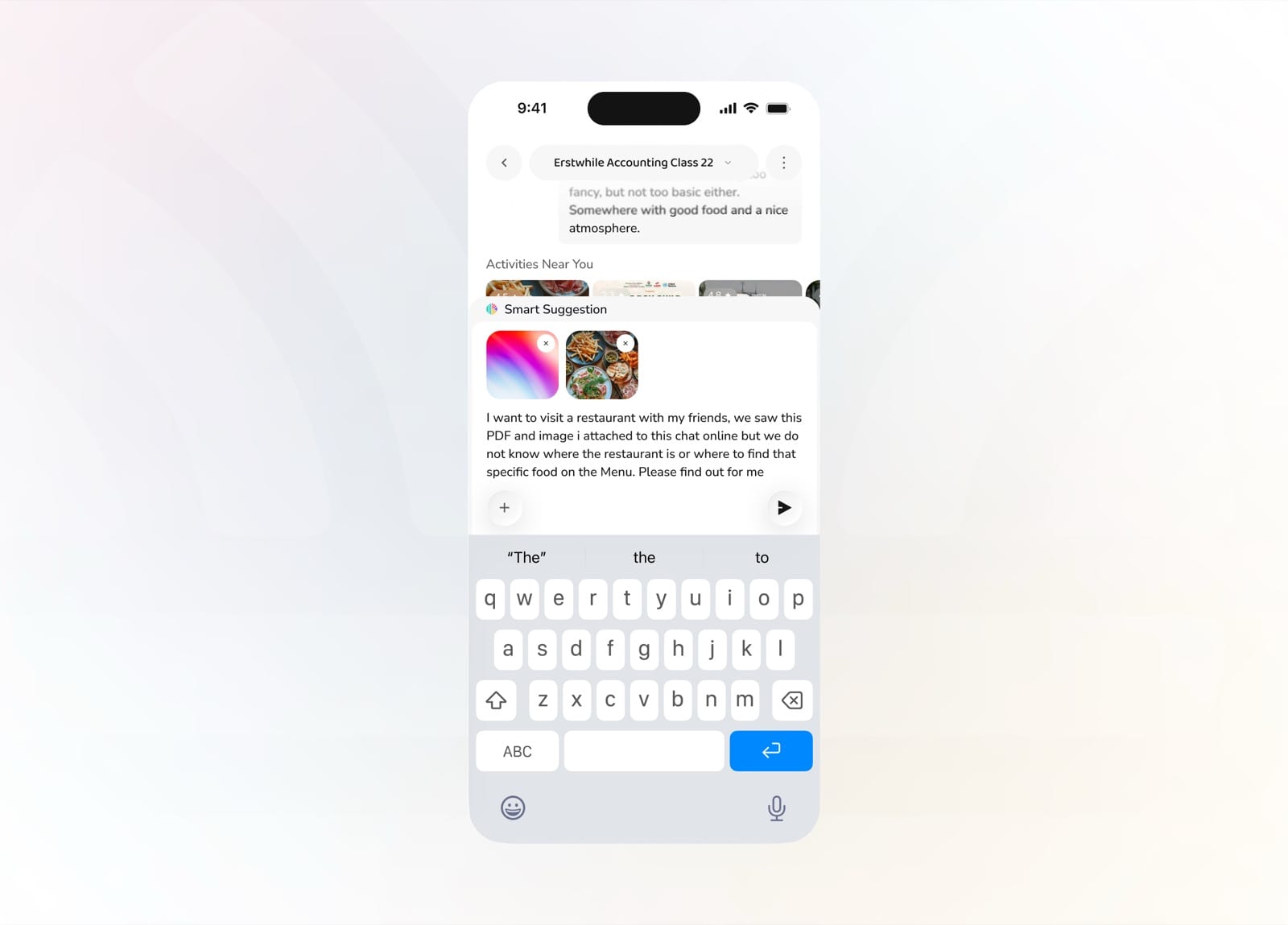
Attach a PDF or image and let Knit find the place for you
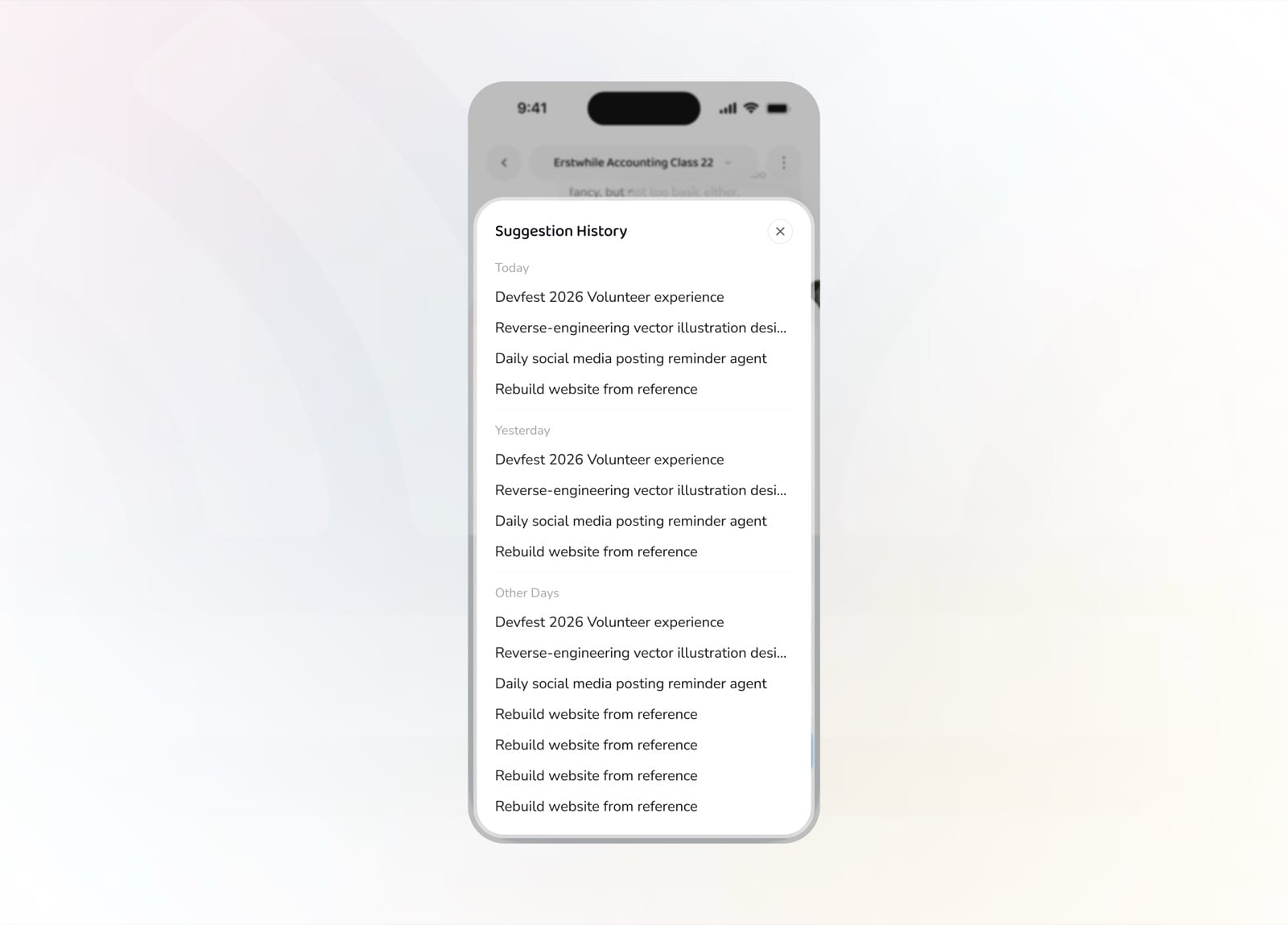
Revisit past recommendations from your suggestion history
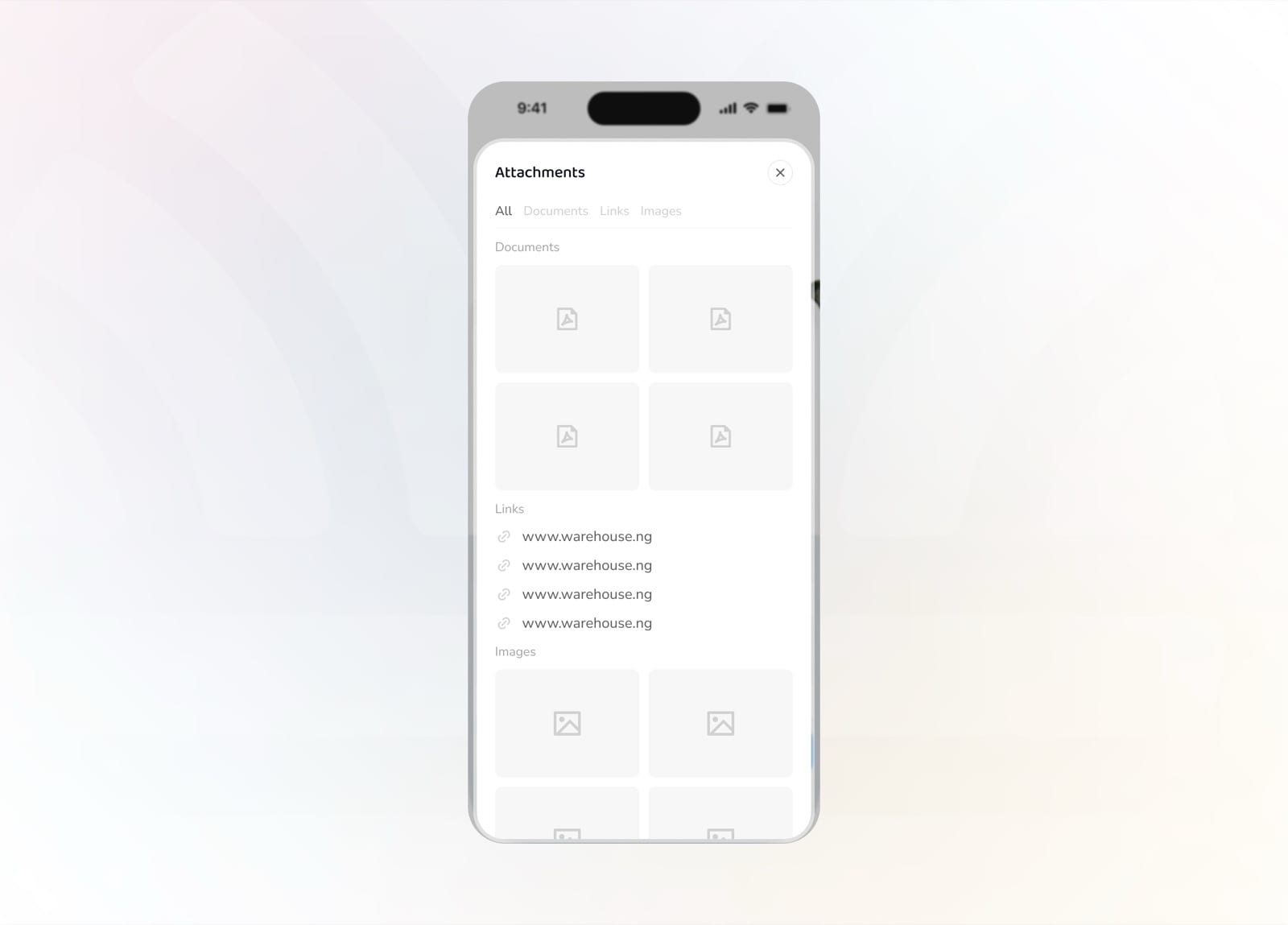
Browse all the documents, links, and images shared in the chat
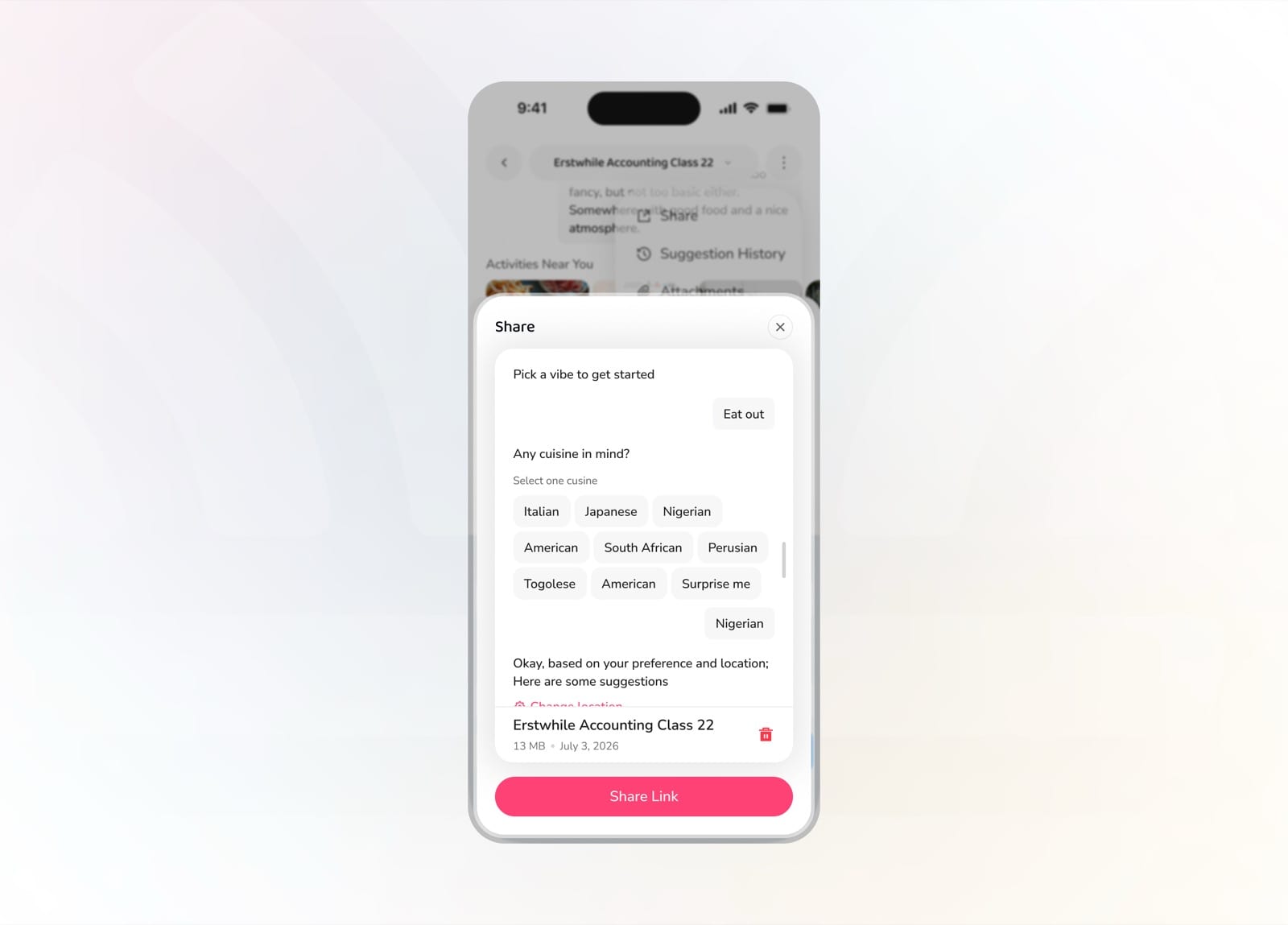
Share a suggestion thread with the rest of your Knit
Profile
The profile hub is home base for your account. See your Knit stats at a glance and manage your details, interests, notifications, and app preferences.
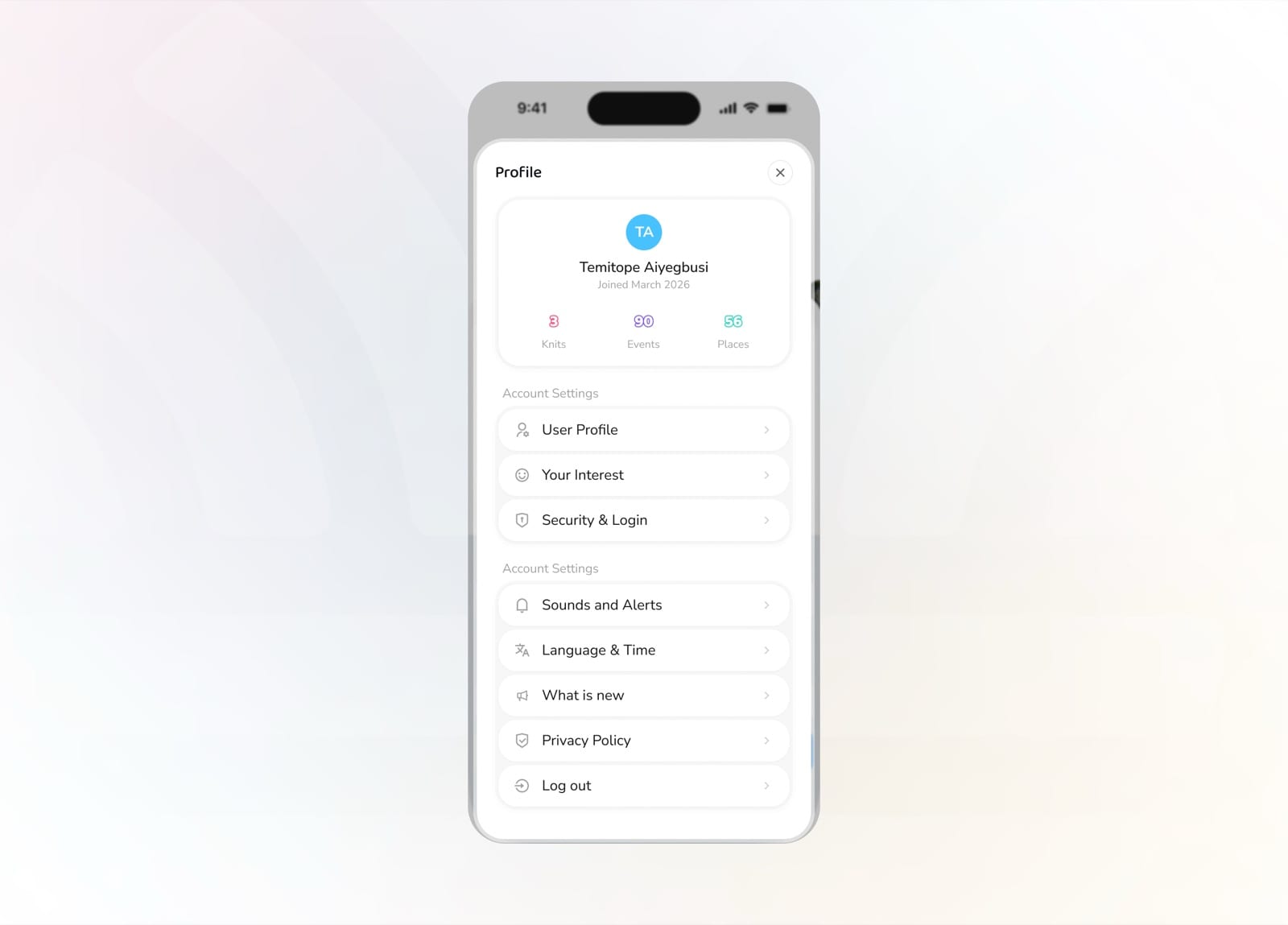
Your profile with Knits, events, and places stats plus settings
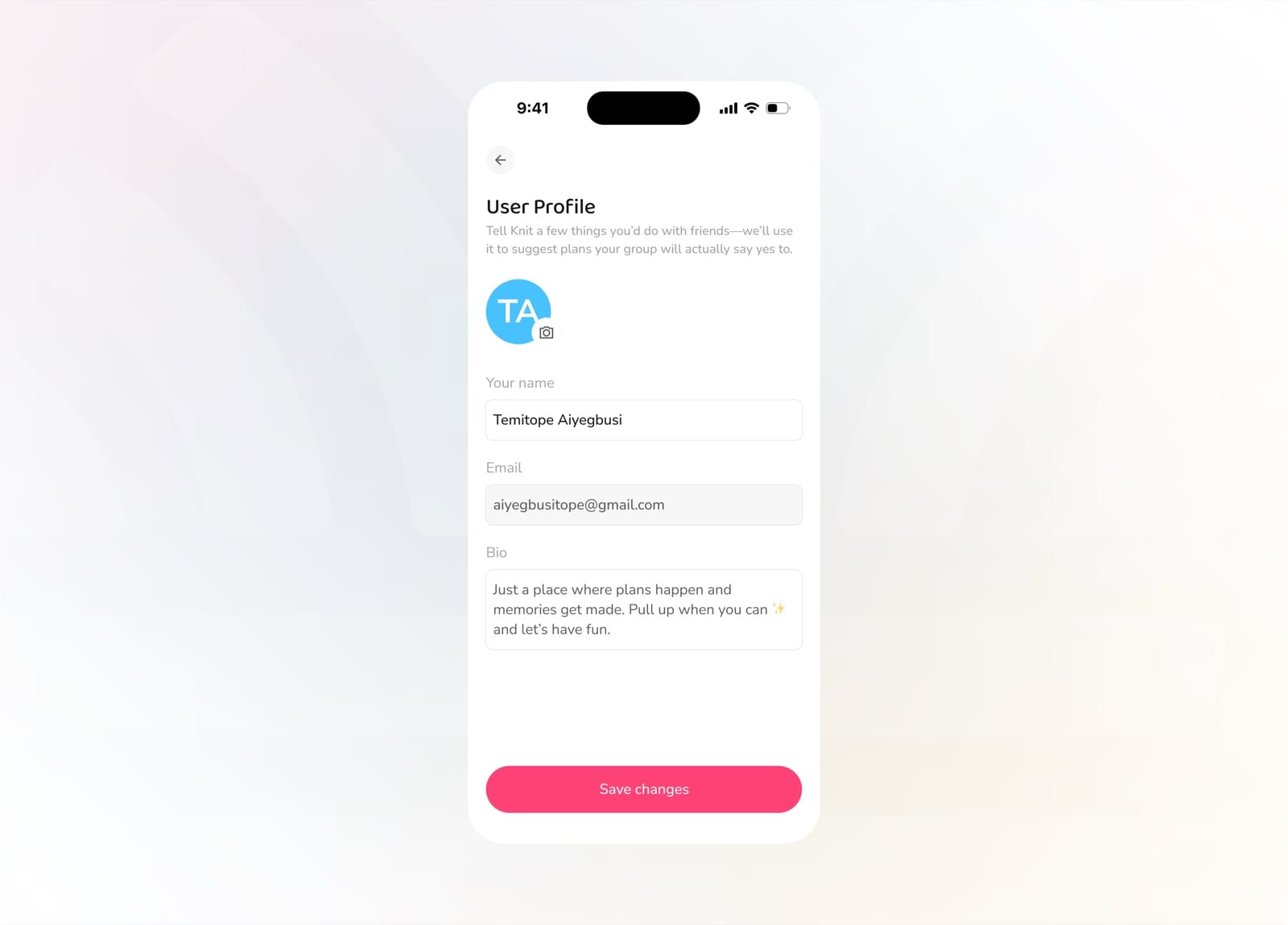
Edit your name, email, photo, and bio
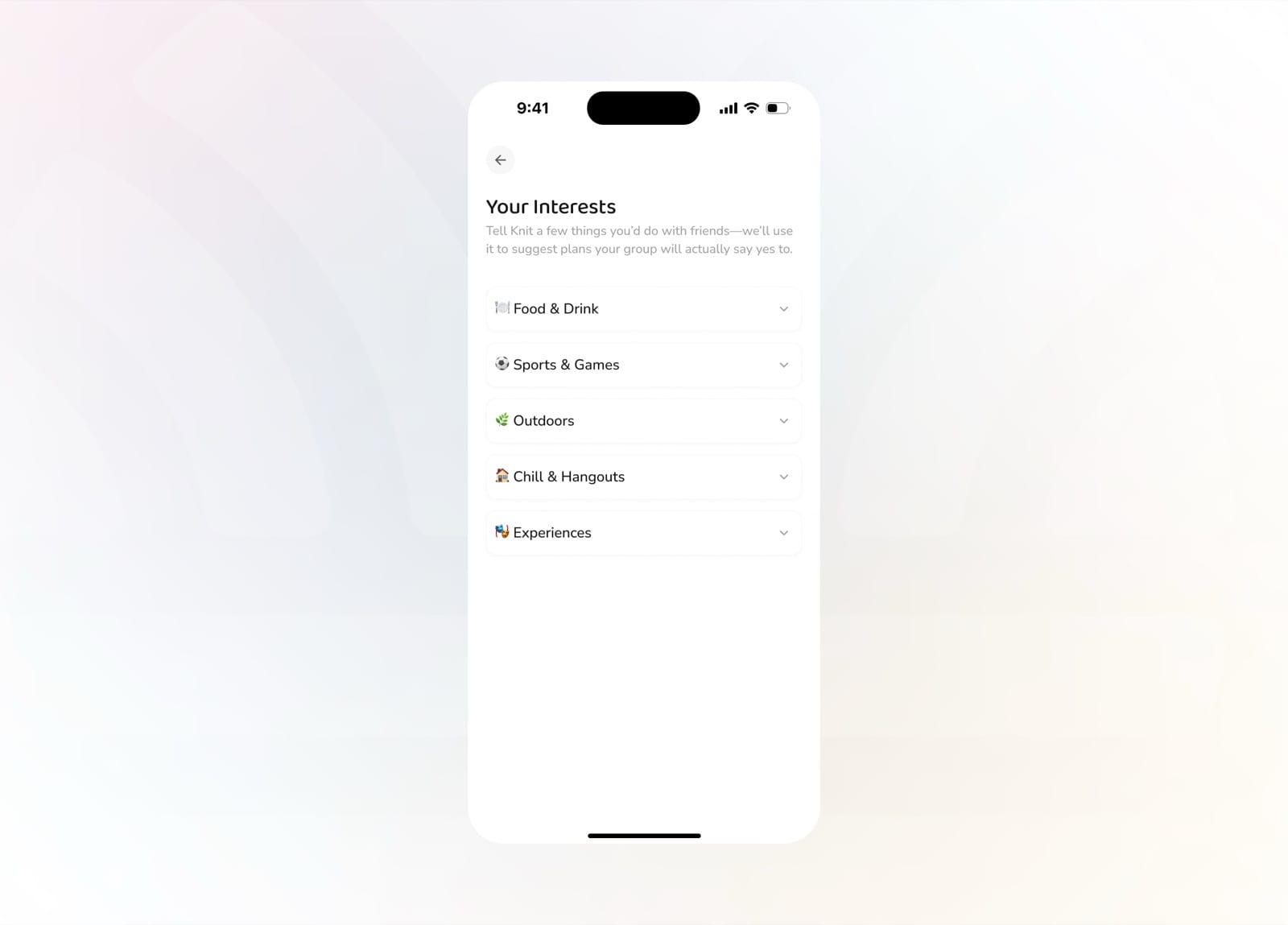
Choose the interest categories that shape your suggestions
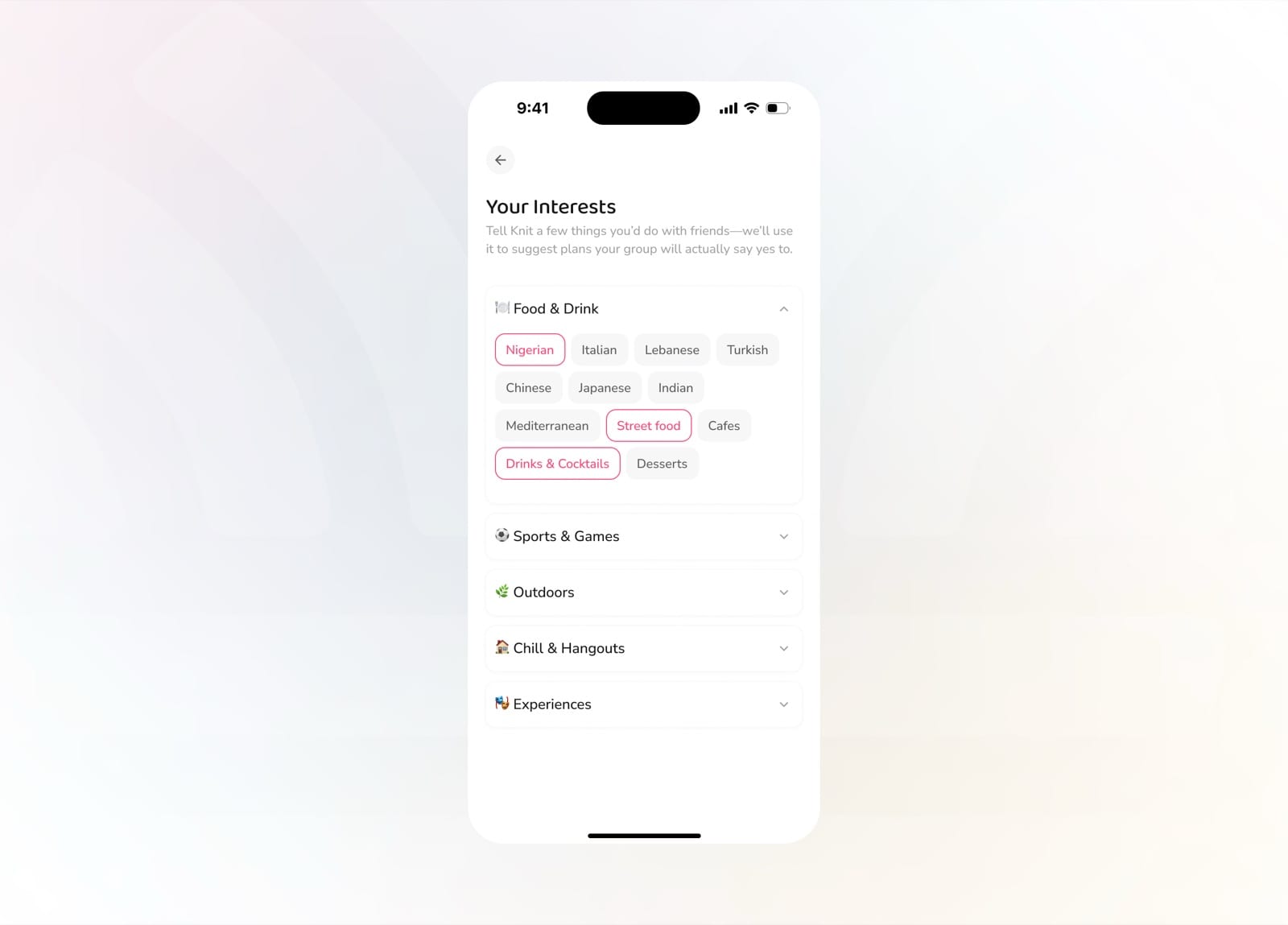
Drill into a category and pick the specifics you love
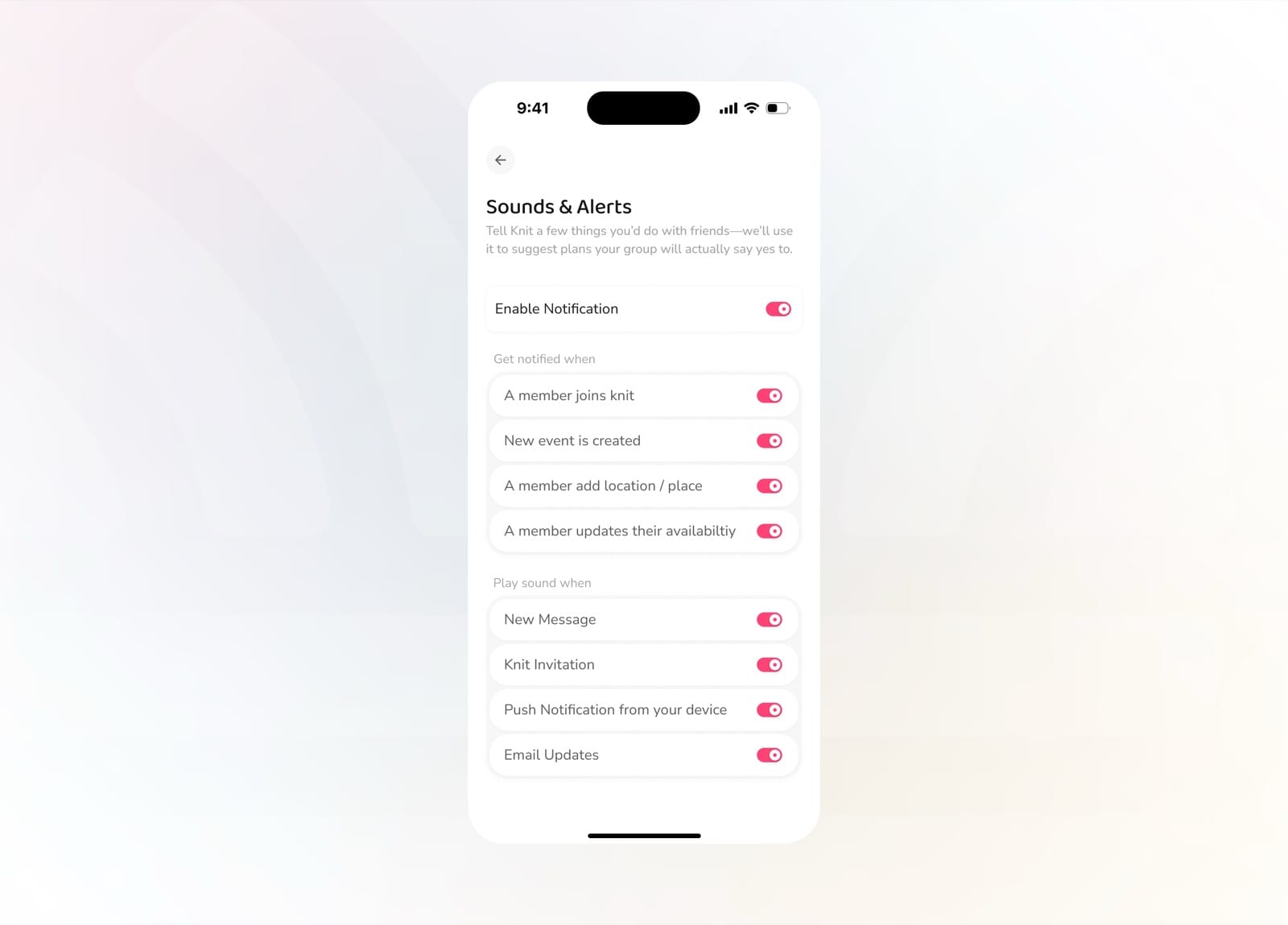
Fine-tune notifications and which sounds play
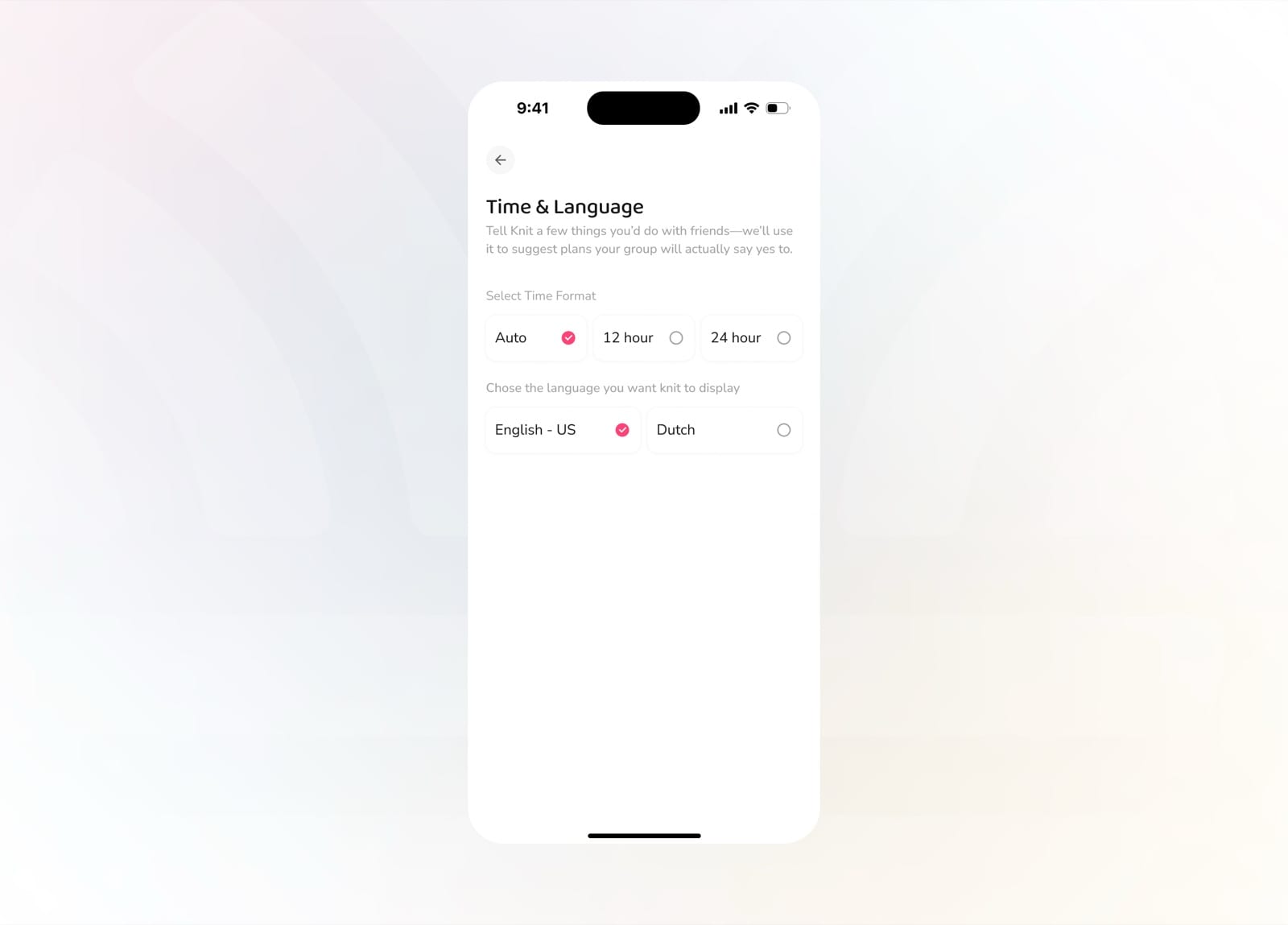
Set your time format and display language
Rethinking enterprise procurement and resource planning for mid-market companies across multiple industries